CBSE Class 6 > Class 6 Notes > Computer Science > Mind Map: Word Processing (MS Word)
Mind Map: Word Processing (MS Word)

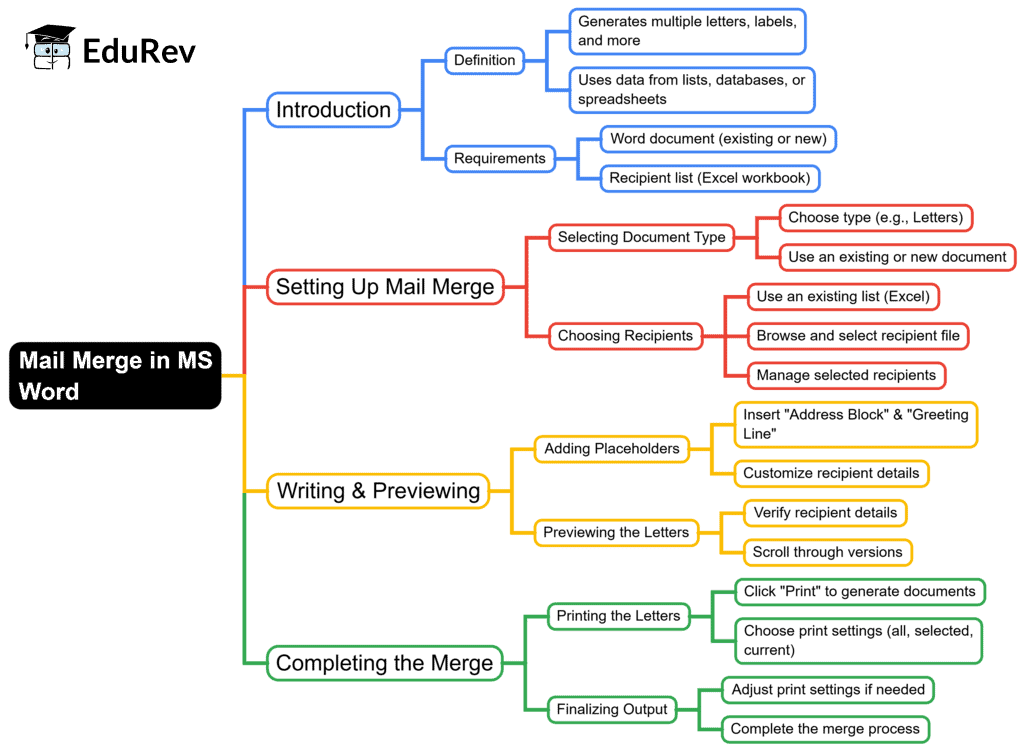
The document Mind Map: Word Processing (MS Word) is a part of the Class 6 Course Computer Science for Class 6.
All you need of Class 6 at this link: Class 6
FAQs on Mind Map: Word Processing (MS Word)
| 1. What is word processing in MS Word? |  |
Ans.Word processing in MS Word refers to the creation, editing, formatting, and printing of text documents. MS Word provides various tools and features to help users write and organize their content effectively, including spell check, text formatting options (like bold, italics, and underline), and the ability to insert images, tables, and other elements.
| 2. How can I create a new document in MS Word? | |
Ans.To create a new document in MS Word, open the program and click on "File" in the top menu. Then select "New." You can choose a blank document or select a template. After that, a new document will open where you can start typing your content.
| 3. What are some basic formatting options available in MS Word? | |
Ans.Basic formatting options in MS Word include changing the font type, size, and color, adjusting paragraph alignment (left, center, right, or justified), adding bullet points and numbering, and using styles to create headings and subheadings. These formatting tools help improve the readability and appearance of your document.
| 4. How do I save my document in MS Word? | |
Ans.To save your document in MS Word, click on "File" in the top menu, then select "Save As." Choose the location where you want to save the document, give it a name, and select the file format (usually .docx). Finally, click on the "Save" button to save your work.
| 5. Can I insert images and tables into my document in MS Word? | |
Ans.Yes, you can insert images and tables into your document in MS Word. To insert an image, click on "Insert" in the top menu and select "Pictures" to choose an image file from your computer. To insert a table, click on "Insert" and then select "Table" to choose the number of rows and columns you want. This allows you to enhance your document with visual elements and organize data effectively.
About this Document

4.88/5 Rating

Apr 19, 2026 Last updated
Document Description: Mind Map: Word Processing (MS Word) for Class 6 2026 is part of Computer Science for Class 6 preparation. The notes and questions for Mind Map: Word Processing (MS Word) have been prepared according to the Class 6 exam syllabus. Information about Mind Map: Word Processing (MS Word) covers topics like and Mind Map: Word Processing (MS Word) Example, for Class 6 2026 Exam. Find important definitions, questions, notes, meanings, examples, exercises and tests below for Mind Map: Word Processing (MS Word).
Introduction of Mind Map: Word Processing (MS Word) in English is available as part of our Computer Science for Class 6 for Class 6 & Mind Map: Word Processing (MS Word) in Hindi for Computer Science for Class 6 course. Download more important topics related with notes, lectures and mock test series for Class 6 Exam by signing up for free. Class 6: Mind Map: Word Processing (MS Word)
Description
Mind Map: Word Processing (MS Word) of Computer provides you one-page visual summary of the chapter covering all the important topics. Download the PDF from EduRev.
Information about Mind Map: Word Processing (MS Word)
In this doc you can find the meaning of Mind Map: Word Processing (MS Word) defined & explained in the simplest way possible. Besides explaining types of Mind Map: Word Processing (MS Word) theory, EduRev gives you an ample number of questions to practice Mind Map: Word Processing (MS Word) tests, examples and also practice Class 6 tests



Related Searches
pdf , shortcuts and tricks, past year papers, video lectures, study material, Semester Notes, Summary, Mind Map: Word Processing (MS Word), Viva Questions, Exam, Objective type Questions, practice quizzes, Mind Map: Word Processing (MS Word), Extra Questions, ppt, Sample Paper, Free, Previous Year Questions with Solutions, MCQs, Important questions, mock tests for examination, Mind Map: Word Processing (MS Word);