MS Word 2010 – Advanced Features

Formatting Documents
Formatting documents in MS Word 2010 involves adjusting the appearance of text, paragraphs, and pages to create professional-looking documents. Here are some key aspects of formatting in MS Word:
1. Text Formatting
Text formatting refers to adjusting the appearance of the text to enhance readability and presentation. MS Word allows users to change the font style, size, colour, and effects.
- Font Styles: Choose from various font types such as Arial, Times New Roman, or Calibri.
 Visual Styles
 - Font Size: Adjust the size of the text to make it larger or smaller depending on your document's needs.
- Text Colour: Apply colour to your text to highlight important sections or improve the visual appeal of the document.
- Bold, Italics, and Underlining: Use these styles to emphasize certain words or phrases.
2. Paragraph Formatting
MS Word provides several tools for formatting paragraphs, including alignment, indentation, line spacing, and paragraph spacing.
- Text Alignment: Align text to the left, center, right, or justify it for a clean look.
- Indentation: Adjust the indentation of paragraphs to create more structured documents.
- Line Spacing: Adjust the space between lines in a paragraph for better readability.
- Paragraph Spacing: Add space before or after paragraphs for visual clarity.
3. Page Formatting
Page formatting includes changing page margins, orientation, and size:
- Margins: Set custom margins or use preset options like normal, wide, or narrow.
- Orientation: Switch between portrait or landscape orientation based on your document type.
- Page Size: Choose from various page sizes such as A4, Letter, or custom dimensions.
Inserting Tables, Charts, and Images
MS Word makes it easy to insert and manipulate different types of content such as tables, charts, and images to enhance the visual appeal of your document.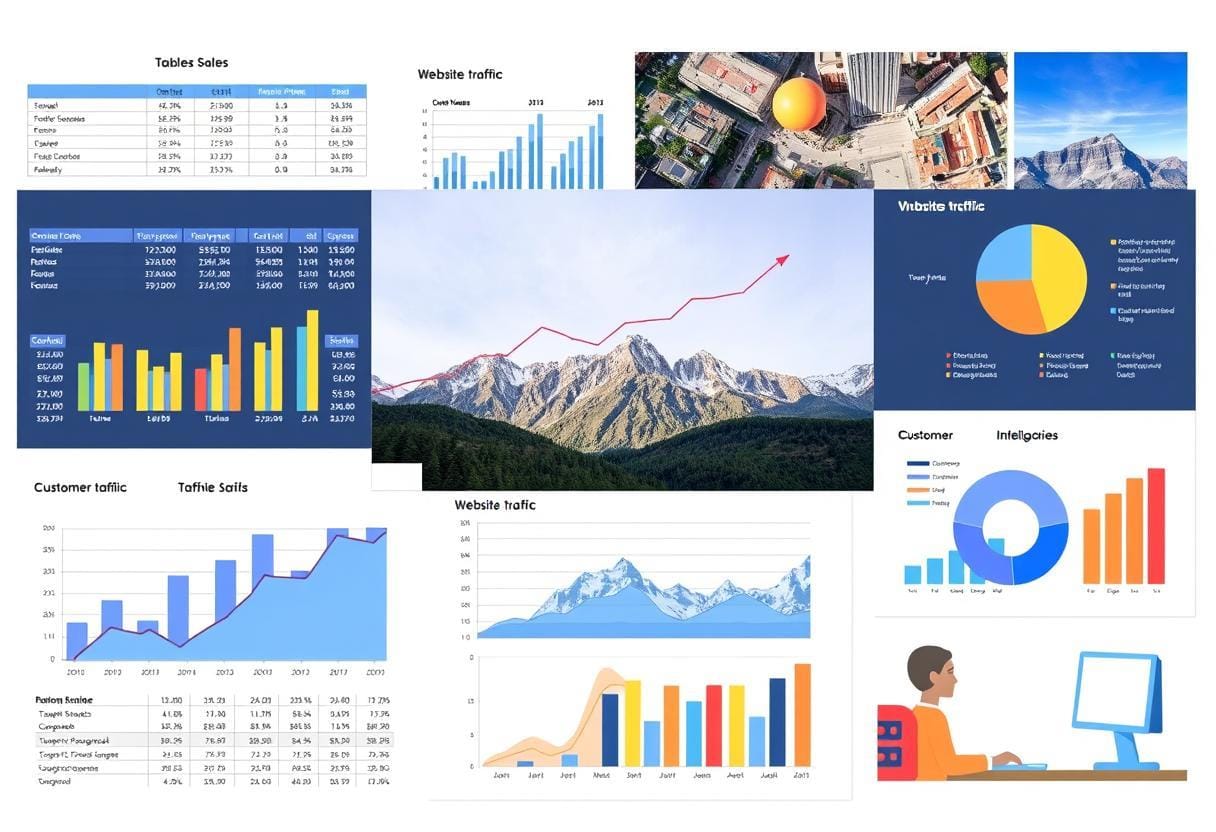 Visual Data Presentation
1. Inserting Tables
Tables allow you to organize data in rows and columns. You can insert tables in MS Word by choosing the number of rows and columns needed or using the Insert Table button.
- Table Design: Use pre-designed table styles or customize the table's appearance.
- Table Tools: Apply features like merging cells, adjusting cell size, and formatting the borders of the table.
2. Inserting Charts
Charts are used to visually represent data in a graphical format. MS Word allows you to insert different types of charts such as bar, line, or pie charts to display your data clearly.
- Insert Chart: Choose from various chart types and input your data into the spreadsheet that appears in Word.
- Chart Tools: Customize the chart by changing its style, colours, or layout.
3. Inserting Images
Inserting images in MS Word allows you to make your document more engaging. You can insert pictures from your computer or online sources.
- Insert Picture: Choose an image from your computer or search online for relevant images.
- Image Formatting: Adjust the size, alignment, and text wrapping around the image to suit your document layout.
- Picture Tools: Use built-in tools to add artistic effects, crop, or apply a border to the image.
Working with Headers and Footers
Headers and footers are useful for adding consistent information across all pages of your document, such as page numbers, titles, and dates.
1. Inserting Headers and Footers
You can easily add headers and footers by using the Insert tab in MS Word:
- Header: Place information like the document title, chapter names, or author name at the top of the page.
- Footer: Place information such as page numbers, footnotes, or copyright information at the bottom of the page.
2. Customizing Headers and Footers
MS Word allows you to create different headers and footers for odd and even pages, as well as the first page of the document. This is particularly useful for documents that require professional formatting, like reports and books.
- Page Numbers: Insert automatic page numbers that will update as the document changes.
- Different First Page: Use this option to add a unique header or footer on the first page of the document.
Using Advanced Text Formatting Options
MS Word provides a variety of advanced text formatting options that enhance the style and structure of your document. Editing Tools
1. Styles
Styles in MS Word allow you to apply a predefined set of formatting options (font, size, colour, etc.) to headings, subheadings, and other sections of your document.
- Quick Styles: Choose from built-in style sets that can be applied to headings, paragraphs, and other elements.
- Modify Styles: Customize the appearance of styles to match your specific document requirements.
2. Text Effects
MS Word also allows you to apply various text effects such as shadow, reflection, glow, and 3D effects to make text stand out.
- Text Shadow: Add a shadow effect to your text to enhance its visibility.
- Text Glow: Apply a glow effect to the text to make it more prominent.
3. Paragraph Shading and Borders
Apply shading and borders to paragraphs for emphasis and to create visually appealing sections in your document.
- Shading: Add a background colour to a paragraph to make it stand out.
- Borders: Add borders around paragraphs or sections to organize content clearly.
Review Tools in MS Word (Spelling, Grammar, Track Changes)
MS Word includes powerful review tools that help improve the quality of your document by checking spelling, grammar, and allowing others to track changes.
1. Spelling and Grammar Check
MS Word automatically checks for spelling and grammar mistakes while you type. It underlines errors with a red or green wavy line. You can right-click on the error to see suggested corrections and select the correct one.
- Spelling and Grammar Tool: Use this tool to check the entire document for errors.
- Custom Dictionaries: Add custom words to Word's dictionary to avoid false errors.
2. Track Changes
The Track Changes feature is used to make changes to a document that are visible to others. This is especially useful in collaborative work where multiple people are editing the same document.
- Accept or Reject Changes: Review changes made to the document and choose whether to accept or reject them.
- Comments: Add comments to provide feedback or suggestions without modifying the content directly.
3. Compare Documents
The Compare feature allows you to compare two versions of a document and see the differences between them. This is helpful when reviewing revisions or collaborating on a project with multiple contributors.
- Compare and Combine: Use these options to compare documents and combine revisions into a single version.
FAQs on MS Word 2010 – Advanced Features
| 1. What is programming and why is it important for Year 6 students to learn it? |  |
| 2. What programming languages are suitable for Year 6 students? | |
| 3. How can I start learning programming as a Year 6 student? | |
| 4. What are some fun projects that Year 6 students can create using programming? | |
| 5. How can programming help with subjects other than technology? | |

