ICSE Class 2 > Class 2 Notes > Computer Studies > Chapter Notes: File Management: An Introduction
Chapter Notes: File Management: An Introduction


Introduction
Your mother often asks you to keep your things organized because it makes them easier to find later, helping you work more efficiently. Organizing belongings in designated storage places is key to this. In daily life, we use various storage solutions:
- An almirah for storing clothes and other items.
- A school bag for holding books, a pencil box, and a lunch box.
- A refrigerator for keeping food items fresh.
Similarly, important papers are stored in files for easy access. On a computer, we can also save information as files for organized storage.
File
- A file is a collection of related information stored on a computer or storage devices like a hard disk, CD, DVD, or pen drive.
- Saving information in files helps us access it whenever needed.
- Files can be saved with different names for easy identification.
Creating a File
Open the Paint program to create a file.
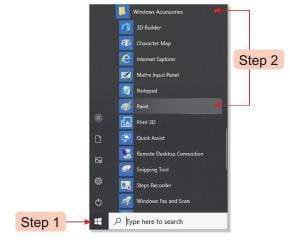
Steps to create a file in Paint:
- Click the Start button.
- Go to Windows Accessories and select Paint.
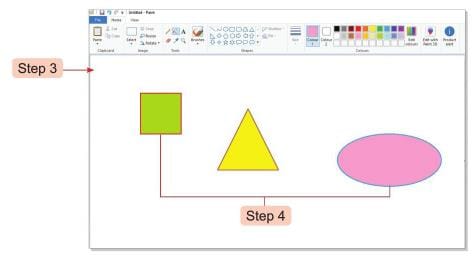
- A new Paint window will open.
- Draw a shape of your choice and color it.
- The work you create becomes a new file.
Saving a File
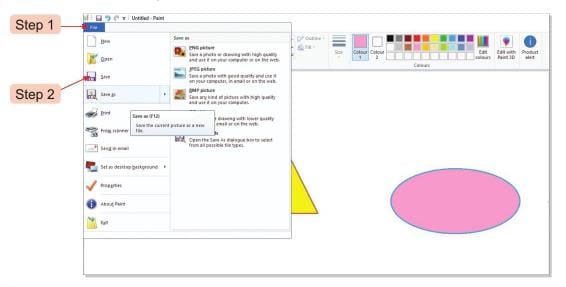
Steps to save a file:
- Click the File tab.
- Choose the Save option from the menu.
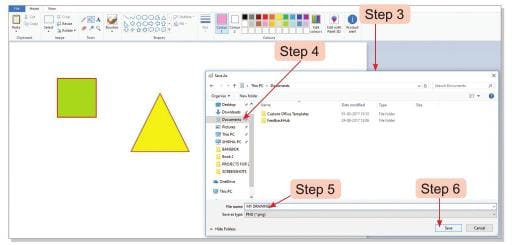
- A Save As window will appear.
- Select the location where you want to save the file.
- Enter the file name in the File name box.
- Click the Save button.
- The file will be saved in the chosen location.
Opening a File
Steps to open a saved file:
- Click the File tab and select the Open option.
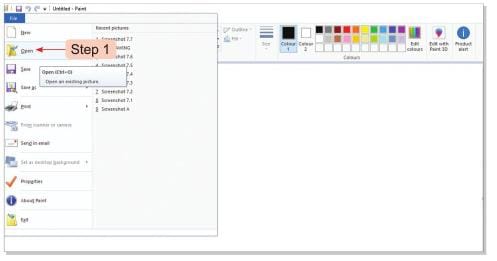
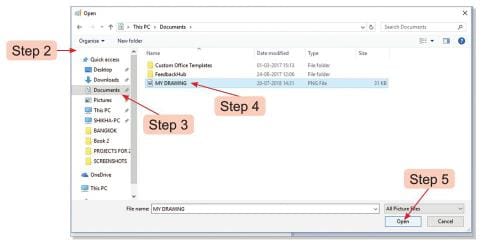
- An Open window will appear.
- Choose the location where the file is saved.
- Select the file name from the list.
- Click the Open button to view the file.
File Management
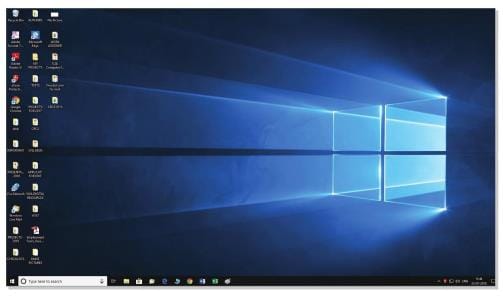
- File management is the process of arranging files on a computer's desktop screen.
- Proper arrangement helps locate files easily when needed.
- Many files on the desktop can make it hard to find specific ones, so organizing them is important.
Tech Terms
File management: The process of arranging files on a desktop screen.
Quick Recall
- Belongings are stored in places called storage places.
- Information can be saved on a computer in the form of a file.
- Files can be created, saved, and opened.
- Arranging files properly helps in finding them easily.
The document Chapter Notes: File Management: An Introduction is a part of the Class 2 Course Computer Studies Class 2 ICSE.
All you need of Class 2 at this link: Class 2
FAQs on Chapter Notes: File Management: An Introduction
| 1. What is a file in computing? |  |
Ans. A file in computing is a collection of data or information that is stored on a computer or digital device. It can contain various types of content, such as text, images, audio, or video. Files are used to organize and manage data, allowing users to access and manipulate the information they contain.
| 2. How do you create a file? | |
Ans. To create a file, you can use a software application that supports the type of file you want to create. For example, to create a text file, you can open a text editor, choose "New" from the file menu, and then save the document with a specific name and file extension, such as ".txt". You can also create files using command line commands, depending on the operating system.
| 3. What steps are involved in saving a file? | |
Ans. To save a file, follow these steps: First, ensure that you have made the necessary changes or additions to your work. Then, click on the "File" menu and select "Save" or "Save As." If you choose "Save As," you will need to name the file and select a location on your device where you want to store it. Finally, click "Save" to complete the process.
| 4. How can I open a file on my computer? | |
Ans. To open a file on your computer, locate the file in your file manager or desktop. Double-click the file icon, and it will open in the default application associated with that file type. Alternatively, you can right-click the file, select "Open with," and choose a specific application if you want to use a different program.
| 5. What is file management, and why is it important? | |
Ans. File management refers to the process of organizing, storing, and maintaining files on a computer or digital device. It is important because it helps users find and access their data efficiently, prevents data loss, and ensures that files are backed up and secure. Good file management practices contribute to better productivity and data organization.
About this Document

4.70/5 Rating

Apr 19, 2026 Last updated
Related Exams
Document Description: Chapter Notes: File Management: An Introduction for Class 2 2026 is part of Computer Studies Class 2 ICSE preparation. The notes and questions for Chapter Notes: File Management: An Introduction have been prepared according to the Class 2 exam syllabus. Information about Chapter Notes: File Management: An Introduction covers topics like and Chapter Notes: File Management: An Introduction Example, for Class 2 2026 Exam. Find important definitions, questions, notes, meanings, examples, exercises and tests below for Chapter Notes: File Management: An Introduction.
Introduction of Chapter Notes: File Management: An Introduction in English is available as part of our Computer Studies Class 2 ICSE for Class 2 & Chapter Notes: File Management: An Introduction in Hindi for Computer Studies Class 2 ICSE course. Download more important topics related with notes, lectures and mock test series for Class 2 Exam by signing up for free. Class 2: Chapter Notes: File Management: An Introduction
Description
Chapter Notes: File Management: An Introduction of Computer Studies Class 2 ICSE with clear explanations of key concepts & important topics of the chapter, to help you underst& lessons better & revise quickly, & crack the Class 2 exam.
Information about Chapter Notes: File Management: An Introduction
In this doc you can find the meaning of Chapter Notes: File Management: An Introduction defined & explained in the simplest way possible. Besides explaining types of Chapter Notes: File Management: An Introduction theory, EduRev gives you an ample number of questions to practice Chapter Notes: File Management: An Introduction tests, examples and also practice Class 2 tests



Related Searches
shortcuts and tricks, Chapter Notes: File Management: An Introduction, MCQs, practice quizzes, Objective type Questions, Sample Paper, Chapter Notes: File Management: An Introduction, past year papers, study material, Previous Year Questions with Solutions, Exam, Summary, ppt, pdf , Important questions, Extra Questions, video lectures, Viva Questions, Semester Notes, mock tests for examination, Free, Chapter Notes: File Management: An Introduction;