Android Devices, Android Versions and App Ecosystem


Android is a widely-used mobile operating system developed by Google. It powers smartphones, tablets, smartwatches, and many other devices. Understanding Android devices, their versions, and the app ecosystem is essential for anyone starting with app development. This knowledge forms the foundation for creating apps that work across different devices and Android versions.
1. Android Operating System (OS)
1.1 What is Android?
- Android is a free and open-source mobile operating system based on the Linux kernel.
- Google acquired Android Inc. in 2005 and released the first commercial Android version in 2008.
- It is the world's most widely used mobile OS, powering over 70% of mobile devices globally.
- Open-source nature means manufacturers can customize Android for their devices without licensing fees.
1.2 Key Features of Android OS
- Open Source: Developers can access and modify the Android source code freely through the Android Open Source Project (AOSP).
- Customizable Interface: Users can personalize home screens, widgets, and launchers according to their preferences.
- Multi-tasking: Android allows multiple applications to run simultaneously in the background.
- Google Integration: Built-in support for Google services like Gmail, Google Maps, Google Drive, and Google Assistant.
- Large App Ecosystem: Access to millions of apps through the Google Play Store.
2. Android Devices
2.1 Types of Android Devices
- Smartphones: The most common Android devices used for communication, internet browsing, gaming, and apps. Examples: Samsung Galaxy series, OnePlus phones, Xiaomi Redmi series.
- Tablets: Larger screen devices suitable for reading, watching videos, and productivity. Examples: Samsung Galaxy Tab, Lenovo Tab.
- Smartwatches: Wearable devices that run Wear OS by Google (formerly Android Wear). Used for fitness tracking, notifications, and quick tasks.
- Smart TVs: Television sets running Android TV for streaming content and apps.
2.2 Android Device Manufacturers
- Samsung: World's largest Android smartphone manufacturer with Galaxy series.
- Xiaomi: Popular for budget and mid-range devices with MIUI custom interface.
- OnePlus: Known for performance-oriented devices with OxygenOS interface.
- Oppo and Vivo: Manufacturers focusing on camera features and design with ColorOS and FuntouchOS respectively.
- Google Pixel: Google's own smartphone line running stock Android (pure Android without manufacturer customization).
2.3 Device Specifications Important for App Development
- Screen Size and Resolution: Measured in inches (diagonal) and pixels. Common resolutions include HD (1280×720), Full HD (1920×1080), and QHD (2560×1440). Apps must adapt to different screen sizes.
- RAM (Random Access Memory): Determines how many apps can run smoothly. Ranges from 2GB to 12GB or more in modern devices.
- Storage: Internal memory for storing apps and data. Ranges from 16GB to 512GB or higher.
- Processor: The CPU that executes app instructions. Examples: Qualcomm Snapdragon, MediaTek, Samsung Exynos.
- Android Version: The OS version determines which features and APIs are available to app developers.
3. Android Versions
3.1 Android Version Naming System
- Android versions were traditionally named after desserts in alphabetical order until Android 9.
- From Android 10 onwards, Google switched to simple numerical naming (Android 10, 11, 12, etc.).
- Each version has an API Level (Application Programming Interface Level) that developers use to specify compatibility.
- Each version is also assigned an internal codename for development purposes.
3.2 Major Android Versions (Exam-Relevant)
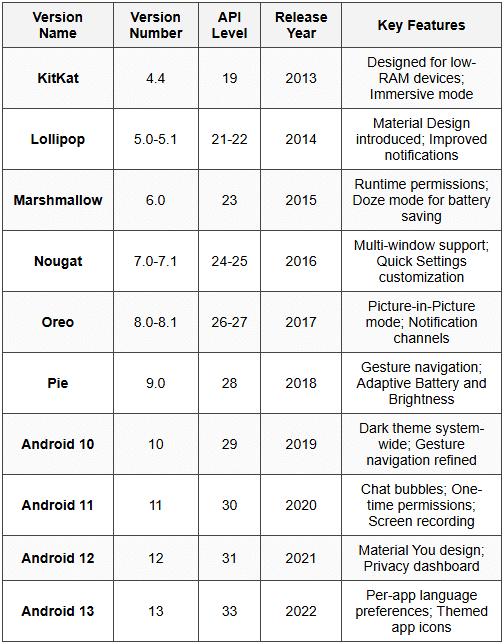
3.3 Importance of Android Versions for Developers
- Backward Compatibility: Apps must work on older Android versions to reach maximum users. Developers specify minimum SDK version (lowest Android version supported).
- Target SDK Version: The Android version the app is optimized for. Google requires apps to target recent API levels for Play Store submission.
- New Features: Each Android version introduces new APIs and features. Developers must check version compatibility before using new features.
- Fragmentation Challenge: Different devices run different Android versions. Developers must test apps across multiple versions.
3.4 Checking Android Version on Device
- Open Settings app on the Android device.
- Scroll down and tap on About Phone or About Device.
- Look for Android Version - this shows the current OS version (e.g., Android 12).
- Some devices also show the API Level and Security Patch Level.
4. Android App Ecosystem
4.1 What is App Ecosystem?
- The app ecosystem refers to the complete environment where apps are developed, distributed, installed, and used.
- It includes developers, app stores, users, tools, and guidelines that make the app environment functional.
- Android's open ecosystem allows apps from multiple sources, unlike some closed ecosystems.
4.2 Google Play Store
- Google Play Store is the official app distribution platform for Android devices.
- It hosts over 3 million apps across categories like Games, Education, Productivity, Entertainment, etc.
- Developers upload apps to Play Store after creating a Google Play Developer Account (one-time registration fee required).
- App Review Process: Google reviews apps for policy compliance, security, and quality before making them available publicly.
- Users can download free apps directly or purchase paid apps using various payment methods.
- In-app Purchases: Apps can offer additional content or features for purchase within the app.
4.3 App Categories in Play Store
- Games: Entertainment apps including action, puzzle, adventure, sports games.
- Communication: Messaging, email, video calling apps like WhatsApp, Gmail.
- Social: Social networking apps like Instagram, Facebook, Twitter.
- Productivity: Office tools, note-taking, document editing apps like Microsoft Office, Google Docs.
- Education: Learning apps, online courses, language learning apps.
- Entertainment: Video streaming, music apps like YouTube, Spotify, Netflix.
- Tools: Utility apps like file managers, calculators, flashlight apps.
4.4 Alternative App Stores
- Amazon Appstore: Alternative store for Android apps, primarily for Amazon Fire devices.
- Samsung Galaxy Store: Samsung's own app store for Galaxy device users.
- APK Files: Android apps can be distributed as APK (Android Package Kit) files outside app stores. Users can install APK files by enabling "Install from Unknown Sources" in settings.
- Third-party stores: Various regional and specialized app stores exist, but users should be cautious about security.
4.5 Components of an Android App
- Activities: Individual screens in an app. Each screen users see is an activity. Example: Login screen, Home screen, Settings screen.
- Services: Background components that run without user interface. Used for tasks like playing music, downloading files.
- Broadcast Receivers: Components that respond to system-wide announcements. Example: Battery low notification, incoming call alert.
- Content Providers: Manage shared app data that other apps can access. Example: Contacts database, media gallery.
- Intents: Messaging objects used to request actions from other app components. Example: Opening a web link, sharing content between apps.
4.6 App Permissions
- Android apps must request permissions to access sensitive device features and user data.
- Normal Permissions: Automatically granted for low-risk features like internet access, setting wallpaper.
- Dangerous Permissions: Require explicit user approval. Examples include accessing Camera, Contacts, Location, Microphone, Storage.
- Runtime Permissions: From Android 6.0 (Marshmallow) onwards, apps must request dangerous permissions at runtime when the feature is needed, not just during installation.
- Users can revoke permissions anytime from Settings → Apps → Permissions.
- Permission Groups: Related permissions grouped together like Location (Fine Location, Coarse Location), Storage (Read, Write).
4.7 App Installation and Updates
- Installation: Process of downloading and setting up an app on device. Play Store handles this automatically when user taps "Install".
- App Size: Shown before download. Varies from few megabytes (MB) to several gigabytes (GB) for large games.
- Automatic Updates: Apps can update automatically when connected to Wi-Fi if this setting is enabled.
- Manual Updates: Users can check for updates in Play Store → My Apps & Games → Updates.
- App Uninstallation: Removing an app from device through Settings → Apps or by long-pressing app icon.
4.8 App Development Tools
- Android Studio: Official Integrated Development Environment (IDE) for Android app development, provided free by Google.
- Java: Traditional programming language for Android development.
- Kotlin: Modern programming language officially supported by Google, now preferred over Java for new projects.
- XML: Used to design app layouts and define resources like colors, strings, dimensions.
- Android SDK: Software Development Kit containing tools, libraries, and APIs needed to build Android apps.
- Emulator: Virtual Android device in Android Studio used for testing apps without physical device.
5. Important Concepts for Beginners
5.1 App Package Name
- Every Android app has a unique package name that identifies it on devices and in Play Store.
- Format follows reverse domain naming: com.company.appname (Example: com.whatsapp.android).
- Package name must be unique globally - no two apps can have the same package name in Play Store.
- Once published, package name cannot be changed.
5.2 App Signing and APK
- APK (Android Package Kit): File format for distributing and installing Android apps. Extension is .apk.
- App Signing: Process of digitally signing an app with a certificate to verify developer identity and ensure app integrity.
- Debug APK: Used during development and testing. Signed with a debug key.
- Release APK: Final version for distribution. Must be signed with a release key before uploading to Play Store.
- App Bundle (.aab): Modern publishing format preferred by Google Play. Smaller download sizes as Google Play generates optimized APKs for each device configuration.
5.3 Screen Density and Resolution
- Screen Density: Number of pixels within a physical area of screen, measured in DPI (Dots Per Inch).
- Android defines density categories: LDPI (low ~120dpi), MDPI (medium ~160dpi), HDPI (high ~240dpi), XHDPI (extra-high ~320dpi), XXHDPI (~480dpi), XXXHDPI (~640dpi).
- Developers provide multiple image assets for different densities to ensure sharp graphics on all devices.
- DP (Density-independent Pixels): Unit used in Android to specify UI dimensions that scale automatically across different screen densities.
5.4 Material Design
- Material Design is Google's design language introduced in Android 5.0 (Lollipop).
- Provides guidelines for visual, motion, and interaction design for consistent user experience.
- Key principles include Material metaphor (design inspired by physical materials like paper and ink), Bold colors, Meaningful motion, and Responsive animations.
- Material You (introduced in Android 12) is the evolution that allows dynamic theming based on wallpaper colors.
6. Common Student Mistakes and Traps
6.1 Trap Alerts
- Confusing API Level with Version Number: Android 10 is API Level 29, not 10. Always refer to API Level when checking compatibility in code.
- Assuming All Devices Have Latest Android: Many users still run older Android versions. Apps must support older versions to reach wider audience.
- Mixing DP and PX: Always use DP (density-independent pixels) for layout dimensions, not PX (pixels), to ensure consistent appearance across devices.
- Ignoring Permissions: Apps crash if they try to use features without requesting necessary permissions first. Always check and request permissions.
- Testing Only on One Device: Android fragmentation means apps must be tested on multiple screen sizes, densities, and Android versions.
- Package Name Changes: Remember that package name cannot be changed after app is published to Play Store. Choose carefully during project creation.
Understanding Android devices, versions, and the app ecosystem provides the essential foundation for developing Android applications. This knowledge helps developers create apps that work efficiently across diverse devices and Android versions, ensuring maximum reach and user satisfaction. The open nature of Android's ecosystem offers tremendous opportunities for learning and innovation in mobile app development.