Safe Browsing, Secure Websites, and HTTPS


When we use the internet to browse websites, visit social media, or shop online, we need to ensure our activities are safe and our personal information remains protected. Understanding how to browse safely, identify secure websites, and recognize the importance of HTTPS is essential for protecting ourselves from cyber threats. These concepts form the foundation of safe digital communication and help us avoid common dangers like data theft, fake websites, and hackers who try to steal our passwords or personal details.
1. Safe Browsing
Safe browsing means using the internet in a way that protects us from harmful websites, viruses, and cybercriminals. It involves being careful about which websites we visit and what information we share online.
1.1 What is Safe Browsing?
- Safe Browsing: The practice of using the internet carefully to avoid visiting dangerous websites that may contain malware, viruses, or steal personal information.
- Purpose: Protects users from phishing attacks, malware downloads, identity theft, and other cyber threats.
- User Responsibility: Every internet user must be cautious about which links they click and which websites they trust.
1.2 Key Principles of Safe Browsing
- Verify Website Authenticity: Always check if the website address (URL) looks correct before entering any information. Fake websites often use misspelled versions of popular website names.
- Avoid Unknown Links: Do not click on suspicious links received through emails, messages, or pop-up advertisements.
- Check for Security Indicators: Look for a padlock icon in the address bar. This shows the website uses secure connection methods.
- Use Trusted Sources: Visit only well-known and trusted websites, especially for shopping or banking activities.
- Keep Software Updated: Regularly update your web browser to get the latest security features and protection against new threats.
1.3 Common Safe Browsing Practices
- Use Strong Passwords: Create passwords with letters, numbers, and special characters. Never use the same password for multiple websites.
- Enable Pop-up Blockers: Most browsers have built-in pop-up blockers that prevent unwanted advertisements and malicious windows from appearing.
- Clear Browser History Regularly: Delete browsing history, cookies, and cached data periodically to remove stored personal information.
- Use Antivirus Software: Install reliable antivirus programs that warn you before visiting dangerous websites.
- Avoid Public Wi-Fi for Sensitive Tasks: Do not perform banking transactions or enter passwords when connected to public Wi-Fi networks without proper security measures.
- Log Out After Use: Always log out from websites, especially on shared or public computers.
1.4 Warning Signs of Unsafe Websites
- Spelling Errors in URL: Websites like "amazn.com" instead of "amazon.com" are fake sites designed to trick users.
- Too Many Pop-ups: Excessive advertisements or pop-up windows often indicate malicious websites.
- Requests for Unusual Information: Legitimate websites never ask for complete credit card details, passwords, or OTPs through email or pop-ups.
- No Contact Information: Trustworthy websites always provide clear contact details, privacy policies, and terms of service.
- Offers That Seem Too Good: Websites promising unrealistic prizes, lottery winnings, or free expensive items are usually scams.
2. Secure Websites
Secure websites use special technologies to protect the data exchanged between your computer and the website's server. Understanding how to identify secure websites helps prevent data theft and maintains privacy.
2.1 What Makes a Website Secure?
- Secure Website: A website that uses encryption technology to protect user data during transmission between the browser and the server.
- Data Encryption: The process of converting readable information into coded format so that unauthorized people cannot understand it even if they intercept it.
- Authentication: Secure websites prove their identity through digital certificates issued by trusted authorities.
- Data Integrity: Ensures that information sent between user and website is not altered or tampered with during transmission.
2.2 Visual Indicators of Secure Websites
- Padlock Icon: A closed padlock symbol appears in the address bar (usually on the left side) indicating the connection is encrypted and secure.
- HTTPS in URL: The website address starts with "https://" instead of "http://". The 's' stands for 'secure'.
- Green Address Bar: Some browsers show a green-colored address bar or company name for websites with extended validation certificates.
- Certificate Information: Clicking on the padlock icon shows details about the website's security certificate, including who issued it and when it expires.
2.3 Types of Security Certificates
- Domain Validated (DV) Certificate: Basic level certificate that confirms the website owner controls the domain name. Shows padlock icon only.
- Organization Validated (OV) Certificate: Moderate level certificate where the issuing authority verifies the organization's identity. Provides more trust than DV certificates.
- Extended Validation (EV) Certificate: Highest level certificate requiring thorough verification of the organization. Some browsers display the company name in green in the address bar.
2.4 Why Secure Websites Matter
- Protects Personal Information: When you enter passwords, credit card numbers, or addresses on secure websites, this information is encrypted and hidden from hackers.
- Prevents Man-in-the-Middle Attacks: Encryption stops cybercriminals from intercepting and reading data as it travels between your device and the website.
- Builds Trust: Users feel confident sharing information on websites that display proper security indicators.
- Prevents Data Tampering: Secure connections ensure that the data you receive from the website has not been modified by attackers.
3. Understanding HTTPS
HTTPS is the secure version of HTTP, the protocol used for transferring data between web browsers and websites. It is the most important technology that makes online communication safe and private.
3.1 What is HTTPS?
- HTTPS: Stands for HyperText Transfer Protocol Secure. It is the secure version of HTTP used for safe data transfer on the internet.
- HTTP: Stands for HyperText Transfer Protocol. It is the basic protocol for transferring data between browsers and websites, but it is not secure.
- Key Difference: HTTPS encrypts data during transmission while HTTP sends data in plain text that anyone can read if intercepted.
3.2 How HTTPS Works
- SSL/TLS Protocol: HTTPS uses SSL (Secure Sockets Layer) or TLS (Transport Layer Security) protocols to encrypt data. TLS is the modern, improved version of SSL.
- Encryption Process: When you visit an HTTPS website, your browser and the website's server establish an encrypted connection called a "secure tunnel" through which all data passes.
- Public and Private Keys: HTTPS uses two types of keys - a public key (known to everyone) for encryption and a private key (known only to the website) for decryption.
- Handshake Process: Before data transfer begins, the browser and server perform a "TLS handshake" to agree on encryption methods and exchange keys.
3.3 Benefits of HTTPS
- Data Confidentiality: All information sent between your browser and the website is encrypted. Even if someone intercepts the data, they cannot read it without the decryption key.
- Data Integrity: HTTPS ensures that data cannot be modified or corrupted during transmission without detection.
- Authentication: HTTPS confirms that you are communicating with the correct website, not a fake copy created by hackers.
- Trust and Credibility: Websites using HTTPS appear more trustworthy. Modern browsers mark HTTP sites as "Not Secure".
- Better Search Rankings: Search engines like Google give preference to HTTPS websites in search results.
- Protects All Pages: HTTPS encrypts the entire communication, not just pages where you enter sensitive information.
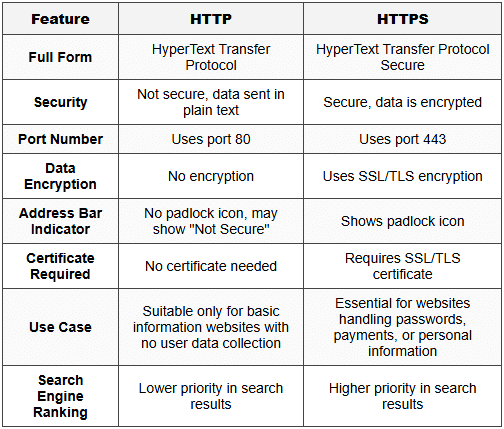
3.4 HTTPS vs HTTP - Comparison
3.5 When HTTPS is Essential
- Online Banking and Payments: Always verify HTTPS before entering credit card details, net banking passwords, or making any financial transaction.
- Email and Social Media Login: Websites where you log in with usernames and passwords must use HTTPS to protect your credentials.
- E-commerce Shopping: Online shopping websites must have HTTPS to protect your payment information and delivery addresses.
- Forms with Personal Data: Any website collecting personal information like name, phone number, address, or email should use HTTPS.
- Government and Educational Websites: Official websites handling citizen data or student information must implement HTTPS.
4. Browser Security Features
Modern web browsers include many built-in security features that help protect users while browsing the internet. Understanding these features helps in safer internet usage.
4.1 Common Browser Security Features
- Security Warnings: Browsers display warning messages when you try to visit websites with expired or invalid security certificates.
- "Not Secure" Label: Modern browsers show "Not Secure" text in the address bar for HTTP websites, especially those with login forms.
- Pop-up Blocker: Automatically blocks unwanted pop-up windows that may contain advertisements or malicious content.
- Download Protection: Warns users before downloading potentially dangerous files or software.
- Phishing Protection: Checks websites against lists of known phishing and malware sites and blocks access to dangerous pages.
- Incognito/Private Mode: Special browsing mode that does not save browsing history, cookies, or form data after the session ends.
- Automatic Updates: Browsers regularly update themselves to fix security vulnerabilities and add new protection features.
4.2 Browser Privacy Settings
- Cookie Management: Users can control which websites can store cookies (small data files) on their computers.
- Location Access: Browsers ask permission before sharing your geographical location with websites.
- Camera and Microphone Access: Websites must request permission before accessing your device's camera or microphone.
- Saved Passwords: Browsers can save passwords securely, but users should use strong master passwords to protect them.
- Do Not Track: A setting that requests websites not to track your browsing activities for advertising purposes.
5. Practical Safety Tips for Students
Specific practical guidelines that students should follow to ensure safe browsing and protect their digital identity.
5.1 Before Visiting a Website
- Check the URL Carefully: Read the website address completely. Look for misspellings or extra characters that indicate fake websites.
- Look for HTTPS: Always verify that the website uses HTTPS, especially before entering any personal information.
- Verify the Source: If you received the link through email or message, verify it is from a trusted source before clicking.
- Search Independently: Instead of clicking email links, search for the website independently using a search engine.
5.2 While Using a Website
- Never Share Passwords: Legitimate websites never ask for your password through email or chat support.
- Read Privacy Policies: Check what information the website collects and how it will be used.
- Use Strong, Unique Passwords: Create different passwords for different websites. A good password has at least 8 characters with letters, numbers, and symbols.
- Enable Two-Factor Authentication: When available, use two-factor authentication (2FA) that requires both password and a code sent to your phone.
- Be Careful with Downloads: Only download files from trusted websites. Always scan downloaded files with antivirus software.
5.3 After Using a Website
- Log Out Properly: Always click the logout button when finished, especially on shared computers.
- Close Browser Windows: Close all browser windows and tabs after completing online transactions.
- Clear Sensitive Data: Clear browsing history, cookies, and cache if you used a public or shared computer.
- Monitor Account Activity: Regularly check your account statements and activity logs for any unauthorized access.
6. Common Threats and How to Avoid Them
Understanding common online threats helps in recognizing dangerous situations and taking appropriate protective measures.
6.1 Phishing Attacks
- Phishing: A cyber attack where criminals create fake websites or send fake emails that look like they come from legitimate organizations to steal personal information.
- How to Identify: Phishing emails often have spelling mistakes, create urgency ("Your account will be closed!"), or ask you to verify personal information.
- Protection: Never click links in suspicious emails. Always visit websites by typing the address directly in the browser.
- Example: An email claiming to be from your bank asking you to verify your password by clicking a link is likely a phishing attempt.
6.2 Malware and Viruses
- Malware: Malicious software designed to harm computers, steal data, or gain unauthorized access to systems.
- Distribution Methods: Malware spreads through infected downloads, email attachments, or compromised websites.
- Protection: Use updated antivirus software, avoid downloading from untrusted sources, and never open suspicious email attachments.
- Warning Signs: Unexpected pop-ups, slow computer performance, or programs running without your permission may indicate malware infection.
6.3 Man-in-the-Middle Attacks
- Man-in-the-Middle (MITM) Attack: A cyber attack where a hacker secretly intercepts communication between your device and a website to steal information.
- Common Target: Most often occurs on unsecured public Wi-Fi networks where attackers can easily intercept data.
- Protection: Use HTTPS websites only. Avoid accessing sensitive information on public Wi-Fi without VPN (Virtual Private Network) protection.
- HTTPS Role: HTTPS encryption makes MITM attacks extremely difficult because even if data is intercepted, it cannot be read without the decryption key.
7. Understanding Digital Certificates
Digital certificates are electronic documents that verify the identity of websites and enable secure HTTPS connections. They work like digital identity cards for websites.
7.1 What is a Digital Certificate?
- Digital Certificate: An electronic file issued by a trusted authority that confirms a website's identity and enables encrypted communication.
- Certificate Authority (CA): A trusted organization that issues and verifies digital certificates. Examples include DigiCert, Let's Encrypt, and Comodo.
- Certificate Contents: Contains the website's name, owner details, public encryption key, certificate expiration date, and CA's digital signature.
- Validity Period: Certificates are valid for a specific time period (usually 1-2 years) and must be renewed regularly.
7.2 How to Check a Website's Certificate
- Click the Padlock Icon: In most browsers, clicking the padlock icon in the address bar shows certificate information.
- View Certificate Details: Look for "Certificate" or "View Certificate" option to see full details including issuer name and validity dates.
- Check Validity: Ensure the certificate is currently valid and has not expired.
- Verify Domain Name: Confirm that the certificate is issued for the exact domain name you are visiting.
7.3 Certificate Warnings
- Expired Certificate: Browser shows warning if the certificate has passed its expiration date. Avoid using such websites.
- Invalid Certificate: Warning appears if the certificate is not issued by a trusted authority or contains errors.
- Domain Mismatch: Warning shown when the certificate is issued for a different domain name than the one you are visiting.
- Self-Signed Certificate: Certificate not issued by recognized authority. Browsers show warnings for such certificates.
8. Role of HTTPS in Data Protection
HTTPS plays a critical role in protecting various types of data during online activities. Understanding this helps appreciate the importance of secure connections.
8.1 Types of Data Protected by HTTPS
- Login Credentials: Usernames and passwords are encrypted so hackers cannot steal them during transmission.
- Payment Information: Credit card numbers, CVV codes, and banking details remain protected during online transactions.
- Personal Details: Names, addresses, phone numbers, and email addresses are encrypted to prevent identity theft.
- Browsing Activity: The specific pages you visit on a website are hidden from network observers.
- Form Submissions: All information entered in web forms is encrypted before transmission.
- Cookies and Session Data: Session information and authentication tokens are protected from interception.
8.2 HTTPS Limitations - What It Does NOT Protect
- Does Not Hide Which Website: HTTPS hides the specific pages you visit but does not hide which website's domain you are accessing.
- Does Not Guarantee Safe Content: HTTPS only ensures secure transmission. A website can have HTTPS but still contain malware or fake information.
- Does Not Prevent Phishing: Fake websites can also have HTTPS certificates. Always verify the domain name carefully.
- Does Not Protect Against All Attacks: HTTPS cannot protect against viruses already on your computer or attacks through other methods like social engineering.
9. Safe Browsing Habits Checklist
A practical checklist of daily habits that ensure safe and secure internet usage for students and all users.
9.1 Essential Daily Habits
- Always Check for HTTPS: Make it a habit to look for the padlock icon before entering any information.
- Keep Software Updated: Regularly update your browser, operating system, and antivirus software.
- Use Strong Passwords: Create unique, complex passwords for each online account.
- Think Before Clicking: Pause and verify links before clicking, especially in emails or messages.
- Log Out After Use: Always log out from websites, particularly on shared devices.
- Review Permissions: Check what permissions you grant to websites for camera, location, or notifications.
- Be Skeptical of Free Offers: If something seems too good to be true online, it probably is a scam.
- Backup Important Data: Regularly save important files and information in case of security breaches.
9.2 Parental Guidance and School Safety
- Parental Controls: Use parental control software to monitor and restrict access to inappropriate websites.
- Safe Search Settings: Enable safe search filters on search engines to block inappropriate content.
- Time Limits: Set reasonable time limits for internet usage to prevent excessive screen time.
- Open Communication: Students should inform parents or teachers immediately if they encounter suspicious websites or receive strange messages.
- School Network Security: Schools should implement proper firewalls and content filters on their networks.
- Digital Citizenship Education: Regular lessons on responsible and safe internet usage should be part of the curriculum.
10. Common Student Mistakes to Avoid
Trap Alert: These are common mistakes students frequently make that can compromise their online safety. Being aware of these helps in developing better security habits.
10.1 Common Errors
- Mistake 1 - Ignoring HTTPS: Many students click "Proceed Anyway" on security warnings without understanding the risk. Correct Action: Never ignore certificate warnings on websites where you enter personal information.
- Mistake 2 - Using Same Password: Using the same password for email, social media, and gaming accounts means one breach compromises all accounts. Correct Action: Use unique passwords for each website.
- Mistake 3 - Trusting Padlock Alone: Assuming any website with HTTPS is safe without checking the domain name. Fake websites can also have HTTPS. Correct Action: Verify both HTTPS and the correct domain spelling.
- Mistake 4 - Clicking Email Links: Directly clicking links in emails claiming to be from banks or popular websites. Correct Action: Manually type the website address in the browser.
- Mistake 5 - Sharing Too Much: Posting personal information like full address, phone number, or school details on public social media profiles. Correct Action: Keep personal information private and use privacy settings.
- Mistake 6 - Ignoring Updates: Postponing browser and system updates that contain critical security patches. Correct Action: Install updates promptly when available.
- Mistake 7 - Saving Passwords on Public Computers: Allowing browsers on school or library computers to save passwords. Correct Action: Never save passwords on shared devices.
- Mistake 8 - Disabling Security Features: Turning off pop-up blockers or security warnings because they seem annoying. Correct Action: Keep all browser security features enabled.
Safe browsing, secure websites, and HTTPS form the foundation of protecting yourself in the digital world. Always remember the three key indicators of a secure website: the padlock icon, HTTPS in the URL, and careful verification of the domain name. By developing good browsing habits early, practicing caution with links and downloads, and understanding how HTTPS protects your data through encryption, you build a strong defense against cyber threats. Security is not a one-time action but a continuous practice of awareness and careful decision-making every time you go online. Never compromise on these security basics, especially when entering passwords or personal information.