Pagination


Pagination in WordPress
Imagine walking into a library and finding that all 10,000 books are stacked in a single massive pile in the center of the room. That would be overwhelming and completely unusable, right? Instead, libraries organize books on multiple shelves, across different aisles, making it easy to navigate and find what you need. This is exactly what pagination does for websites-it breaks large amounts of content into manageable, organized chunks across multiple pages.
In the context of WordPress and web design, pagination is the system that divides content into separate pages and provides navigation controls to move between them. Whether you're displaying blog posts, products, search results, or comments, pagination ensures users aren't overwhelmed by endless scrolling and can navigate content efficiently.
Understanding Pagination Fundamentals
Before diving into how pagination works within WordPress, let's establish what pagination actually is and why it matters for both users and website performance.
What is Pagination?
Pagination is a user interface pattern that divides content into discrete pages. Instead of loading hundreds or thousands of items at once, pagination shows a limited number of items per page and provides navigation elements-typically numbered links, "Previous," and "Next" buttons-that allow users to move through the content sequentially.
Think of pagination like chapters in a book:
- Each page shows a specific portion of the total content
- Users can jump to specific pages or move sequentially
- The current position is clearly indicated
- Users know how much content exists in total
Why Pagination Matters
Pagination serves several critical purposes in web design and development:
- Performance optimization: Loading 500 blog posts on a single page would be extremely slow and resource-intensive. Pagination loads only what's needed, improving page load times dramatically.
- User experience: Scanning through a manageable set of items is far easier than scrolling through endless content. Users can process information in digestible chunks.
- Navigation and orientation: Pagination helps users understand where they are in a content set and how much more exists.
- Server resources: By limiting database queries and the amount of data processed per request, pagination reduces server load and improves site scalability.
- SEO benefits: Search engines can more effectively crawl and index paginated content when implemented correctly.
Common Pagination Patterns
You'll encounter several pagination styles across the web, each with different use cases:
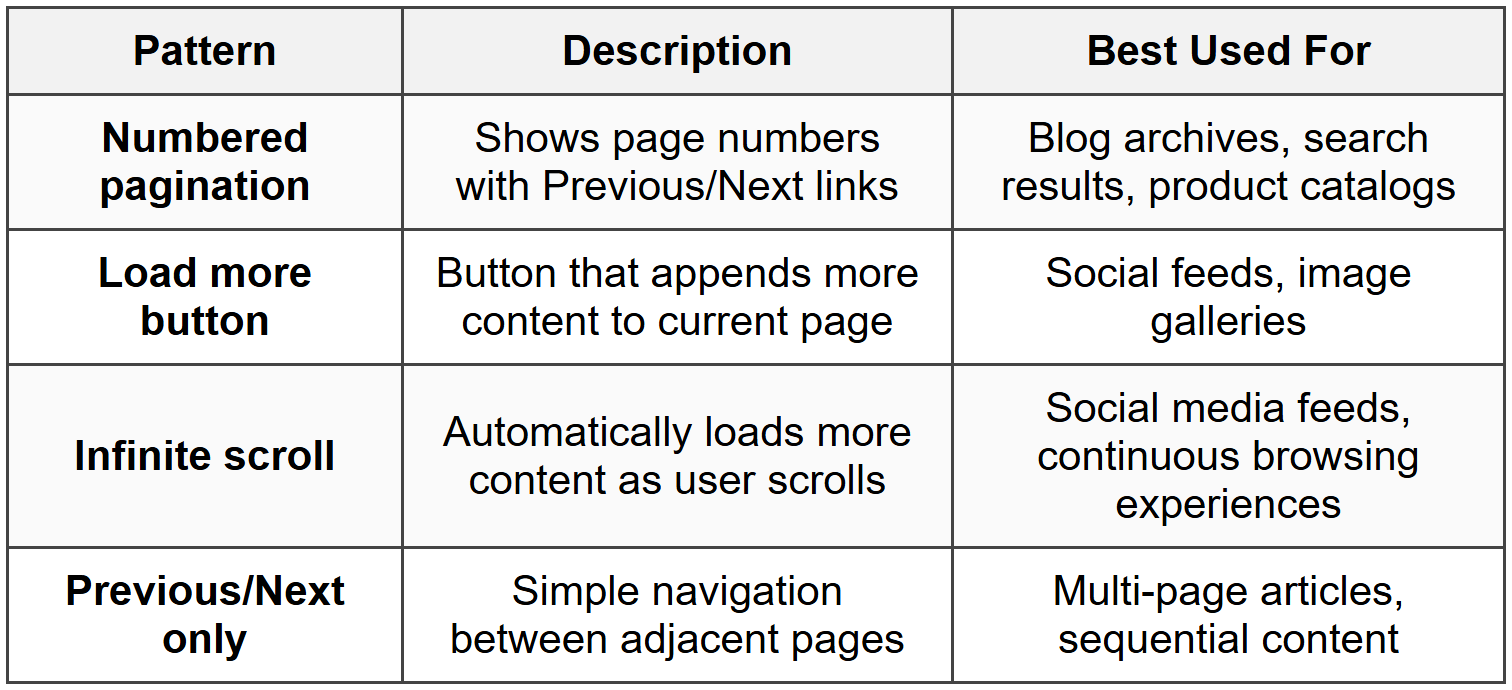
WordPress primarily uses numbered pagination with Previous/Next links as its default pattern, though developers can implement any of these patterns depending on project requirements.
How WordPress Handles Pagination
WordPress has built-in pagination functionality that works seamlessly with its core architecture-specifically with The Loop and WP_Query. Understanding how these pieces work together is essential for implementing pagination correctly.
The Relationship Between The Loop and Pagination
Remember that The WordPress Loop processes and displays posts retrieved from the database. Pagination controls how many posts are retrieved and displayed in each instance of The Loop.
Here's how it works in practice:
- A user visits your blog homepage
- WordPress queries the database for posts
- Instead of retrieving all posts, it retrieves only the number specified in Settings (usually 10)
- The Loop displays these posts
- Pagination links appear at the bottom, allowing navigation to page 2, 3, etc.
- When a user clicks "Page 2," WordPress queries the next set of posts (posts 11-20)
- The Loop displays this new set
The Paged Parameter
WordPress uses a URL parameter to track which page of results to display. This is handled through the paged query variable.
For example:
https://example.com/blog/- Page 1 (default)
https://example.com/blog/page/2/- Page 2
https://example.com/blog/page/3/- Page 3
WordPress automatically recognizes this URL structure and adjusts the database query accordingly. When building custom queries with WP_Query, you'll need to handle this paged parameter manually to enable pagination.
Posts Per Page Setting
The number of posts displayed per page is controlled by WordPress settings. By default, this is found in:
Settings → Reading → "Blog pages show at most"
This global setting affects:
- The main blog page
- Archive pages (category, tag, date, author)
- Search results
However, custom queries can override this setting and specify their own posts-per-page value, which we'll explore shortly.
Implementing Pagination in WordPress
Now let's look at the practical implementation of pagination in different WordPress contexts. We'll cover both the default WordPress loop and custom queries.
Pagination for the Main Query
The main query is WordPress's automatic query that runs on every page-it's what determines which posts to show on archive pages, the blog homepage, search results, etc. For the main query, pagination is largely automatic, but you need to add the pagination links to your template.
Basic Pagination Functions
WordPress provides several built-in functions for displaying pagination links:
the_posts_pagination() - Modern, comprehensive pagination with numbered links:
<?php if ( have_posts() ) : while ( have_posts() ) : the_post(); // Display post content the_title(); the_excerpt(); endwhile; the_posts_pagination(); endif; ?>
This function generates a complete pagination interface with:
- Previous and Next links
- Numbered page links
- Current page indicator
- Screen reader-friendly markup
previous_posts_link() and next_posts_link() - Simple previous/next navigation:
<?php if ( have_posts() ) : while ( have_posts() ) : the_post(); // Display post content endwhile; previous_posts_link( 'Newer Posts' ); next_posts_link( 'Older Posts' ); endif; ?>
Note the terminology here: "previous posts" are actually newer posts (going backward in time toward page 1), while "next posts" are older posts (going forward through pages). This can be counterintuitive but reflects WordPress's chronological post ordering.
Customizing Pagination Output
The the_posts_pagination() function accepts an array of arguments to customize its output:
<?php the_posts_pagination( array( 'mid_size' => 2, 'prev_text' => __( '← Previous', 'textdomain' ), 'next_text' => __( 'Next →', 'textdomain' ), 'screen_reader_text' => __( 'Posts navigation', 'textdomain' ), ) ); ?>
Common parameters include:
- mid_size: How many page numbers to show on either side of the current page
- prev_text: Custom text for the "previous" link
- next_text: Custom text for the "next" link
- screen_reader_text: Hidden text for accessibility
- type: Output format (default is 'plain' for HTML list)
Pagination with Custom Queries
When you create custom queries using WP_Query, pagination requires additional setup because you're bypassing WordPress's automatic main query. Let's explore how to implement pagination correctly in these scenarios.
The Challenge with Custom Queries
Consider this common mistake:
<?php // This won't paginate correctly! $custom_query = new WP_Query( array( 'post_type' => 'post', 'posts_per_page' => 10, ) ); if ( $custom_query->have_posts() ) : while ( $custom_query->have_posts() ) : $custom_query->the_post(); the_title(); endwhile; the_posts_pagination(); // This won't work! endif; wp_reset_postdata(); ?>
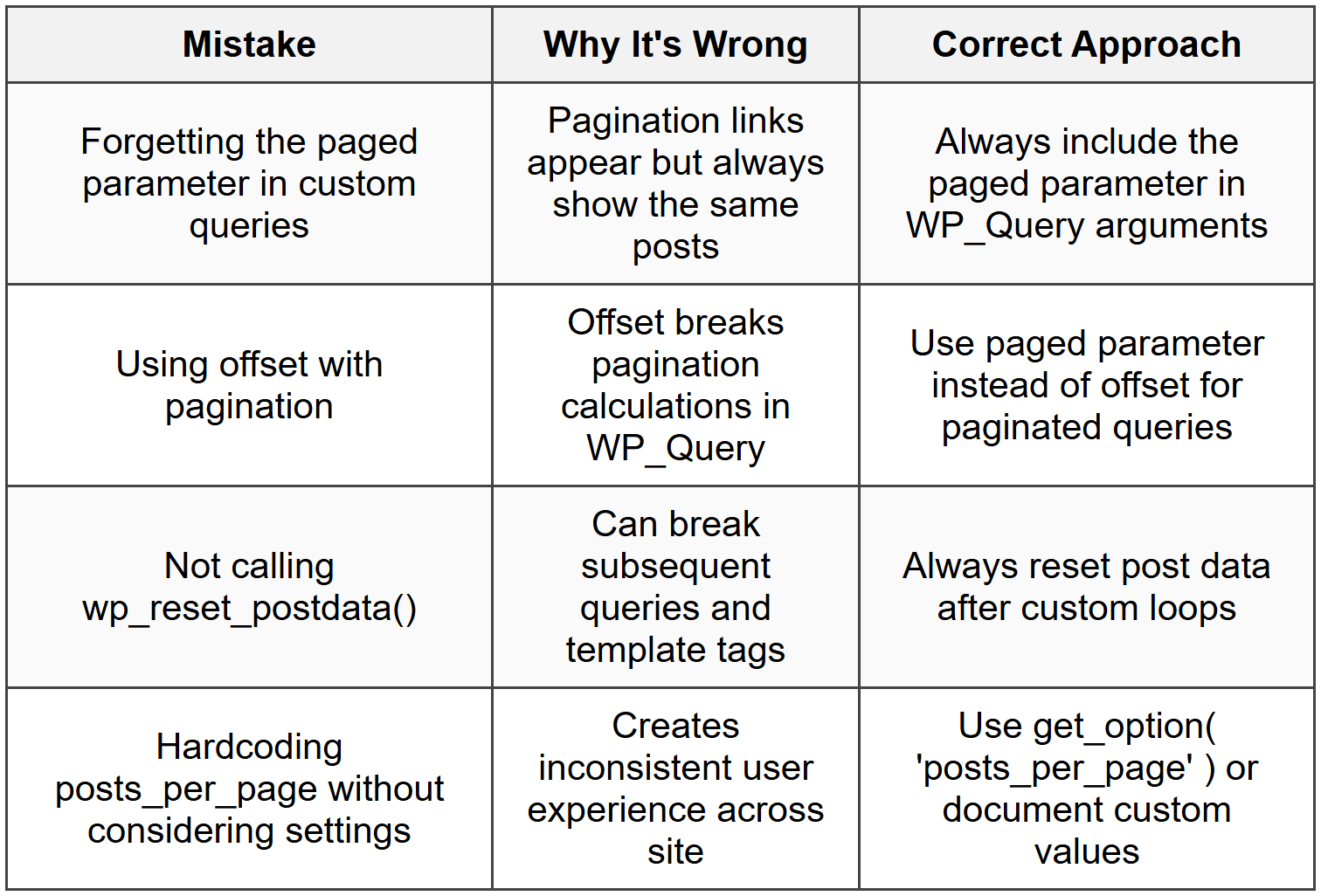
The problem here is that the_posts_pagination() looks at the main query by default, not your custom query. Even if you're on page 2, your custom query will keep showing the same first 10 posts.
Adding the Paged Parameter
To make custom queries pagination-aware, you must include the paged parameter:
<?php $paged = ( get_query_var( 'paged' ) ) ? get_query_var( 'paged' ) : 1; $custom_query = new WP_Query( array( 'post_type' => 'post', 'posts_per_page' => 10, 'paged' => $paged, ) ); if ( $custom_query->have_posts() ) : while ( $custom_query->have_posts() ) : $custom_query->the_post(); the_title(); endwhile; endif; wp_reset_postdata(); ?>
Let's break down what's happening:
- get_query_var( 'paged' ) retrieves the current page number from the URL
- If no page is specified (we're on page 1), it defaults to 1
- This value is passed to WP_Query as the paged parameter
- WordPress now knows to retrieve posts 1-10 on page 1, posts 11-20 on page 2, etc.
Displaying Pagination for Custom Queries
With the paged parameter in place, you can now add pagination links. However, you need to tell the pagination function to use your custom query instead of the main query:
<?php $paged = ( get_query_var( 'paged' ) ) ? get_query_var( 'paged' ) : 1; $custom_query = new WP_Query( array( 'post_type' => 'post', 'posts_per_page' => 10, 'paged' => $paged, ) ); if ( $custom_query->have_posts() ) : while ( $custom_query->have_posts() ) : $custom_query->the_post(); the_title(); endwhile; echo paginate_links( array( 'total' => $custom_query->max_num_pages, 'current' => $paged, 'prev_text' => '← Previous', 'next_text' => 'Next →', ) ); endif; wp_reset_postdata(); ?>
The paginate_links() function is more flexible than the_posts_pagination() and is ideal for custom queries. Key parameters:
- total: Total number of pages (retrieved from
$custom_query->max_num_pages) - current: The current page number
- prev_text and next_text: Custom navigation text
Alternative: Using the Custom Query Object
WordPress also provides the_posts_pagination() with support for custom queries through global modification (though this is less clean):
<?php global $wp_query; $temp_query = $wp_query; $wp_query = $custom_query; the_posts_pagination(); $wp_query = $temp_query; wp_reset_postdata(); ?>
This temporarily swaps the main query with your custom query, but it's generally better to use paginate_links() explicitly for clarity and maintainability.
Pagination on Static Front Pages
A special case arises when you set a static page as your front page (Settings → Reading → "Your homepage displays: A static page"). On these pages, WordPress behaves differently regarding pagination.
The Page Parameter
On static front pages, WordPress uses the page query variable instead of paged. This distinction is important:
<?php if ( get_query_var( 'paged' ) ) { $paged = get_query_var( 'paged' ); } elseif ( get_query_var( 'page' ) ) { $paged = get_query_var( 'page' ); } else { $paged = 1; } $custom_query = new WP_Query( array( 'post_type' => 'post', 'posts_per_page' => 10, 'paged' => $paged, ) ); ?>
This code checks for both variables, ensuring pagination works correctly whether the template is used on a static page or a regular archive page.
Pagination Best Practices
Implementing pagination correctly goes beyond just making it work-you need to consider user experience, performance, and SEO implications.
User Experience Considerations
When designing pagination interfaces, keep these principles in mind:
- Clear current position: Users should immediately see which page they're on, typically through distinct styling of the current page number
- Provide context: Show a reasonable number of page links (not just "1 ... 47") so users understand the content scope
- Accessible navigation: Ensure keyboard navigation works and screen readers can interpret pagination controls
- Consistent placement: Position pagination in predictable locations (typically at the bottom of content, sometimes also at the top)
- Appropriate page size: Choose posts-per-page numbers that balance page load speed with user convenience (10-20 is typical for blogs)
Performance Optimization
Pagination directly impacts site performance. Consider these optimization strategies:
- Reasonable page sizes: Very large page sizes (50+ posts) negate pagination benefits and slow page loads
- Efficient queries: Only query the fields you need; avoid loading full post content if you only display excerpts
- Caching: Implement caching for paginated pages to avoid repeated database queries for popular pages
- Lazy loading images: On paginated pages with many images, use lazy loading to improve initial page load
SEO Considerations
Search engines need to understand and properly index paginated content:
- Crawlability: Ensure all pagination links are standard HTML anchor tags (not JavaScript-dependent) so search engines can follow them
- Avoid duplicate content issues: WordPress handles this reasonably well by default, but be aware that paginated pages can sometimes trigger duplicate content warnings
- Canonical tags: Each paginated page should have a self-referencing canonical tag (WordPress handles this automatically)
- Meta robots tags: Some SEO strategies involve adding noindex tags to paginated pages beyond page 1, though this is debated
Common Pagination Mistakes to Avoid
Here are frequent errors developers make when implementing pagination:
Advanced Pagination Techniques
Beyond basic pagination, there are more sophisticated approaches you might encounter or need to implement.
Ajax-Based Pagination
Ajax pagination loads new content without full page refreshes, creating a smoother user experience. While implementation involves JavaScript (beyond our scope here), the WordPress side requires:
- A function that returns paginated posts as JSON or HTML
- Proper handling of the paged parameter from Ajax requests
- Security nonces to verify requests
This approach is common in modern WordPress themes and provides the foundation for "load more" buttons and infinite scroll features.
Query Pagination vs. Post Pagination
It's important to distinguish between two types of pagination in WordPress:
Query pagination (what we've been discussing):
- Splits multiple posts across pages
- Used for archives, search results, blog pages
- Controlled by posts_per_page setting
Post pagination (paginating within a single post):
- Splits a single long post across multiple pages
- Triggered by the
<!--nextpage-->comment in post content - Uses different functions: wp_link_pages()
Here's how post pagination works:
<?php if ( have_posts() ) : while ( have_posts() ) : the_post(); the_content(); wp_link_pages( array( 'before' => '<div class="page-links">Pages:', 'after' => '</div>', ) ); endwhile; endif; ?>
This is useful for very long articles, tutorials, or galleries where breaking content across pages improves readability.
Custom Pagination for Custom Post Types
When working with custom post types, pagination works identically to regular posts, but you'll specify the post type in your query:
<?php $paged = ( get_query_var( 'paged' ) ) ? get_query_var( 'paged' ) : 1; $products_query = new WP_Query( array( 'post_type' => 'product', 'posts_per_page' => 12, 'paged' => $paged, ) ); if ( $products_query->have_posts() ) : while ( $products_query->have_posts() ) : $products_query->the_post(); // Display product endwhile; echo paginate_links( array( 'total' => $products_query->max_num_pages, 'current' => $paged, ) ); endif; wp_reset_postdata(); ?>
The same principles apply-just ensure your custom post type archive is set up correctly in your theme or through archive template files.
Pagination with Multiple Queries on One Page
Sometimes you need multiple paginated sections on the same page. This requires careful handling to avoid conflicts:
<?php // First section - Recent Posts $recent_paged = ( get_query_var( 'paged' ) ) ? get_query_var( 'paged' ) : 1; $recent_query = new WP_Query( array( 'posts_per_page' => 5, 'paged' => $recent_paged, ) ); // Display and paginate... // Second section - Featured Products (different pagination) // This would require custom URL parameters or Ajax to avoid conflicts ?>
Multiple paginated queries on one page can be problematic because they share the same URL paged parameter. Solutions include:
- Using Ajax for secondary queries
- Custom URL parameters (requires rewrite rules)
- Avoiding pagination on secondary queries and using "View All" links instead
Styling Pagination
While we're not covering CSS in detail, it's worth understanding the HTML structure WordPress generates for pagination, as this knowledge helps you plan your design approach.
Default Pagination HTML Structure
When you use the_posts_pagination(), WordPress generates markup like this:
<nav class="navigation pagination"> <h2 class="screen-reader-text">Posts navigation</h2> <div class="nav-links"> <a class="prev page-numbers" href="...">Previous</a> <span class="page-numbers current">1</span> <a class="page-numbers" href="...">2</a> <a class="page-numbers" href="...">3</a> <a class="next page-numbers" href="...">Next</a> </div> </nav>
Key classes you can target for styling:
- .navigation.pagination - Overall pagination container
- .nav-links - Container for actual links
- .page-numbers - All page number links
- .current - The current page (uses <span> not <a>)
- .prev and .next - Previous/Next links
Accessibility in Pagination
WordPress's pagination functions include accessibility features by default:
- Semantic HTML: Uses <nav> element to denote navigation
- Screen reader text: Hidden headings provide context for screen readers
- Current page indicator: Uses <span> instead of <a> for current page, with appropriate ARIA attributes in newer versions
- Keyboard navigation: All links are keyboard-accessible by default
When customizing pagination, maintain these accessibility standards to ensure all users can navigate your content effectively.
Debugging Pagination Issues
When pagination doesn't work as expected, systematic debugging can help identify the issue.
Common Symptoms and Solutions
Symptom: Pagination links appear but clicking them shows the same posts
Solution: You likely forgot to add the paged parameter to your custom WP_Query:
$paged = ( get_query_var( 'paged' ) ) ? get_query_var( 'paged' ) : 1; $query = new WP_Query( array( 'paged' => $paged, // Don't forget this! ) );
Symptom: Clicking page 2 shows a 404 error
Possible causes and solutions:
- Permalink structure issue - Try re-saving permalinks (Settings → Permalinks → Save Changes)
- Custom rewrite rules conflict - Check for plugin or theme conflicts
- Static front page using wrong query variable - Use 'page' instead of 'paged'
Symptom: Pagination links don't appear at all
Check these conditions:
- Do you actually have enough posts to paginate? (More posts than posts_per_page setting)
- Did you call the pagination function after the loop?
- For custom queries, did you pass the correct max_num_pages value?
Debugging Code Snippet
Use this snippet to debug pagination values:
<?php $paged = ( get_query_var( 'paged' ) ) ? get_query_var( 'paged' ) : 1; echo '<p>Debug Info:</p>'; echo 'Current page: ' . $paged . '<br>'; echo 'Posts per page: ' . get_option( 'posts_per_page' ) . '<br>'; if ( isset( $custom_query ) ) { echo 'Total posts: ' . $custom_query->found_posts . '<br>'; echo 'Max pages: ' . $custom_query->max_num_pages . '<br>'; } ?>
This displays key pagination values, helping you identify where the problem lies.
Pagination in Different WordPress Contexts
Let's examine how pagination works across different areas of WordPress.
Blog Archive Pages
On category, tag, date, and author archives, WordPress automatically paginates based on your Reading settings. You simply need to include pagination function calls in your archive template files (archive.php, category.php, etc.):
<?php if ( have_posts() ) : while ( have_posts() ) : the_post(); get_template_part( 'content', get_post_format() ); endwhile; the_posts_pagination(); else : echo '<p>No posts found.</p>'; endif; ?>
Search Results
Search results pagination works identically to archive pages. In your search.php template:
<?php if ( have_posts() ) : echo '<h1>Search Results for: ' . get_search_query() . '</h1>'; while ( have_posts() ) : the_post(); the_title(); the_excerpt(); endwhile; the_posts_pagination(); else : echo '<p>No results found.</p>'; endif; ?>
Comment Pagination
WordPress also supports paginating comments on posts with many comments. This is controlled through Settings → Discussion → "Break comments into pages."
In your comments template:
<?php if ( have_comments() ) : wp_list_comments(); the_comments_pagination( array( 'prev_text' => '← Older Comments', 'next_text' => 'Newer Comments →', ) ); endif; ?>
Comment pagination is independent of post pagination and uses different functions (the_comments_pagination() instead of the_posts_pagination()).
Real-World Pagination Scenarios
Let's look at complete, practical examples of pagination implementation in common WordPress scenarios.
Scenario 1: Custom Product Archive
You're building an online store and need a paginated product archive showing 12 products per page:
<?php /* Template Name: Products Archive */ get_header(); $paged = ( get_query_var( 'paged' ) ) ? get_query_var( 'paged' ) : 1; $products = new WP_Query( array( 'post_type' => 'product', 'posts_per_page' => 12, 'paged' => $paged, 'orderby' => 'date', 'order' => 'DESC', ) ); ?> <div class="products-archive"> <h1>Our Products</h1> <?php if ( $products->have_posts() ) : ?> <div class="products-grid"> <?php while ( $products->have_posts() ) : $products->the_post(); ?> <div class="product-item"> <h2><?php the_title(); ?></h2> <?php the_post_thumbnail( 'medium' ); ?> <?php the_excerpt(); ?> <a href="<?php the_permalink(); ?>">View Product</a> </div> <?php endwhile; ?> </div> <?php echo paginate_links( array( 'total' => $products->max_num_pages, 'current' => $paged, 'prev_text' => '« Previous', 'next_text' => 'Next »', ) ); ?> <?php else : ?> <p>No products found.</p> <?php endif; ?> <?php wp_reset_postdata(); ?> </div> <?php get_footer(); ?>
Scenario 2: Filtered Posts with Pagination
You need to display posts from a specific category, excluding certain posts, with pagination:
<?php $paged = ( get_query_var( 'paged' ) ) ? get_query_var( 'paged' ) : 1; $featured_posts = new WP_Query( array( 'category_name' => 'featured', 'posts_per_page' => 8, 'paged' => $paged, 'post__not_in' => array( 23, 45, 67 ), // Exclude specific posts 'meta_key' => 'featured_score', 'orderby' => 'meta_value_num', 'order' => 'DESC', ) ); if ( $featured_posts->have_posts() ) : while ( $featured_posts->have_posts() ) : $featured_posts->the_post(); // Display post content endwhile; the_posts_pagination( array( 'total' => $featured_posts->max_num_pages, ) ); endif; wp_reset_postdata(); ?>
Scenario 3: Author Archive with Custom Display
Creating an author archive page with 15 posts per page instead of the default setting:
<?php /* Template: author.php */ get_header(); $author_id = get_the_author_meta( 'ID' ); $paged = ( get_query_var( 'paged' ) ) ? get_query_var( 'paged' ) : 1; $author_posts = new WP_Query( array( 'author' => $author_id, 'posts_per_page' => 15, 'paged' => $paged, ) ); ?> <div class="author-archive"> <h1>Posts by <?php echo get_the_author(); ?></h1> <?php if ( $author_posts->have_posts() ) : ?> <?php while ( $author_posts->have_posts() ) : $author_posts->the_post(); ?> <article> <h2><a href="<?php the_permalink(); ?>"><?php the_title(); ?></a></h2> <time><?php echo get_the_date(); ?></time> <?php the_excerpt(); ?> </article> <?php endwhile; ?> <?php echo paginate_links( array( 'total' => $author_posts->max_num_pages, 'current' => $paged, 'mid_size' => 2, ) ); ?> <?php else : ?> <p>This author hasn't published any posts yet.</p> <?php endif; ?> <?php wp_reset_postdata(); ?> </div> <?php get_footer(); ?>
Pagination and Theme Development
When developing WordPress themes, consistent pagination implementation across all template files is essential for a professional, cohesive user experience.
Template Files That Need Pagination
Consider adding pagination to these template files:
- index.php - Main blog page
- archive.php - General archive template
- category.php - Category archives
- tag.php - Tag archives
- author.php - Author archives
- date.php - Date-based archives
- search.php - Search results
- Custom post type archives - Any archive-{post-type}.php templates
Creating Reusable Pagination Templates
To maintain consistency and reduce code repetition, create a reusable pagination template part:
template-parts/pagination.php:
<?php if ( $wp_query->max_num_pages > 1 ) : the_posts_pagination( array( 'mid_size' => 2, 'prev_text' => __( '← Previous', 'themename' ), 'next_text' => __( 'Next →', 'themename' ), ) ); endif; ?>
Then include it in any template file:
<?php if ( have_posts() ) : while ( have_posts() ) : the_post(); get_template_part( 'content' ); endwhile; get_template_part( 'template-parts/pagination' ); endif; ?>
This approach ensures consistent pagination styling and behavior across your entire theme while making updates and maintenance much easier.
Future Considerations: Alternative Approaches
While traditional numbered pagination remains the standard, it's worth being aware of modern alternatives that are becoming increasingly popular, especially on mobile-focused sites.
Infinite Scroll
Infinite scroll automatically loads more content as users reach the bottom of the page. This creates a seamless browsing experience similar to social media platforms. However, it has drawbacks:
- Difficult to reach footer content
- Harder for users to return to specific positions
- Can impact SEO if not implemented properly
- Performance can degrade as more content loads
Load More Buttons
A middle ground between traditional pagination and infinite scroll, "load more" buttons give users control over when to load additional content. This approach:
- Maintains footer accessibility
- Gives users control over loading
- Works well on mobile devices
- Can be combined with infinite scroll as a fallback
Hybrid Approaches
Many modern sites use responsive pagination strategies:
- Traditional numbered pagination on desktop
- Load more button on mobile
- Infinite scroll option users can enable/disable
These approaches require more complex implementation but can provide optimal experiences across devices and user preferences.
Pagination is a fundamental aspect of WordPress development that directly impacts user experience, site performance, and SEO. Whether you're working with the main WordPress loop or creating custom queries, understanding how to implement pagination correctly ensures your content remains accessible and manageable regardless of volume.
The key principles to remember are: always include the paged parameter in custom queries, use appropriate pagination functions for your context, maintain accessibility standards, and test thoroughly across different scenarios. With these foundations in place, you'll be able to create smooth, professional content navigation experiences in all your WordPress projects.



