Mobile Devices


Overview
This chapter covers mobile device hardware, connectivity standards, accessories, and troubleshooting for smartphones and tablets. Expect exam questions on display types, charging methods, wireless standards, synchronization methods, and common mobile device failures. Understanding port types, battery characteristics, and connection troubleshooting is critical for both multiple-choice and performance-based questions.
Core Concepts
Mobile Device Display Types
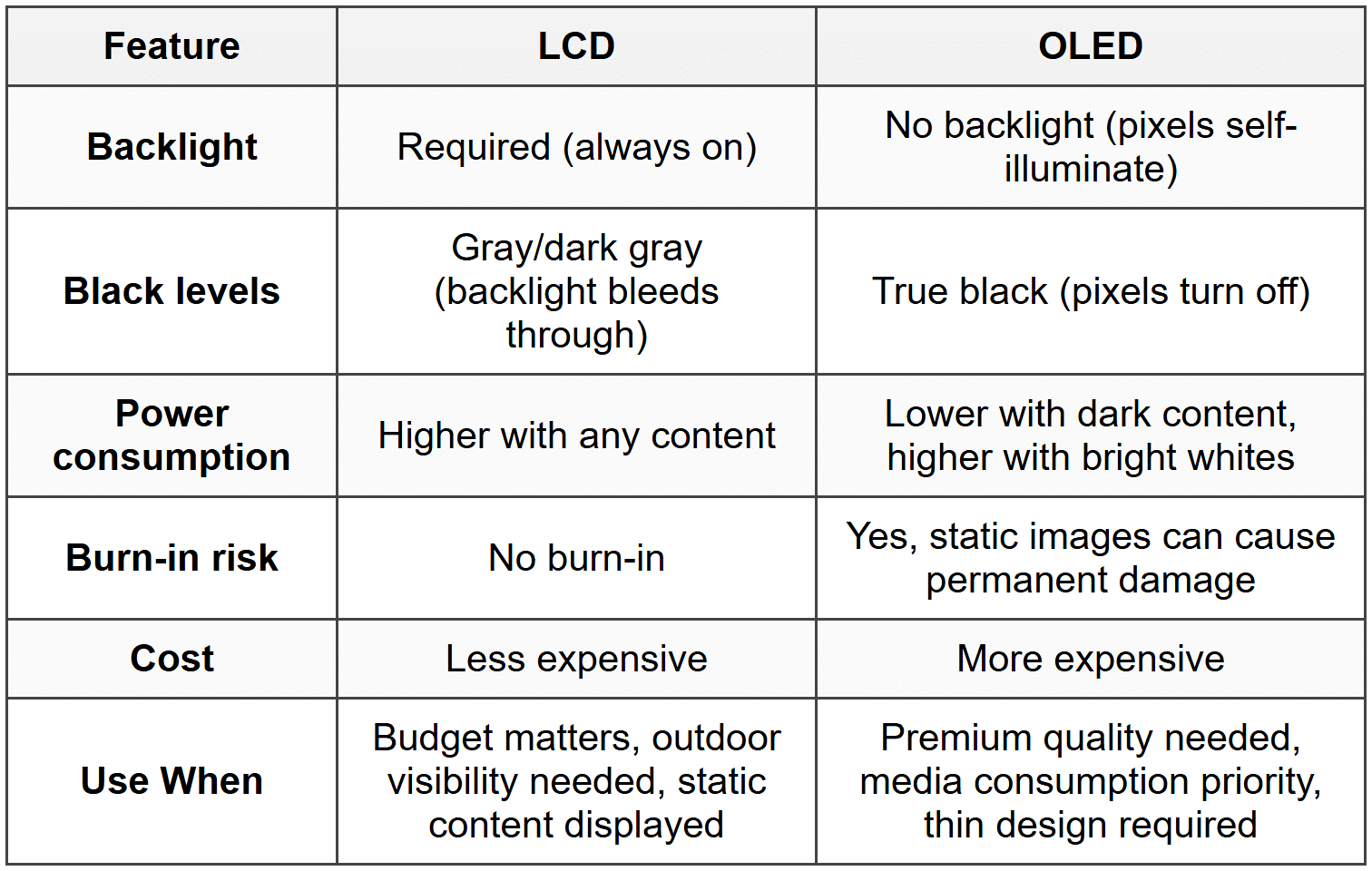
LCD (Liquid Crystal Display) uses a backlight to illuminate liquid crystals that control color and brightness. The backlight stays on constantly, consuming more power than newer technologies.
- Resolution: Common mobile resolutions include 1920×1080 (Full HD), 2560×1440 (QHD), and 3840×2160 (4K)
- Refresh rate: Typically 60Hz on standard displays, up to 120Hz or 144Hz on high-end devices
- Power consumption: Higher than OLED because backlight runs continuously
- Cost: Less expensive than OLED
- Viewing angles: Narrower than OLED; colors shift when viewed from sides
When to Use This
- Budget-conscious devices where cost matters more than image quality
- Outdoor use in bright sunlight where higher brightness levels are needed
- Applications where screen burn-in is a concern with static images
OLED (Organic Light-Emitting Diode) has pixels that emit their own light without requiring a backlight. Each pixel can turn completely off to display true black.
- Power efficiency: Uses less power when displaying dark content because black pixels are off
- Contrast ratio: Infinite contrast ratio because blacks are truly black (pixel is off)
- Response time: Faster than LCD, typically under 0.1ms
- Burn-in risk: Static images can permanently damage pixels over time
- Viewing angles: Wider than LCD with minimal color shift
- Thickness: Thinner displays possible because no backlight layer needed
When to Use This
- Premium devices where image quality and color accuracy are priorities
- Media consumption devices where deep blacks improve video quality
- Battery life optimization when using dark mode or dark-themed apps
- Thin and lightweight device designs
Mobile Device Connections and Accessories
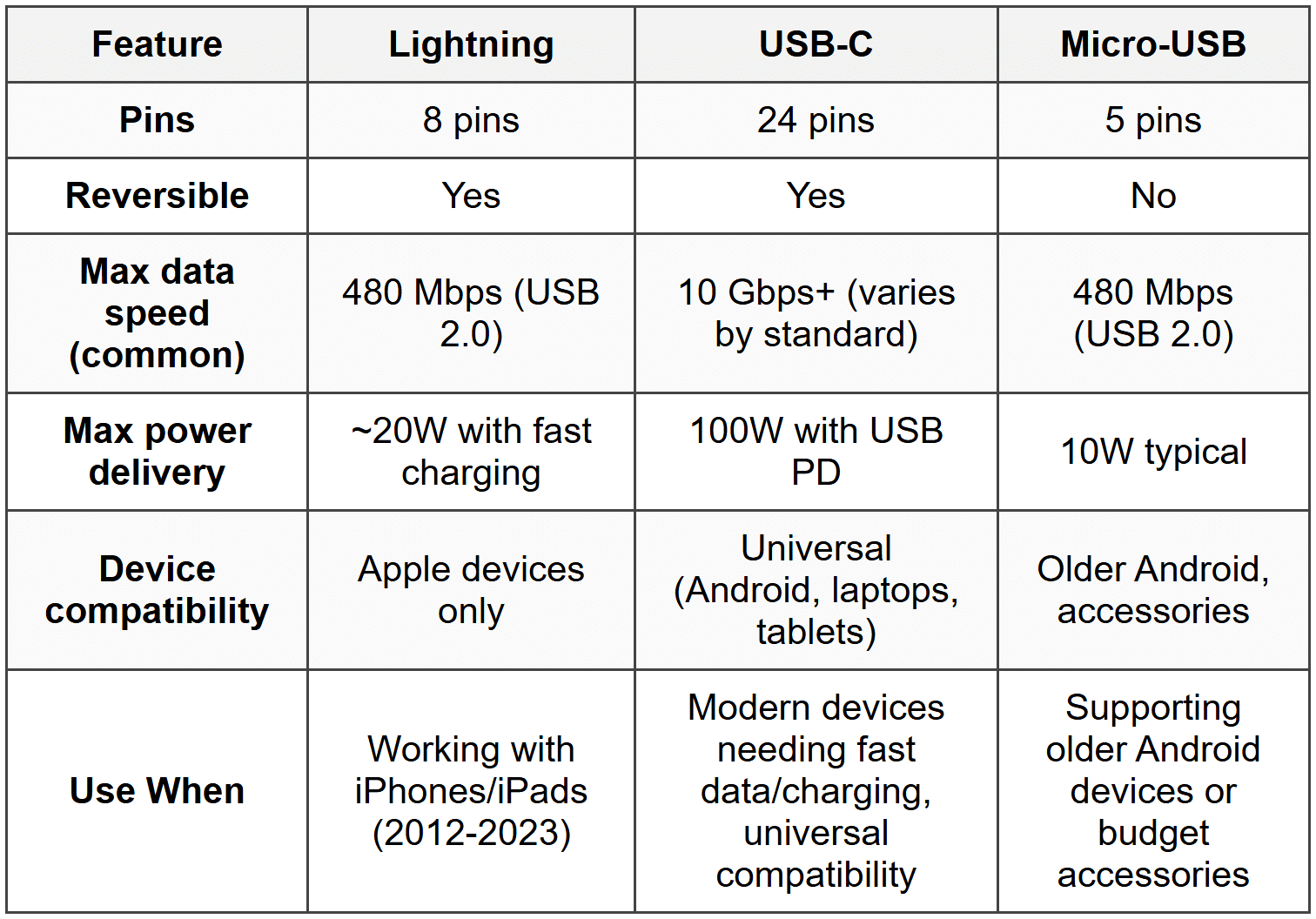
Lightning connector is Apple's proprietary 8-pin reversible connector used on iPhones and iPads since 2012. It supports charging, data transfer, and audio output.
- Data transfer speed: USB 2.0 speeds (480 Mbps) on most devices
- Power delivery: Supports fast charging with compatible adapters
- Orientation: Reversible, can be inserted either way
- Compatibility: Apple devices only (iPhone 5 and newer, iPad 4th gen and newer)
When to Use This
- Charging or syncing iPhone, iPad, or iPod models from 2012 onward
- Connecting Apple devices to computers for data transfer or backup
- Using wired headphones or audio accessories with older iPhones
USB-C (USB Type-C) is a 24-pin reversible connector standard that supports data, power, and video through a single cable. It's the universal standard replacing older USB types.
- Data transfer speeds: USB 2.0 (480 Mbps), USB 3.1 Gen 1 (5 Gbps), USB 3.1 Gen 2 (10 Gbps), USB 3.2 (20 Gbps), USB4 (40 Gbps)
- Power delivery: Up to 100W (20V at 5A) with USB Power Delivery standard
- Video output: Supports DisplayPort Alternate Mode and HDMI through adapters
- Orientation: Reversible connector
- Compatibility: Android phones, modern laptops, tablets, newer iPads and iPhones (iPhone 15+)
When to Use This
- Fast charging modern Android phones and tablets
- High-speed data transfer between mobile devices and computers
- Connecting mobile devices to external displays
- Universal charging for multiple device types with one cable
Micro-USB is an older 5-pin connector standard still found on some budget devices and accessories. Being phased out in favor of USB-C.
- Data transfer speed: USB 2.0 (480 Mbps) standard, USB 3.0 micro-B exists but rare
- Power delivery: Typically 5V at 2A maximum (10W)
- Orientation: Not reversible, has specific up/down orientation
- Durability: Lower than USB-C, connector wears out after ~10,000 insertions
When to Use This
- Charging older Android devices (pre-2018)
- Connecting wireless headphones, speakers, and other accessories to charge
- Budget devices and peripherals that haven't upgraded to USB-C
Mobile Device Wireless Technologies
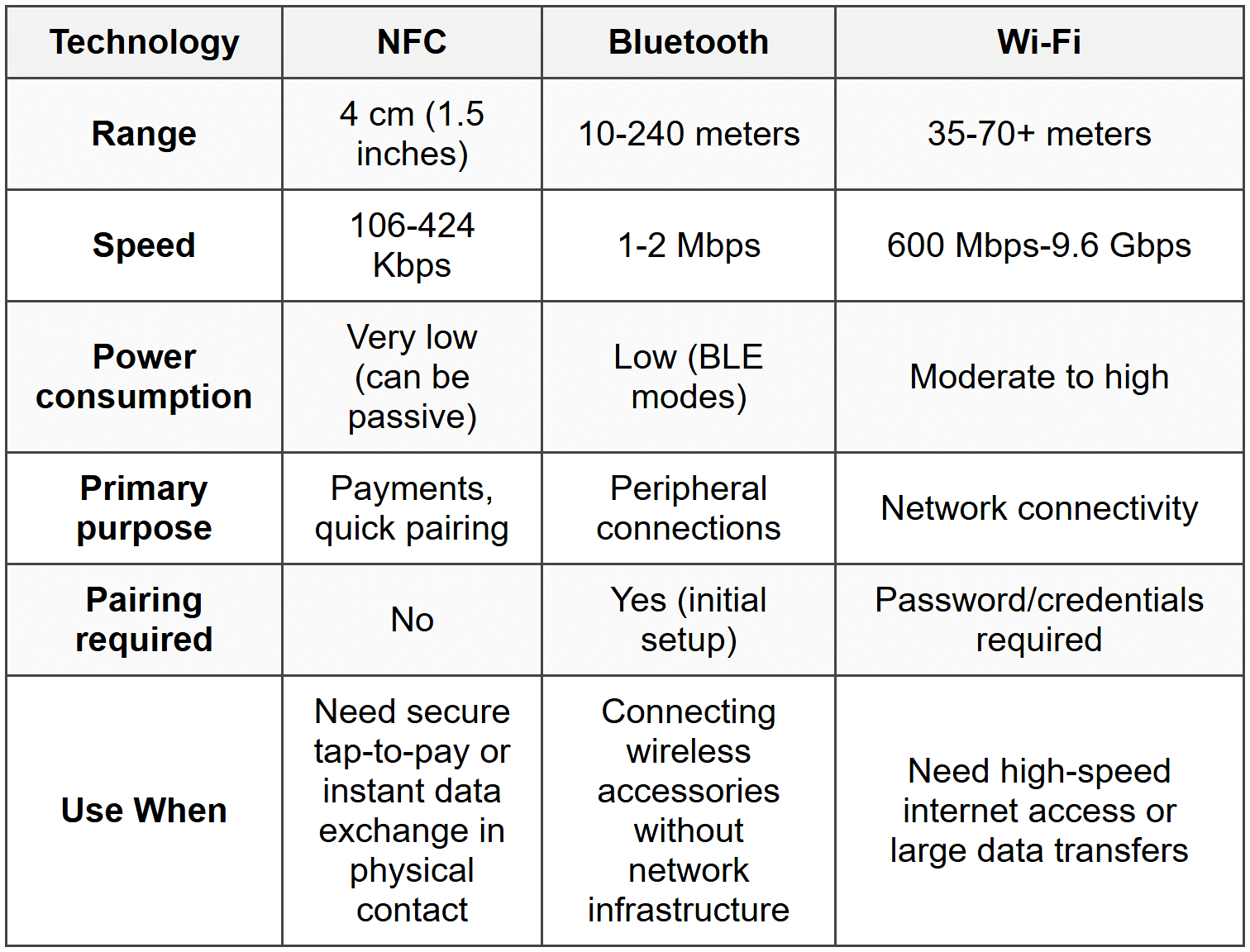
NFC (Near Field Communication) is a very short-range wireless technology operating at 13.56 MHz for contactless data transfer within 4 cm (approximately 1.5 inches).
- Range: Maximum 4 cm (1.5 inches)
- Speed: 106-424 Kbps
- Power: Very low power consumption, can operate passively (powered by reader)
- Common uses: Mobile payments (Apple Pay, Google Pay), pairing Bluetooth devices, access cards
- Security: Short range provides inherent security against eavesdropping
When to Use This
- Mobile payment systems requiring tap-to-pay functionality
- Quick pairing of Bluetooth accessories without entering codes
- Transferring small amounts of data between devices in close proximity
- Access control systems using mobile devices as credentials
Bluetooth is a short-range wireless standard for connecting peripherals and transferring data. Current versions include Bluetooth 4.x and 5.x.
- Bluetooth 4.2: Range up to 10 meters (33 feet), speed up to 1 Mbps
- Bluetooth 5.0/5.1/5.2: Range up to 240 meters (800 feet) in open air, speed up to 2 Mbps
- Frequency: 2.4 GHz ISM band
- Pairing: Devices must be paired before first use (some use NFC for quick pairing)
- Power consumption: Bluetooth Low Energy (BLE) modes drastically reduce battery drain
- Common uses: Wireless headphones, speakers, keyboards, mice, fitness trackers, car connectivity
When to Use This
- Connecting wireless audio devices (headphones, earbuds, speakers)
- Pairing input devices (keyboards, mice) to tablets and phones
- Syncing wearable devices (smartwatches, fitness trackers)
- Hands-free calling and audio in vehicles
Wi-Fi (802.11 standards) provides high-speed wireless networking for mobile devices. Modern devices support multiple Wi-Fi generations.
- 802.11n (Wi-Fi 4): 2.4 GHz and/or 5 GHz, max speed 600 Mbps, range ~70 meters indoor
- 802.11ac (Wi-Fi 5): 5 GHz only, max speed 3.5 Gbps, range ~35 meters indoor, MU-MIMO support
- 802.11ax (Wi-Fi 6/6E): 2.4 GHz, 5 GHz, and 6 GHz (6E), max speed 9.6 Gbps, improved performance in congested areas, OFDMA technology
- Channels: 2.4 GHz has 11-14 channels (1, 6, 11 non-overlapping); 5 GHz has more non-overlapping channels
- Security: WPA2 minimum, WPA3 on newer devices
When to Use This
- High-speed internet access and data transfer on mobile devices
- Streaming video and music without using cellular data
- Large file downloads and cloud backups
- Connecting to networks where cellular signal is unavailable or expensive
Cellular Network Standards
GSM (Global System for Mobile Communications) and CDMA (Code Division Multiple Access) are older 2G/3G technologies, largely replaced but important for understanding device compatibility.
- GSM: Uses SIM cards for subscriber identity, dominant worldwide standard, easier to switch carriers
- CDMA: Device-based authentication (no SIM initially), used by Verizon and Sprint in US, harder to switch carriers
- Modern impact: Both carriers now use LTE/5G, but legacy CDMA affects older device compatibility
LTE (Long-Term Evolution) is the 4G standard providing high-speed mobile data. Most current mobile devices use LTE as primary or fallback connection.
- Speed: Theoretical max 100 Mbps download, real-world typically 10-50 Mbps
- Technology: All-IP network, uses SIM cards (including former CDMA carriers)
- Frequency bands: Multiple bands (low, mid, high) affect speed and coverage
- Coverage: Widespread urban and suburban coverage
When to Use This
- Mobile data access when Wi-Fi unavailable
- Streaming video and music on cellular networks
- Fallback when 5G signal weak or unavailable
- Areas where 5G infrastructure not yet deployed
5G is the latest cellular standard offering significantly higher speeds and lower latency than LTE. Three frequency ranges exist with different characteristics.
- Low-band 5G: Sub-1 GHz, wide coverage similar to LTE, speeds 50-250 Mbps, penetrates buildings well
- Mid-band 5G: 2.5-3.7 GHz, balance of speed and coverage, speeds 100-900 Mbps
- High-band 5G (mmWave): 24-39 GHz, extremely fast (1-10 Gbps), very short range, blocked by walls/glass
- Latency: As low as 1ms vs 30-50ms on LTE
- Coverage: Still deploying; device falls back to LTE when 5G unavailable
When to Use This
- High-bandwidth applications like 4K video streaming on cellular
- Low-latency applications (cloud gaming, video calls)
- Dense urban areas with full 5G deployment
- Downloading large files quickly over cellular
Mobile Device Accessories
Touch pens/stylus are input devices for precise screen interaction. Two main types exist: passive and active.
- Passive stylus: Simple capacitive tip, mimics finger touch, no power required, no pressure sensitivity
- Active stylus: Battery-powered, communicates with device, supports pressure sensitivity and palm rejection, examples include Apple Pencil and Samsung S Pen
- Compatibility: Active styluses require specific device support (digitizer layer)
When to Use This
- Precision drawing, note-taking, or graphic design on tablets
- Detail work where finger input too imprecise
- Avoiding screen smudges during frequent interaction
- Professional applications requiring pressure-sensitive input
Headsets provide audio output and microphone input. Available in wired and wireless configurations.
- Wired: 3.5mm TRRS (Tip-Ring-Ring-Sleeve) jack or Lightning/USB-C connection
- Wireless: Bluetooth connection, requires charging, latency typically 100-200ms
- True Wireless (TWS): No cable between earbuds, stored in charging case
- Active Noise Cancellation (ANC): Uses microphones to cancel external noise, drains battery faster
When to Use This
- Hands-free calling and voice commands
- Private audio listening without disturbing others
- Wireless when cable interference problematic or movement freedom needed
- Wired when battery life or audio latency (gaming) critical
Speakers provide audio output for multiple listeners. Portable speakers use Bluetooth connectivity.
- Connection: Bluetooth (wireless) or 3.5mm/USB-C (wired)
- Power: Built-in rechargeable battery, typically 5-20 hours playback
- Water resistance: Rated with IPX codes (IPX4 splash-resistant, IPX7 submersible)
- Pairing: Bluetooth pairing required, some support multi-device connection
When to Use This
- Sharing audio with multiple people
- Outdoor activities where headphones impractical
- Devices lacking sufficient built-in speaker volume
- Presentations or demonstrations requiring amplified audio
Webcams (external) add or upgrade video capability for mobile devices, though most phones/tablets have built-in cameras.
- Connection: USB (USB-C or Lightning adapter required for mobile)
- Resolution: 720p, 1080p, or 4K
- Use case: Primarily for laptops/desktops; rare on phones/tablets which have superior built-in cameras
When to Use This
- Upgrading poor-quality laptop webcams for video conferencing
- Specific angle or mounting requirements built-in camera can't achieve
- Desktop computers without integrated cameras
Mobile Device Power and Batteries
Lithium-ion (Li-ion) and Lithium-polymer (LiPo) batteries power modern mobile devices. Both are rechargeable and have similar characteristics.
- Voltage: Typically 3.7V nominal per cell
- Capacity: Measured in milliamp-hours (mAh), typically 2000-5000 mAh for phones
- Charging cycles: 300-500 full cycles before capacity drops to ~80%
- Swappable: Most modern mobile devices have non-removable batteries
- Safety: Contains protection circuitry to prevent overcharging, over-discharging, overheating
- Degradation: Heat and full charge/discharge cycles accelerate aging
- Best practices: Keep charge between 20-80%, avoid extreme temperatures, use manufacturer-approved chargers
When to Use This
- All modern smartphones and tablets (no alternative battery chemistry used)
- Understanding battery health when troubleshooting power issues
- Explaining to users why battery capacity decreases over time
- Determining when battery replacement necessary (capacity below 80%)
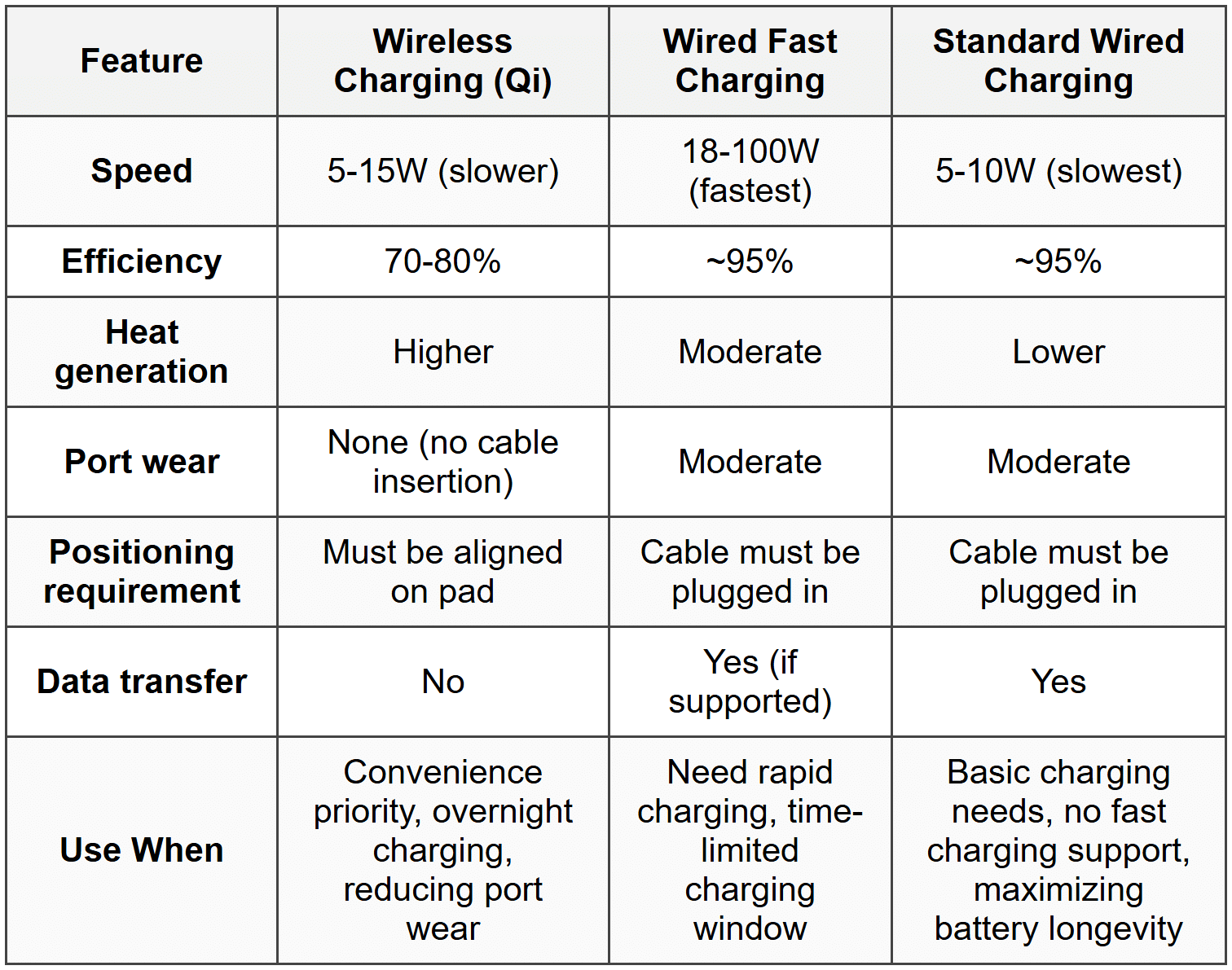
Wireless charging (Qi standard) uses electromagnetic induction to charge devices without cables. Device must be placed on charging pad.
- Standard: Qi (pronounced "chee") is the dominant wireless charging standard
- Power delivery: 5W (standard), 7.5W (Apple), 10-15W (fast wireless charging)
- Efficiency: Less efficient than wired charging (~70-80% vs ~95%), generates more heat
- Positioning: Device must be properly aligned on pad; slight misalignment reduces efficiency or stops charging
- Compatibility: Requires Qi-compatible device and charging pad
When to Use This
- Convenience when frequent pickup/putdown reduces cable wear
- Desk/nightstand charging where speed not critical
- Reducing wear on physical charging ports
- Multiple devices in household using same charging pad
Wired charging uses physical cable connection for fastest, most efficient charging.
- Standard charging: 5V at 1-2A (5-10W)
- Fast charging: Various proprietary standards (USB Power Delivery, Quick Charge, etc.) provide 18-100W
- Cable quality: Poor cables limit charging speed and can damage devices
- Heat generation: Less than wireless charging, but fast charging generates more heat than standard
When to Use This
- Fastest charging speed needed
- Device doesn't support wireless charging
- Maximum efficiency important (less energy wasted as heat)
- Simultaneous charging and data transfer needed
Mobile Device Synchronization Methods
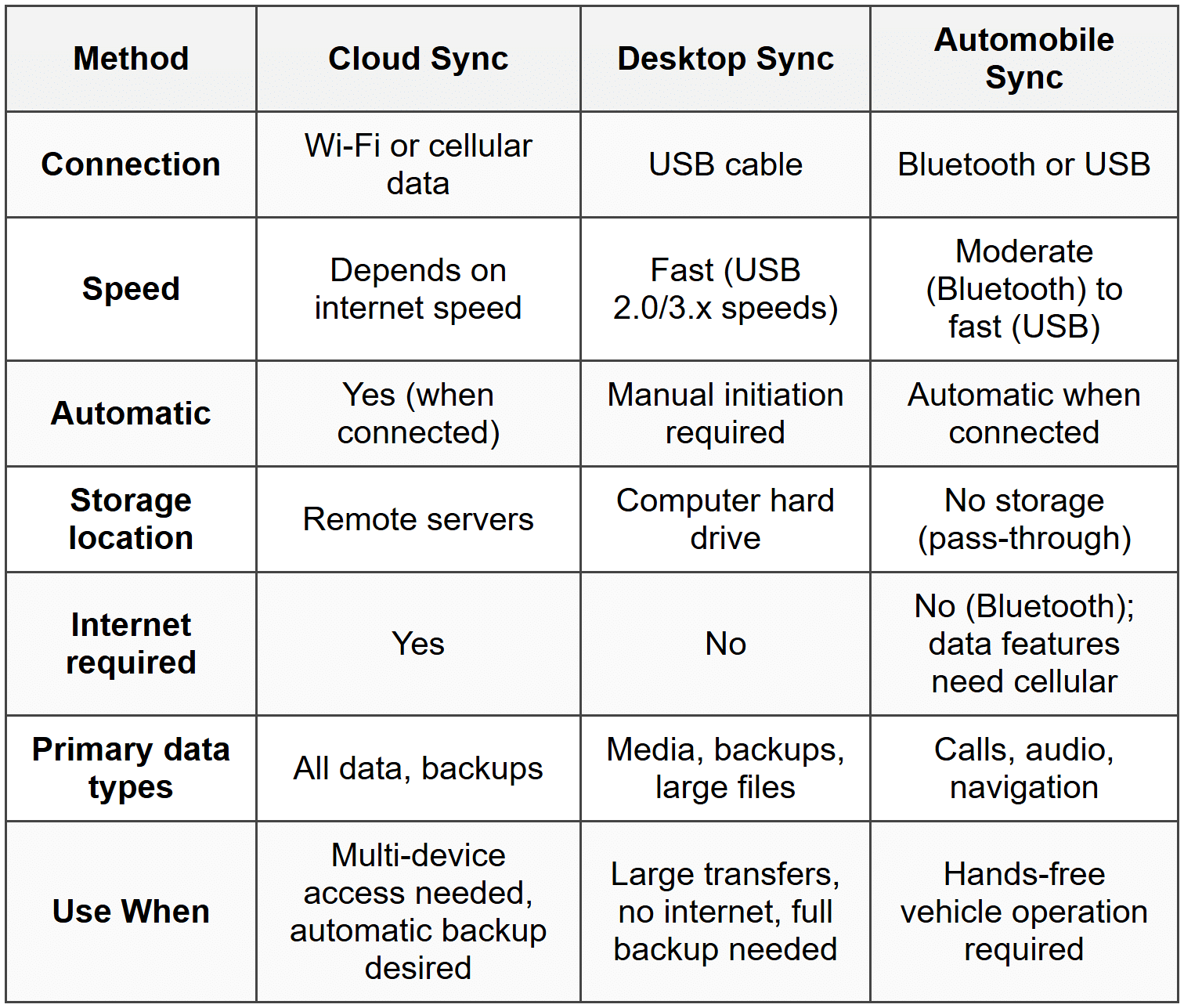
Synchronization keeps data consistent across devices and cloud services. Multiple connection methods available.
Cloud synchronization stores data on remote servers accessible from any device with internet connection.
- Services: iCloud (Apple), Google Drive/Google account (Android), Microsoft OneDrive
- Data types: Contacts, calendars, email, photos, documents, app data, device backups
- Requirements: Internet connection (Wi-Fi or cellular), user account, sufficient cloud storage
- Automatic sync: Updates occur when changes made and connection available
- Advantage: Accessible from multiple devices, automatic backup
- Disadvantage: Requires internet, privacy concerns, storage limits
When to Use This
- Syncing data across multiple devices (phone, tablet, computer)
- Automatic backup of important data without user intervention
- Accessing files from any location with internet
- Migrating data to new device without cable connection
Desktop synchronization (iTunes/Finder, Microsoft ActiveSync) uses USB cable to sync data between mobile device and computer.
- Apple devices: iTunes (Windows, older macOS) or Finder (macOS Catalina and newer)
- Android devices: File transfer via USB, manufacturer software (Samsung Smart Switch), or third-party tools
- Connection: USB cable (Lightning or USB-C)
- Data types: Music, videos, photos, documents, backups, app data
- Advantage: Fast transfer, no internet required, full device backup
- Disadvantage: Requires physical connection, manual process, computer storage space needed
When to Use This
- Large file transfers faster than cloud upload/download
- No internet connection available or limited data plan
- Complete device backup before repairs or updates
- Syncing large media libraries (music, videos)
Automobile synchronization connects mobile device to vehicle for calls, music, navigation through car audio system.
- Bluetooth: Wireless connection for calls and audio streaming
- USB: Wired connection for charging and data (Apple CarPlay, Android Auto)
- Apple CarPlay: Projects iOS interface to car display, requires Lightning or wireless connection
- Android Auto: Projects Android interface to car display, requires USB-C or wireless connection
- Data synced: Contacts, music, navigation, messages
When to Use This
- Hands-free calling while driving for safety and legal compliance
- Navigation displayed on car screen instead of phone
- Music and podcast playback through car speakers
- Charging phone during drive while using features
Troubleshooting
1. Error: Device not charging when connected to power adapter; charging indicator does not illuminate and battery percentage stays constant or decreases.
Resolve: Inspect charging port for lint, debris, or bent pins. Use compressed air or plastic toothpick to carefully remove debris. Replace cable if damaged or try known-good cable to isolate cable vs. port vs. adapter failure.
Check first: Physical inspection of cable (fraying, kinks), port (debris, damage), and whether cable firmly seats in port. Try different outlet to rule out power source issue.
Do NOT do first: Do not immediately factory reset device or replace battery. Physical connection issues are far more common and factory reset erases data unnecessarily while not addressing hardware problems.
Why other options are wrong: Software issues don't prevent charging indicator from appearing; cleaning or cable replacement is faster and less invasive than battery replacement; adapter replacement should only follow cable testing since cables fail more frequently than adapters.
2. Error: Bluetooth headphones paired successfully but no audio output from device; music plays through device speakers instead of headphones.
Resolve: Open audio output settings and manually select Bluetooth headphones as output device. Device may be connected but not set as active audio output. If still failing, unpair and re-pair headphones.
Check first: Verify headphones show "Connected" status in Bluetooth settings, not just "Paired." Check headphone battery level and that headphones powered on.
Do NOT do first: Do not reset network settings or factory reset device. Audio routing is simple setting change; aggressive troubleshooting erases configurations unnecessarily and won't fix simple output selection issue.
Why other options are wrong: Restarting device wastes time when audio output selection immediately fixes issue; deleting and reinstalling apps doesn't affect Bluetooth audio routing; headphones successfully pairing proves Bluetooth radio functional.
3. Error: Touchscreen unresponsive in certain areas; some touches register while specific screen regions don't respond to input.
Resolve: Screen digitizer has failed in dead zones. Requires professional screen replacement. Backup data immediately before complete failure. As temporary workaround, enable on-screen accessibility features or rotate device to access controls.
Check first: Clean screen thoroughly to ensure no dirt or moisture interfering. Remove screen protector if present (may have adhesive failure causing touch issues). Restart device to rule out software glitch.
Do NOT do first: Do not attempt screen replacement without proper tools and experience. Digitizer cable extremely fragile and amateur repairs often cause complete screen failure or damage other components.
Why other options are wrong: Calibration tools don't exist for modern capacitive touchscreens (auto-calibrating); factory reset doesn't fix hardware digitizer damage; software updates won't repair physical touch sensor failure in specific screen areas.
4. Error: Device overheating during normal use; excessive heat from back of device, rapid battery drain, performance throttling or unexpected shutdowns.
Resolve: Close all background apps and identify app causing excessive CPU/GPU usage in battery settings. Uninstall problematic app or disable background refresh. If overheating persists, check for iOS/Android system updates that may include thermal management fixes. Battery may be swelling if heat accompanied by bulging back cover (stop using immediately).
Check first: Check battery usage statistics to identify power-hungry apps. Verify device not in direct sunlight or hot environment. Remove case to improve heat dissipation during testing.
Do NOT do first: Do not place device in refrigerator or freezer. Rapid temperature change causes condensation inside device, damaging electronics. Do not continue charging if device hot to touch.
Why other options are wrong: Overheating from apps is software issue requiring app management, not factory reset; screen brightness doesn't cause severe overheating (minor heat contributor); wireless features (Bluetooth/Wi-Fi) generate minimal heat compared to processor-intensive apps.
5. Error: Device connects to Wi-Fi network but no internet access; Wi-Fi icon shows connected but apps report no connection and web pages won't load.
Resolve: Forget the Wi-Fi network and reconnect, re-entering password. If issue persists, restart router/access point. Check if other devices have internet on same network to determine if problem is device-specific or network-wide. Verify router has internet connection (check WAN/internet light).
Check first: Verify other devices can access internet on same network. Airplane mode off on device. Date and time set correctly (incorrect time causes certificate errors blocking secure connections).
Do NOT do first: Do not reset network settings on device before verifying router has internet connection. If router down, resetting device settings wastes time and erases saved Wi-Fi passwords unnecessarily.
Why other options are wrong: VPN settings don't affect basic connectivity unless VPN actively enabled and misconfigured; DNS settings rarely need manual changes (DHCP provides working DNS); updating apps doesn't fix network connection issues (network layer problem, not app layer).
Step-by-Step Procedures
Task: Configure Email Account on Mobile Device (IMAP)
- Open Settings app, navigate to Mail or Accounts section
- Select "Add Account" or "Add Mail Account"
- Choose account type (Google, Microsoft, Yahoo, or "Other" for generic IMAP)
- Enter email address and password when prompted
- If auto-configuration fails, select Manual Setup
- Choose IMAP as account type (not POP3)
- Enter incoming mail server settings:
- Hostname: imap.provider.com (obtain from email provider)
- Port: 993 (IMAP with SSL/TLS) or 143 (IMAP without encryption - avoid)
- Username: full email address
- Authentication: Password
- Require SSL: On
- Enter outgoing mail server (SMTP) settings:
- Hostname: smtp.provider.com
- Port: 465 (SMTP with SSL) or 587 (SMTP with STARTTLS)
- Authentication: Password
- Username: full email address
- Require SSL: On
- Tap Next or Save to verify settings
- Select which data to sync (Mail, Contacts, Calendar) if options presented
- Verify account appears in Mail app and test sending/receiving email
Task: Pair Bluetooth Device
- Put Bluetooth accessory into pairing mode (usually hold power button 5-7 seconds until LED flashes rapidly; consult device manual)
- Open Settings on mobile device
- Tap Bluetooth
- Toggle Bluetooth to On if currently disabled
- Wait for device name to appear under "Other Devices" or "Available Devices"
- Tap device name to initiate pairing
- Enter pairing code if prompted (often 0000 or 1234 for older devices; modern devices auto-pair)
- Wait for "Connected" status to appear next to device name
- Test functionality (play audio for headphones, type for keyboard, etc.)
- If connection fails, move devices closer together (within 1 meter during pairing) and retry
Task: Reset Network Settings (iOS)
- Backup device data (Wi-Fi passwords will be erased)
- Open Settings app
- Tap General
- Scroll to bottom and tap Transfer or Reset iPhone
- Tap Reset
- Tap Reset Network Settings
- Enter device passcode when prompted
- Tap Reset Network Settings again to confirm
- Device will restart automatically
- After restart, reconnect to Wi-Fi networks (re-enter passwords)
- Re-pair Bluetooth devices if needed
- Reconfigure VPN if previously used
Task: Enable Airplane Mode to Troubleshoot Connectivity
- Swipe down from top-right corner (iPhone X and newer) or swipe up from bottom (older iPhones) to open Control Center
- On Android, swipe down from top to open Quick Settings
- Tap airplane icon to enable Airplane Mode (turns orange/highlighted)
- Wait 10 seconds
- Tap airplane icon again to disable Airplane Mode
- Device will reconnect to cellular network and Wi-Fi
- Verify cellular signal bars reappear and Wi-Fi reconnects
- Test connectivity by loading web page or sending message
Practice Questions
Q1: A user reports their iPhone won't charge when connected to their Lightning cable and power adapter. The cable works with their iPad. What should you check FIRST?
(a) Replace the iPhone battery
(b) Inspect the iPhone Lightning port for debris
(c) Update iOS to latest version
(d) Factory reset the iPhone
Ans: (b)
Inspecting the Lightning port for debris (lint, dust, corrosion) is the first step because physical obstruction is the most common cause of charging failures and easiest to check/fix. Battery replacement (a) is invasive and expensive without confirming port integrity first. Software updates (c) and factory reset (d) don't affect hardware charging circuitry and erase data unnecessarily.
Q2: A technician needs to set up mobile payment functionality on a customer's Android phone for tap-to-pay at retail stores. Which technology must be enabled?
(a) Bluetooth
(b) NFC
(c) Wi-Fi Direct
(d) LTE
Ans: (b)
NFC (Near Field Communication) is required for tap-to-pay mobile payment systems like Google Pay and Apple Pay because it operates at very short range (4 cm) for secure contactless transactions. Bluetooth (a) has too long a range for secure payments. Wi-Fi Direct (c) is for device-to-device file sharing, not payments. LTE (d) provides cellular data but not the close-proximity communication needed for payment terminals.
Q3: A user's smartphone connects to their Wi-Fi network but cannot access the internet. Other devices on the same network have working internet. What should the technician do FIRST?
(a) Reset network settings on the smartphone
(b) Factory reset the smartphone
(c) Forget the Wi-Fi network and reconnect
(d) Replace the smartphone's Wi-Fi antenna
Ans: (c)
Forgetting the network and reconnecting refreshes the connection and DHCP lease, resolving most connection-but-no-internet issues with minimal impact. Resetting network settings (a) erases all saved Wi-Fi passwords unnecessarily. Factory reset (b) is extreme and erases all data when simple reconnection likely fixes issue. Wi-Fi antenna replacement (d) is unnecessary since device successfully connects to Wi-Fi (proves antenna functional).
Q4: A tablet screen has several areas that don't respond to touch, while other areas work normally. The screen is clean and the device was recently dropped. What is the MOST likely cause?
(a) Software needs updating
(b) Touchscreen digitizer is damaged
(c) Screen needs recalibration
(d) Battery is failing
Ans: (b)
Physical drop damage combined with partial touchscreen failure indicates digitizer damage, requiring screen replacement. Software updates (a) don't cause localized dead zones. Modern capacitive touchscreens don't require manual calibration (c) and auto-calibrate. Battery failure (d) causes power issues, not touch input problems.
Q5: Performance-based task: A customer needs to sync their contacts and calendar between their iPhone, iPad, and Windows PC. Configure the appropriate solution that provides automatic synchronization without requiring cable connections.
Steps required:
(a) Enable iCloud on iPhone and iPad with same Apple ID, install iCloud for Windows on PC, sign in with same Apple ID, enable Contacts and Calendar sync in iCloud settings on all devices
(b) Connect iPhone to PC with Lightning cable, open iTunes, enable sync for contacts and calendar, repeat for iPad
(c) Enable Bluetooth on all devices, pair them together, configure sync settings
(d) Install Microsoft OneDrive on all devices, manually copy contact and calendar files
Ans: (a)
iCloud provides automatic cloud synchronization across Apple devices and Windows PCs without cables, meeting the requirement for automatic sync. iTunes sync (b) requires manual cable connection each time and doesn't sync across all three devices simultaneously. Bluetooth (c) doesn't sync contacts/calendars between devices. OneDrive (d) doesn't automatically sync native iOS contacts and calendar without additional third-party apps.
Q6: Which mobile display technology provides the best battery life when displaying dark-themed content and true black colors?
(a) LCD
(b) OLED
(c) LED
(d) Plasma
Ans: (b)
OLED pixels turn completely off when displaying black, consuming zero power for those pixels, making it most efficient for dark content. LCD (a) uses a backlight that stays on even for black areas, consuming constant power. LED (c) isn't a display technology by itself (it's the backlight type for LCDs). Plasma (d) isn't used in mobile devices.
Quick Review
- OLED displays have pixels that self-illuminate (no backlight), provide true blacks, risk burn-in, and save power with dark content
- LCD displays require constant backlight, cost less than OLED, no burn-in risk, better outdoor visibility
- Lightning connector: Apple proprietary, 8-pin, reversible, USB 2.0 speeds (480 Mbps)
- USB-C: Universal standard, 24-pin, reversible, supports up to 100W power delivery and 40 Gbps data
- NFC range: 4 cm maximum (1.5 inches), used for mobile payments and quick device pairing
- Bluetooth 5.x: Up to 240-meter range, 2 Mbps speed, 2.4 GHz frequency, requires pairing
- 5G frequency bands: Low-band (wide coverage), mid-band (balanced), high-band/mmWave (fastest but shortest range, blocked by walls)
- Li-ion battery lifespan: 300-500 charge cycles to 80% capacity; keep between 20-80% charge and avoid heat for longevity
- Wireless (Qi) charging: 5-15W, less efficient (70-80%), generates more heat than wired, requires alignment on pad
- Cloud sync requires internet, stores data on remote servers, automatic synchronization across devices
- IMAP port 993 (SSL/TLS), SMTP port 587 (STARTTLS) or 465 (SSL) for secure email configuration
- First step for no-charge issue: Inspect port for debris before replacing cables, adapters, or batteries
- Partial touchscreen failure after drop: Digitizer damage requiring screen replacement, not calibration or software fixes
- Wi-Fi connected but no internet: Forget network and reconnect before resetting all network settings