Networking Fundamentals


Overview
Networking Fundamentals covers OSI and TCP/IP models, IP addressing schemes, common protocols and ports, network hardware, cable types, and basic network services. This chapter represents a significant portion of the CompTIA A+ Core 1 exam and provides the foundation for diagnosing connectivity issues, configuring network settings, and understanding how data moves across networks.
Core Concepts
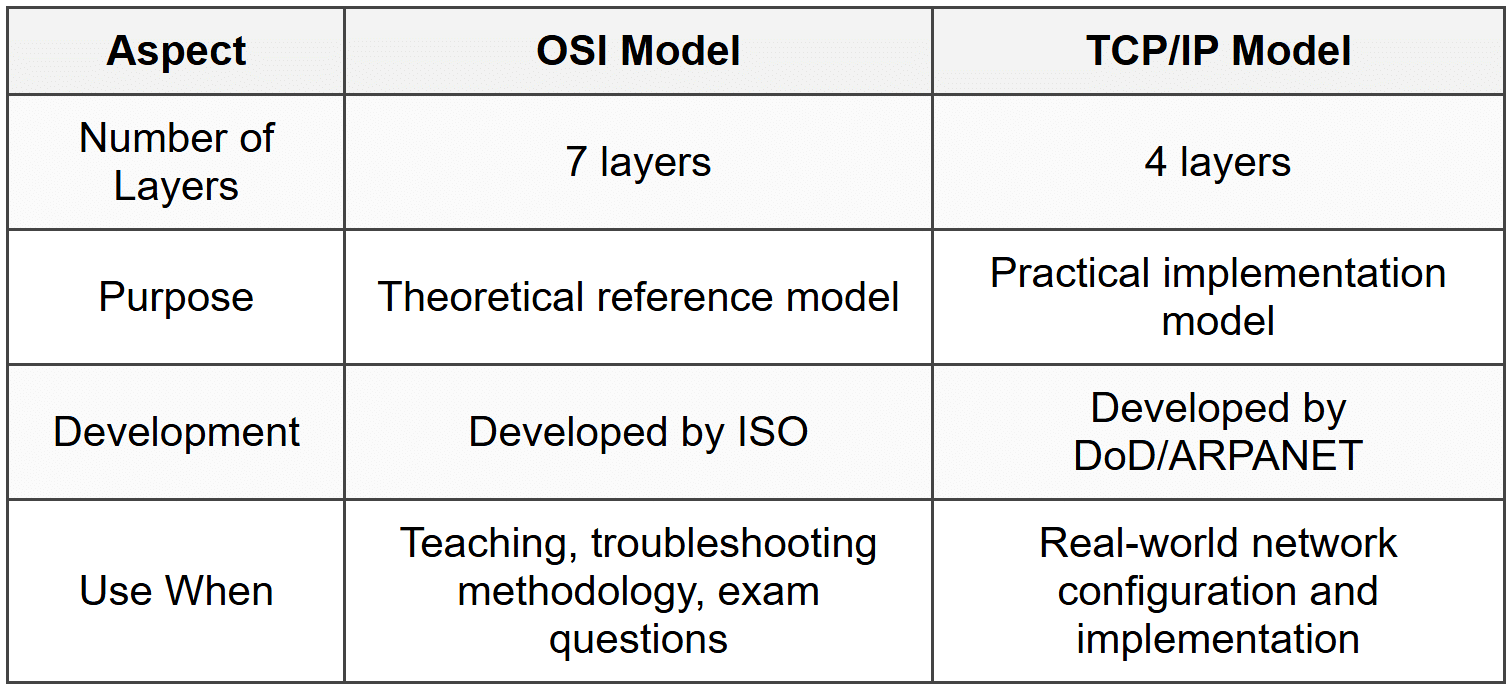
OSI Model
The OSI (Open Systems Interconnection) model is a seven-layer framework that describes how data travels from applications to physical transmission media and back. Each layer has specific functions and protocols.
- Layer 7 - Application: User-facing applications and services (HTTP, FTP, SMTP, DNS)
- Layer 6 - Presentation: Data formatting, encryption, compression (SSL/TLS, JPEG, ASCII)
- Layer 5 - Session: Establishes, manages, and terminates connections (NetBIOS, RPC)
- Layer 4 - Transport: End-to-end communication, error recovery, flow control (TCP, UDP)
- Layer 3 - Network: Logical addressing and routing (IP, ICMP, routers)
- Layer 2 - Data Link: Physical addressing, error detection (MAC addresses, switches, Ethernet)
- Layer 1 - Physical: Physical transmission of bits (cables, hubs, NICs)
When to Use This
- Use the OSI model to systematically troubleshoot network issues by isolating which layer is failing
- Reference specific layers when documenting network problems or explaining connectivity failures to non-technical users
- Apply layer-specific knowledge to determine whether a problem is hardware (Layers 1-2), routing/addressing (Layer 3), or application-based (Layer 7)
TCP/IP Model
The TCP/IP model is a four-layer practical framework that the internet actually uses, condensing the OSI model into fewer layers.
- Layer 4 - Application: Combines OSI Layers 5-7 (HTTP, FTP, SMTP, DNS, DHCP)
- Layer 3 - Transport: Same as OSI Layer 4 (TCP, UDP)
- Layer 2 - Internet: Same as OSI Layer 3 (IP, ICMP, ARP)
- Layer 1 - Network Access: Combines OSI Layers 1-2 (Ethernet, Wi-Fi)
When to Use This
- Use TCP/IP model when working with actual network implementations since all modern networks operate on this model
- Apply this model when configuring routers, switches, and firewalls in real-world scenarios
- Reference TCP/IP layers when dealing with protocol-specific issues or firewall configurations
IP Addressing
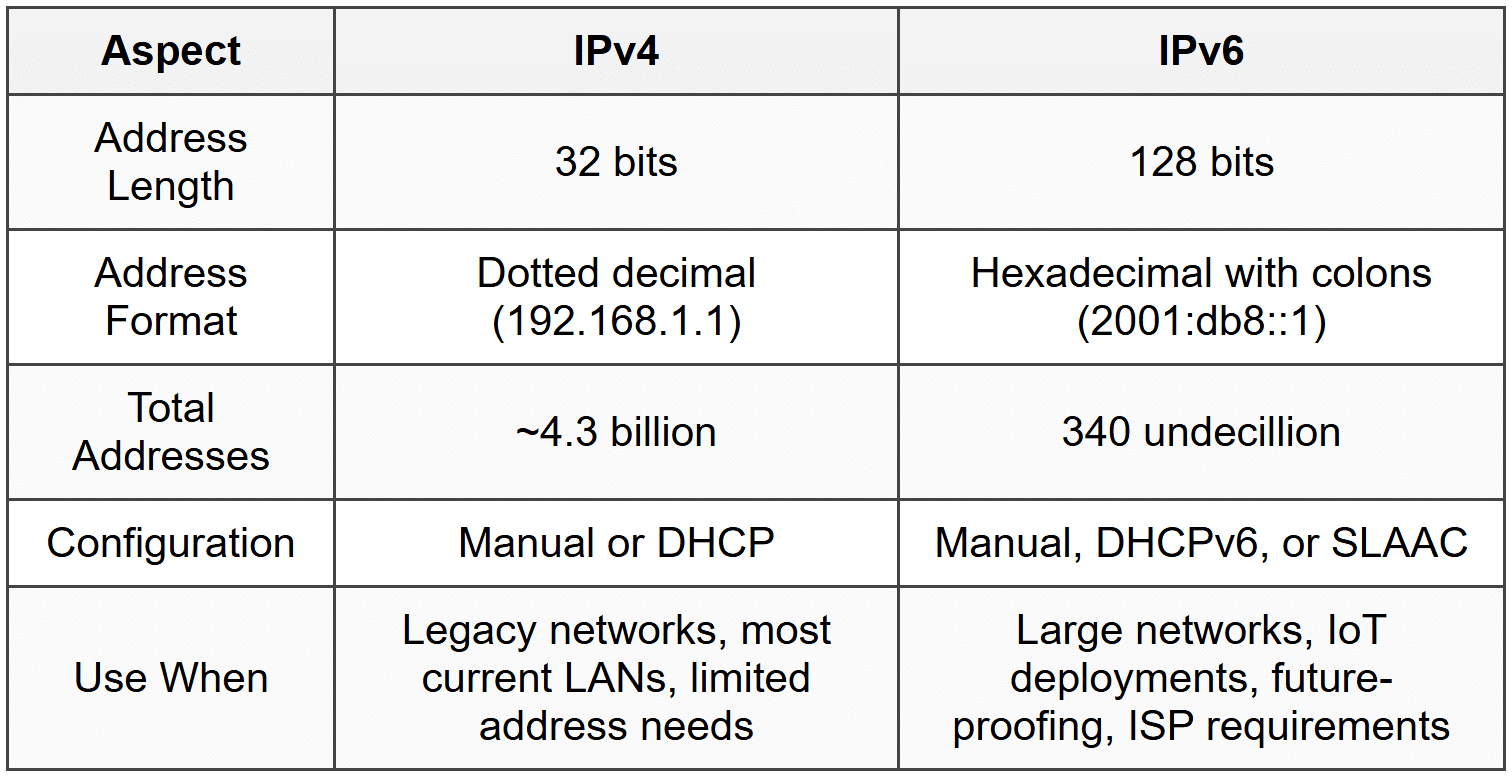
An IP address is a unique numerical identifier assigned to every device on a network, enabling communication between devices.
IPv4 addresses are 32-bit addresses written as four octets separated by periods (e.g., 192.168.1.1). Each octet ranges from 0 to 255.
- Class A: 1.0.0.0 to 126.255.255.255, default subnet mask 255.0.0.0 (/8)
- Class B: 128.0.0.0 to 191.255.255.255, default subnet mask 255.255.0.0 (/16)
- Class C: 192.0.0.0 to 223.255.255.255, default subnet mask 255.255.255.0 (/24)
- Class D: 224.0.0.0 to 239.255.255.255 (multicast addresses)
- Class E: 240.0.0.0 to 255.255.255.255 (experimental, not used)
Private IP Address Ranges (not routable on the internet):
- 10.0.0.0 to 10.255.255.255 (Class A private range)
- 172.16.0.0 to 172.31.255.255 (Class B private range)
- 192.168.0.0 to 192.168.255.255 (Class C private range)
- 169.254.0.0 to 169.254.255.255 (APIPA - Automatic Private IP Addressing)
- 127.0.0.0 to 127.255.255.255 (loopback addresses, 127.0.0.1 is localhost)
IPv6 addresses are 128-bit addresses written in hexadecimal with eight groups separated by colons (e.g., 2001:0db8:85a3:0000:0000:8a2e:0370:7334). Leading zeros can be omitted, and consecutive groups of zeros can be replaced with :: (only once per address).
- Link-local: FE80::/10 (used for local network communication)
- Unique local: FC00::/7 (similar to IPv4 private addresses)
- Global unicast: 2000::/3 (public IPv6 addresses)
- Loopback: ::1 (equivalent to 127.0.0.1 in IPv4)
When to Use This
- Use private IP ranges for internal networks to conserve public IP addresses and add security
- Choose Class C (192.168.x.x) for small office/home office networks with fewer than 254 devices
- Apply IPv6 when IPv4 addresses are exhausted or when working with modern networks that require more address space
- Recognize APIPA addresses (169.254.x.x) as indicators of DHCP failure
Subnet Masks and CIDR
A subnet mask determines which portion of an IP address is the network portion and which is the host portion. It uses the same dotted-decimal format as IPv4 addresses.
Common subnet masks:
- 255.0.0.0 = /8 (16,777,214 usable hosts)
- 255.255.0.0 = /16 (65,534 usable hosts)
- 255.255.255.0 = /24 (254 usable hosts)
- 255.255.255.128 = /25 (126 usable hosts)
- 255.255.255.192 = /26 (62 usable hosts)
- 255.255.255.224 = /27 (30 usable hosts)
- 255.255.255.240 = /28 (14 usable hosts)
CIDR (Classless Inter-Domain Routing) notation uses a slash followed by the number of network bits (e.g., 192.168.1.0/24). The /24 indicates that the first 24 bits are the network portion.
When to Use This
- Use /24 (255.255.255.0) for typical small business or home networks requiring up to 254 devices
- Apply /26 or /27 when segmenting networks into smaller subnets for departmental isolation or security
- Use CIDR notation when configuring routers, firewalls, and documenting network designs
Common Protocols and Ports
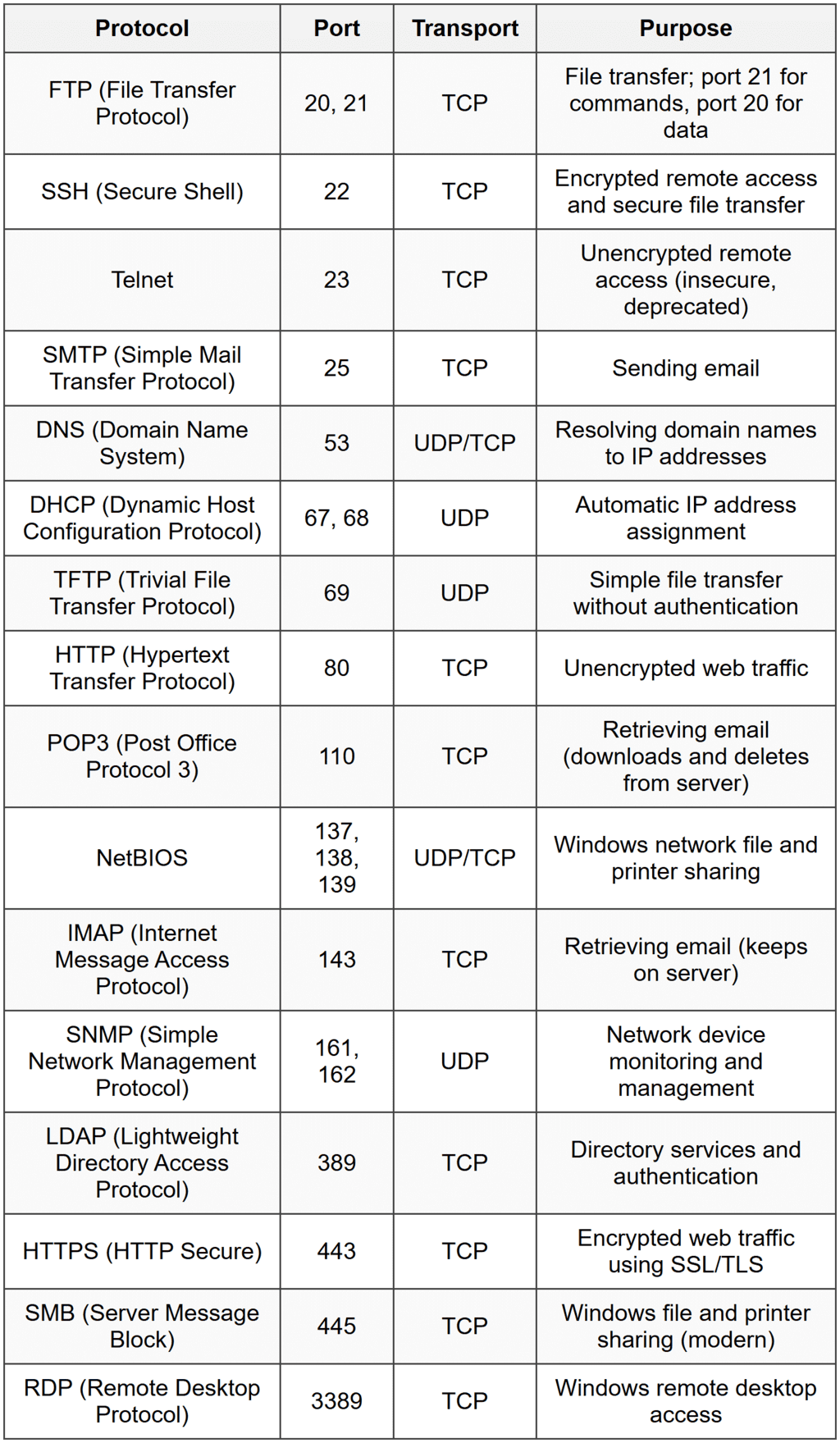
Network protocols define rules for communication, and ports identify specific services or applications. Port numbers range from 0 to 65,535, with well-known ports spanning 0 to 1023.
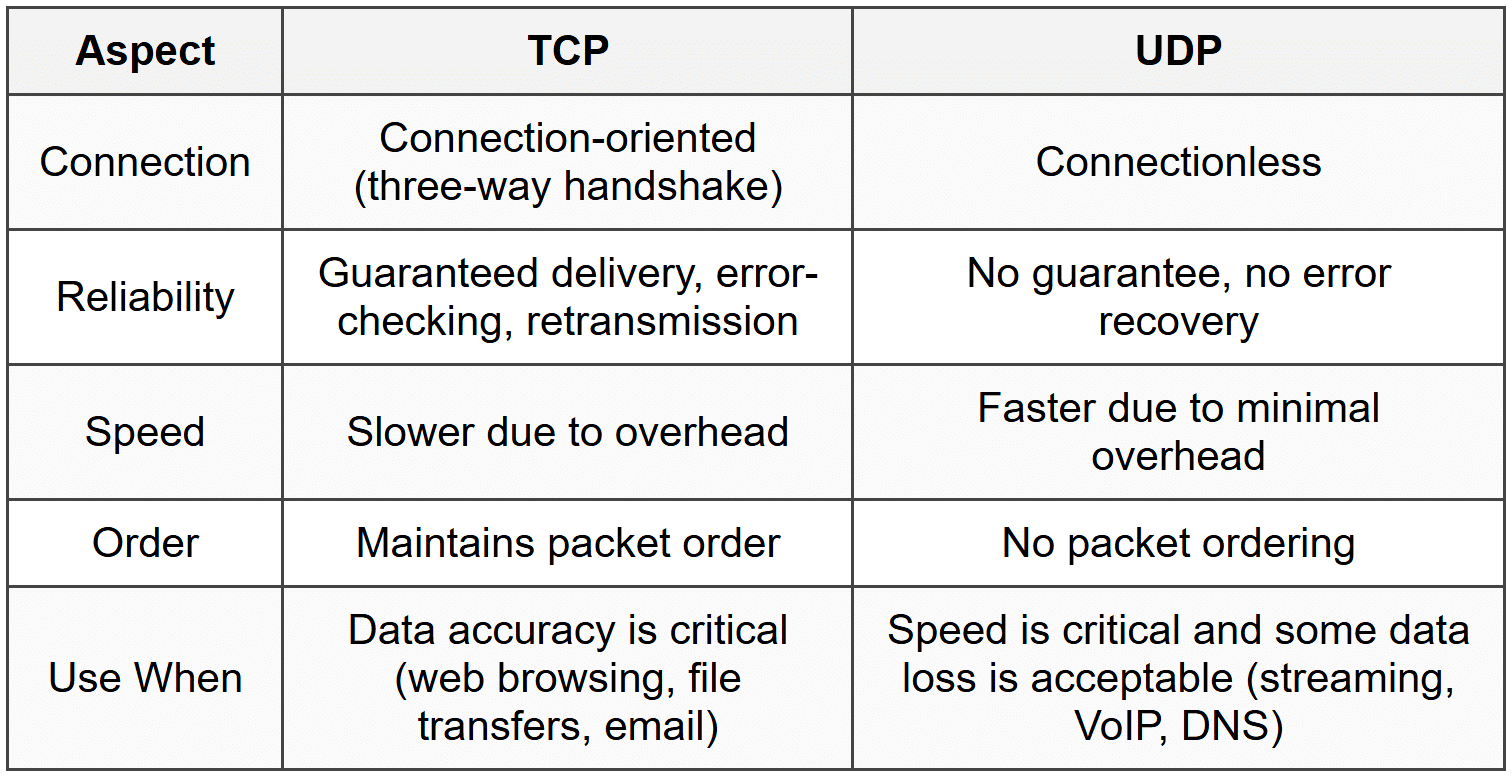
TCP (Transmission Control Protocol) is connection-oriented, reliable, and includes error-checking and retransmission. It establishes a three-way handshake (SYN, SYN-ACK, ACK) before transmitting data.
UDP (User Datagram Protocol) is connectionless, faster, and does not guarantee delivery or order. It is used when speed matters more than reliability.
When to Use This
- Use TCP protocols (HTTP, FTP, SSH) when data integrity and reliability are critical
- Choose UDP protocols (DHCP, DNS, TFTP) for speed-sensitive applications where occasional packet loss is acceptable
- Block or allow specific ports on firewalls to control access to services
- Use port numbers to identify which service is causing network issues or security vulnerabilities
Network Hardware
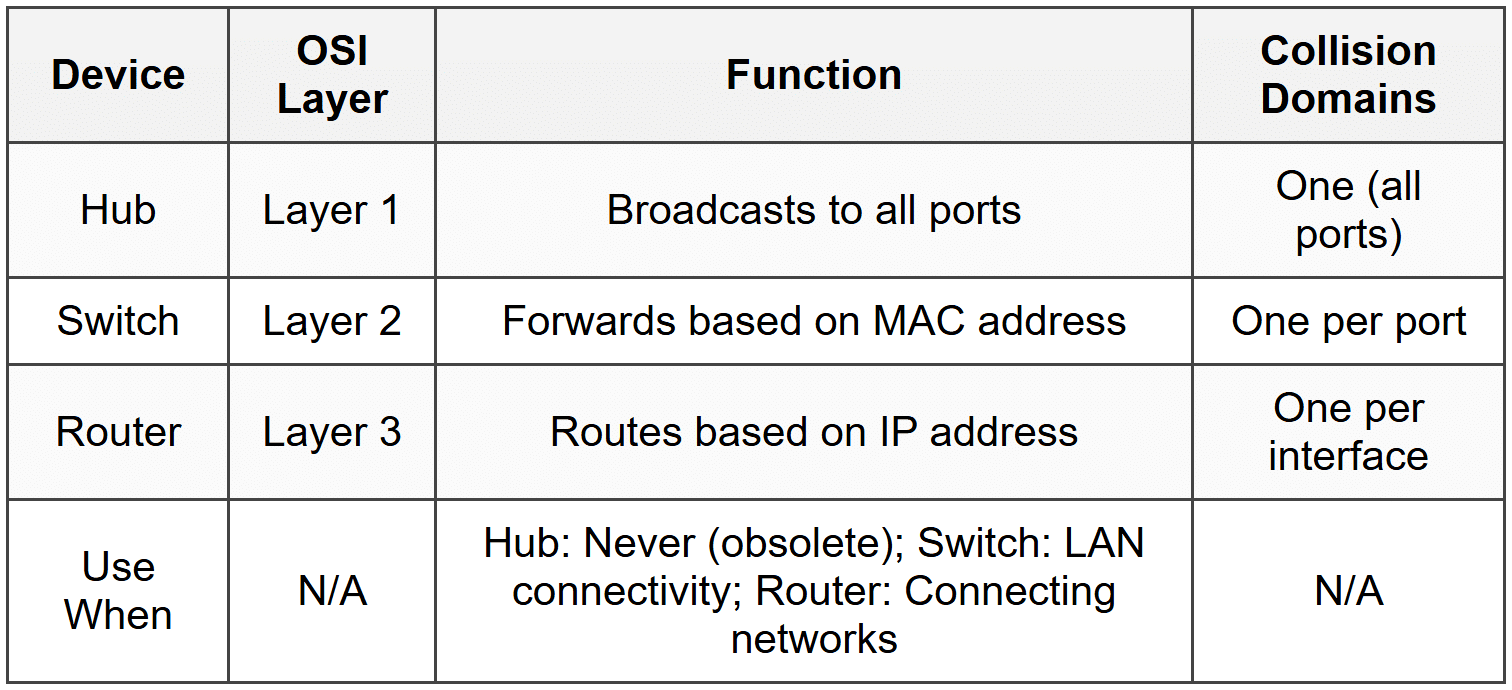
Hub: A Layer 1 device that broadcasts all incoming data to every port. It creates a single collision domain and is inefficient. Hubs are largely obsolete.
When to Use This
- Do not use hubs in modern networks; they are mentioned only for legacy troubleshooting or exam questions
- Recognize hubs as the cause of network collisions and poor performance in older networks
Switch: A Layer 2 device that uses MAC addresses to forward data only to the destination port. Each port is a separate collision domain, reducing network congestion.
- Unmanaged switch: Plug-and-play, no configuration required
- Managed switch: Allows VLAN configuration, port mirroring, QoS, and remote management
- PoE (Power over Ethernet) switch: Delivers electrical power over Ethernet cables to devices like IP phones, cameras, and wireless access points
When to Use This
- Use unmanaged switches in small networks requiring simple connectivity without configuration
- Choose managed switches for enterprise environments requiring VLANs, traffic prioritization, or network monitoring
- Deploy PoE switches to power IP phones, wireless APs, and security cameras without separate power cables
Router: A Layer 3 device that connects different networks and routes data based on IP addresses. It uses routing tables to determine the best path for packets.
- SOHO routers: Combine router, switch, wireless AP, and firewall in one device
- Enterprise routers: Handle high traffic volumes, support advanced routing protocols (OSPF, BGP)
When to Use This
- Use routers to connect LANs to WANs or to segment networks into different subnets
- Apply routers at the network edge to provide internet connectivity and NAT (Network Address Translation)
- Choose enterprise routers for large organizations requiring redundancy and advanced routing capabilities
Access Point (AP): A device that allows wireless devices to connect to a wired network. It operates at Layer 2 and extends network coverage.
- Standalone AP: Configured individually
- Controller-based AP: Centrally managed through a wireless controller
When to Use This
- Deploy standalone APs in small offices or homes requiring simple wireless coverage
- Use controller-based APs in enterprises for centralized management, roaming, and consistent configurations
- Add APs to extend wireless coverage in areas with weak signal or dead zones
Modem: Converts digital signals to analog (modulation) for transmission over telephone or cable lines and converts analog signals back to digital (demodulation). It connects networks to ISPs.
- Cable modem: Uses coaxial cable (DOCSIS standard)
- DSL modem: Uses telephone lines
- Fiber modem (ONT): Converts fiber optic signals to Ethernet
When to Use This
- Use the modem type that matches the ISP's infrastructure (cable, DSL, or fiber)
- Replace or reboot the modem when troubleshooting internet connectivity issues
Firewall: A security device that monitors and controls incoming and outgoing network traffic based on predetermined security rules. It operates at Layers 3-7.
- Hardware firewall: Standalone device or integrated into routers
- Software firewall: Runs on individual computers (Windows Defender Firewall)
- Stateful firewall: Tracks active connections and makes decisions based on connection state
- Stateless firewall: Filters packets based on static rules without tracking connections
When to Use This
- Use hardware firewalls at the network perimeter to protect entire networks
- Enable software firewalls on individual computers for additional endpoint protection
- Configure stateful firewalls for most scenarios to allow legitimate return traffic while blocking unsolicited connections
Network Cable Types
Twisted Pair Cables: Contain pairs of insulated copper wires twisted together to reduce electromagnetic interference (EMI).
- UTP (Unshielded Twisted Pair): No additional shielding, most common and cost-effective
- STP (Shielded Twisted Pair): Includes shielding to reduce EMI, used in industrial environments
Category Ratings:
- Cat 5: 100 Mbps, 100 MHz, obsolete
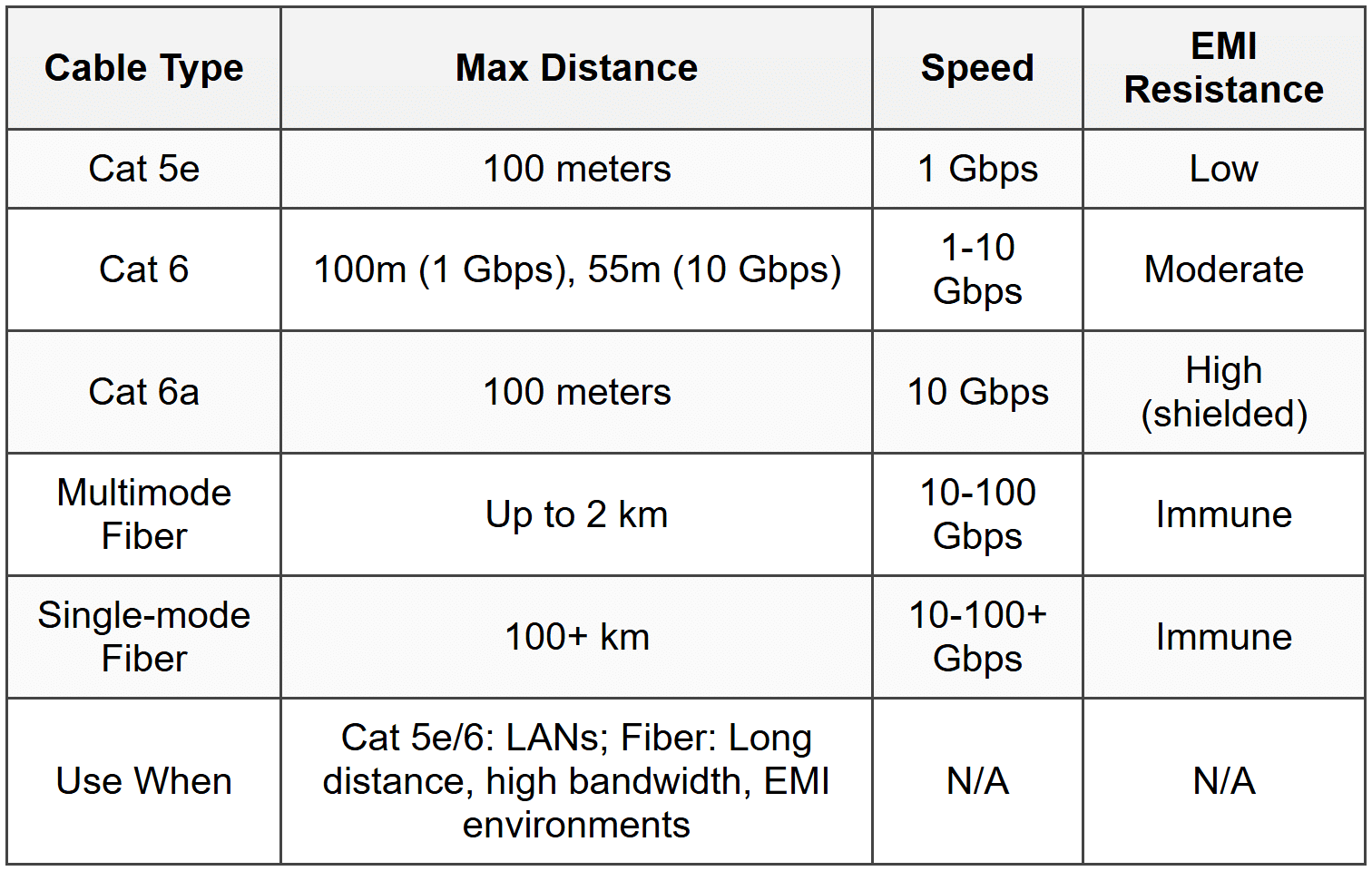
- Cat 5e: 1 Gbps, 100 MHz, up to 100 meters
- Cat 6: 1 Gbps (up to 100m) or 10 Gbps (up to 55m), 250 MHz
- Cat 6a: 10 Gbps up to 100 meters, 500 MHz
- Cat 7: 10 Gbps up to 100 meters, 600 MHz, requires shielding
- Cat 8: 25-40 Gbps up to 30 meters, 2000 MHz, data center use
Plenum-rated cables: Fire-resistant cables with special insulation for use in air circulation spaces (plenum spaces). They produce less smoke and toxic fumes when burning.
When to Use This
- Use Cat 5e for budget-conscious Gigabit Ethernet installations in homes and small offices
- Choose Cat 6 or Cat 6a for new installations requiring 10 Gbps or future-proofing
- Deploy plenum-rated cables in ceiling and wall spaces where building codes require them
- Use STP in environments with high EMI, such as factories or near heavy electrical equipment
Connector Types:
- RJ45: Eight-pin connector for Ethernet twisted pair cables
- RJ11: Four or six-pin connector for telephone lines
Wiring Standards (T568A and T568B): Define pin assignments for RJ45 connectors. Both ends of a cable must use the same standard for a straight-through cable. Using different standards on each end creates a crossover cable.
- Straight-through cable: Both ends use T568A or both use T568B; connects different device types (computer to switch)
- Crossover cable: One end T568A, other end T568B; connects similar devices (switch to switch, computer to computer) without auto-MDIX
When to Use This
- Use straight-through cables for typical connections between computers and network devices
- Use crossover cables only when connecting similar devices on older equipment lacking auto-MDIX
- Most modern devices support auto-MDIX, which automatically detects and adjusts for cable type, making crossover cables rarely necessary
Fiber Optic Cables: Transmit data as light pulses through glass or plastic fibers. Immune to EMI and support longer distances than copper.
- Single-mode fiber (SMF): Small core (8.3-10 microns), laser light source, supports distances up to 100+ km, more expensive, used for long-distance and high-bandwidth applications
- Multimode fiber (MMF): Larger core (50 or 62.5 microns), LED light source, supports distances up to 2 km, less expensive, used for LANs and shorter distances
Fiber Connectors:
- LC (Lucent Connector): Small form factor, push-pull connector, commonly used in modern networks
- SC (Subscriber Connector): Larger, push-pull connector, widely used in older installations
- ST (Straight Tip): Bayonet-style connector, twist-on, common in legacy networks
When to Use This
- Use single-mode fiber for long-distance connections between buildings or for ISP backbone connections
- Choose multimode fiber for campus backbone connections and data center interconnects within 2 km
- Deploy fiber where EMI is a concern or where copper distances exceed 100 meters
Coaxial Cable: Has a central copper conductor surrounded by insulation, a braided shield, and an outer jacket. Commonly used for cable internet and TV.
- RG-6: Used for cable TV and cable internet (thicker, better shielding)
- RG-59: Used for short-run video applications (thinner, more flexible)
Coaxial Connectors:
- F-connector: Screw-on connector for cable TV and cable modems
- BNC: Bayonet-style connector used in older Ethernet (10BASE2) and some video applications
When to Use This
- Use RG-6 for cable modem connections and satellite TV installations
- Deploy RG-59 for short video runs where flexibility is needed
Network Services
DHCP (Dynamic Host Configuration Protocol): Automatically assigns IP addresses, subnet masks, default gateways, and DNS servers to devices on a network. Uses a four-step process: DORA (Discover, Offer, Request, Acknowledge).
- DHCP scope: Range of IP addresses the DHCP server can assign
- DHCP reservation: Assigns a specific IP address to a device based on its MAC address
- DHCP lease: Time period an IP address is assigned to a device before renewal
When to Use This
- Use DHCP for most network devices to simplify IP address management and reduce configuration errors
- Create DHCP reservations for servers, printers, and network devices that require consistent IP addresses
- Configure static IP addresses instead of DHCP for critical infrastructure like routers, switches, and domain controllers
DNS (Domain Name System): Translates human-readable domain names (www.example.com) into IP addresses. Uses a hierarchical structure with root servers, TLD servers, and authoritative name servers.
- A record: Maps a domain name to an IPv4 address
- AAAA record: Maps a domain name to an IPv6 address
- MX record: Specifies mail servers for a domain
- CNAME record: Creates an alias for another domain name
- Primary DNS server: First server queried for name resolution
- Secondary DNS server: Backup server used if primary fails
When to Use This
- Configure DNS settings via DHCP to automatically provide DNS servers to all network devices
- Use public DNS servers (Google: 8.8.8.8, Cloudflare: 1.1.1.1) when troubleshooting ISP DNS issues
- Deploy internal DNS servers in enterprises for local name resolution and Active Directory integration
NAT (Network Address Translation): Translates private IP addresses to a public IP address, allowing multiple devices to share a single public IP. Performed by routers.
- PAT (Port Address Translation or NAT Overload): Maps multiple private IPs to one public IP using different port numbers
- Static NAT: One-to-one mapping between private and public IP addresses
When to Use This
- Use NAT (typically PAT) on all SOHO and enterprise edge routers to conserve public IP addresses
- Apply static NAT when hosting servers internally that need to be accessible from the internet
VPN (Virtual Private Network): Creates encrypted tunnels over public networks, allowing secure remote access to private networks.
- Site-to-site VPN: Connects entire networks (e.g., branch office to headquarters)
- Remote access VPN: Allows individual users to connect to a corporate network
When to Use This
- Deploy remote access VPNs for employees working from home or traveling
- Use site-to-site VPNs to securely connect geographically separated offices
- Configure VPNs when accessing sensitive data over public Wi-Fi or untrusted networks
Proxy Server: Acts as an intermediary between clients and the internet, caching content, filtering requests, and hiding client IP addresses.
When to Use This
- Deploy proxy servers to enforce internet usage policies and content filtering in corporate environments
- Use caching proxies to improve web browsing speed and reduce bandwidth usage
Wireless Networking
Wireless networks use radio frequencies to transmit data. The 802.11 family of standards defines Wi-Fi protocols.
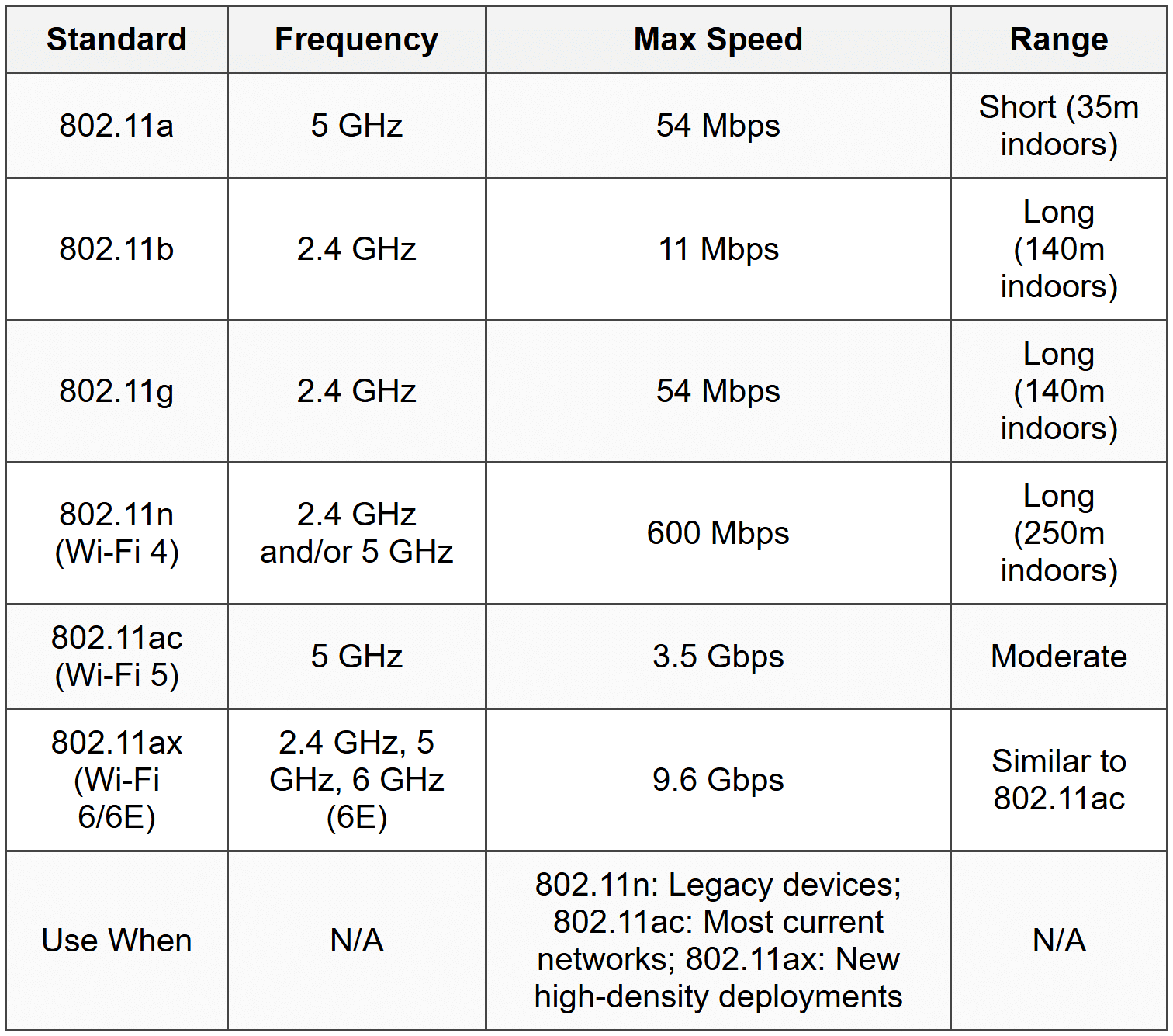
2.4 GHz band: Longer range, more interference (microwaves, Bluetooth, cordless phones), 11 overlapping channels (only 1, 6, and 11 are non-overlapping in the US).
5 GHz band: Shorter range, less interference, more non-overlapping channels (24 in the US), higher throughput.
6 GHz band (Wi-Fi 6E only): Newest band with even more channels and less congestion, requires Wi-Fi 6E compatible devices.
When to Use This
- Use 2.4 GHz for maximum range and compatibility with older devices
- Choose 5 GHz for higher speeds and less interference in dense environments
- Deploy Wi-Fi 6/6E in high-density areas like offices, stadiums, and apartments
- Configure channels 1, 6, or 11 on 2.4 GHz to avoid channel overlap and interference
Wireless Security Protocols:
- WEP (Wired Equivalent Privacy): Obsolete, easily cracked, never use
- WPA (Wi-Fi Protected Access): Improved over WEP, still vulnerable, deprecated
- WPA2: Uses AES encryption, strong security, current standard for most networks
- WPA3: Latest standard, improved encryption and protection against brute-force attacks, recommended for new deployments
When to Use This
- Use WPA2 (with AES) as the minimum security standard for all wireless networks
- Deploy WPA3 on new installations when all devices support it
- Never use WEP or WPA; disable them if found on existing networks
Troubleshooting
1. Error: Computer displays "Limited or No Connectivity" and has an IP address starting with 169.254.x.x. Cannot access network resources or internet.
Resolve: The computer failed to obtain an IP address from the DHCP server and assigned itself an APIPA address. Check physical connection to network, verify DHCP server is running and has available addresses in its scope, restart DHCP service if necessary, or manually release/renew IP address using ipconfig /release and ipconfig /renew.
Check first: Verify the Ethernet cable is securely connected at both ends and check link lights on the NIC and switch port.
Do NOT do first: Do not immediately reconfigure static IP settings; this masks the underlying DHCP issue and creates manual management overhead.
Why other options are wrong: Changing DNS settings, flushing DNS cache, or rebooting the computer won't fix the DHCP failure causing the APIPA assignment.
2. Error: User can access websites by IP address (e.g., 8.8.8.8) but cannot access them by domain name (e.g., www.google.com). Ping to IP addresses succeeds; ping to domain names fails.
Resolve: DNS resolution is failing. Check DNS server settings in network adapter properties, verify DNS server is reachable by pinging it, flush DNS cache using ipconfig /flushdns, or temporarily switch to public DNS servers (8.8.8.8 or 1.1.1.1) to test.
Check first: Run ipconfig /all to verify DNS server addresses are configured correctly and appropriate for the network.
Do NOT do first: Do not replace network cables or reset the router; the IP connectivity works, indicating the issue is DNS-specific, not physical or routing.
Why other options are wrong: Reinstalling network drivers or replacing the NIC won't fix DNS configuration issues; the NIC is communicating properly as evidenced by successful IP-based access.
3. Error: Wireless devices cannot connect to the Wi-Fi network. They see the SSID but receive "Cannot connect to this network" or authentication errors. Wired devices work normally.
Resolve: Incorrect wireless security key (password) or mismatched security protocol (e.g., device only supports WPA2, but network uses WPA3). Verify the correct password is being entered, ensure the security protocol on the access point matches what the device supports, or temporarily lower security to WPA2 if WPA3 compatibility is the issue.
Check first: Confirm the exact wireless password with the network administrator or documentation; typos and case sensitivity are common causes.
Do NOT do first: Do not reset the access point to factory defaults; this disrupts all wireless users and requires full reconfiguration.
Why other options are wrong: Wired connectivity works, so DHCP and internet access are functional; the issue is isolated to wireless authentication, not network services.
4. Error: Users report intermittent slow network speeds and frequent disconnections on Wi-Fi. Running a Wi-Fi analyzer shows multiple nearby networks on the same channel.
Resolve: Channel overlap and interference from neighboring Wi-Fi networks. Change the wireless access point to a non-overlapping channel (1, 6, or 11 for 2.4 GHz) or switch to the 5 GHz band with more available channels.
Check first: Use a Wi-Fi analyzer tool to identify which channels are congested and which are clear.
Do NOT do first: Do not increase transmit power to maximum; this worsens interference for neighboring networks and may not improve performance.
Why other options are wrong: Replacing Ethernet cables won't affect wireless performance; updating device drivers might help slightly but doesn't address the root cause of channel congestion.
5. Error: A newly installed Cat 5e cable between two switches shows link lights but network connectivity is unreliable with frequent packet loss and errors. Cable is 110 meters long.
Resolve: The cable exceeds the maximum distance specification of 100 meters for twisted pair Ethernet. Replace with fiber optic cable for longer distances or reposition the switches to reduce cable length to under 100 meters.
Check first: Measure the actual cable length to confirm it exceeds 100 meters; documentation may be inaccurate.
Do NOT do first: Do not replace the cable with Cat 6 or Cat 6a; all twisted pair Ethernet standards have a 100-meter maximum distance regardless of category.
Why other options are wrong: Adjusting switch port settings or changing cables to higher categories won't overcome the physical distance limitation; only fiber or adding an intermediate switch/repeater will work.
Step-by-Step Procedures
Task: Configuring a Static IP Address in Windows
- Open Control Panel → Network and Sharing Center (or right-click network icon in taskbar and select Open Network & Internet settings)
- Click Change adapter settings
- Right-click the appropriate network adapter and select Properties
- Select Internet Protocol Version 4 (TCP/IPv4) and click Properties
- Select Use the following IP address
- Enter the IP address (e.g., 192.168.1.100)
- Enter the Subnet mask (e.g., 255.255.255.0)
- Enter the Default gateway (router's IP address, e.g., 192.168.1.1)
- Select Use the following DNS server addresses
- Enter Preferred DNS server (e.g., 8.8.8.8)
- Enter Alternate DNS server (e.g., 8.8.4.4) if desired
- Click OK on both windows
- Test connectivity by pinging the default gateway: ping 192.168.1.1
Task: Releasing and Renewing DHCP IP Address
- Open Command Prompt as Administrator
- Type ipconfig /release and press Enter (this releases the current IP address)
- Type ipconfig /renew and press Enter (this requests a new IP address from DHCP server)
- Verify new IP address by typing ipconfig /all
- Test connectivity by pinging the default gateway
Task: Flushing DNS Cache
- Open Command Prompt as Administrator
- Type ipconfig /flushdns and press Enter
- Confirmation message appears: "Successfully flushed the DNS Resolver Cache"
- Test name resolution by pinging a domain name: ping www.google.com
Task: Testing Network Connectivity with Ping and Tracert
- Open Command Prompt
- Ping localhost to verify TCP/IP stack is functioning: ping 127.0.0.1
- Ping the computer's own IP address: ping [own IP]
- Ping the default gateway: ping [gateway IP]
- Ping an external IP address: ping 8.8.8.8
- Ping a domain name: ping www.google.com
- If external IP works but domain doesn't, DNS is the issue; if gateway fails, local network is the issue
- Use tracert www.google.com to trace the route packets take and identify where failures occur
Task: Crimping an RJ45 Connector (T568B Standard)
- Strip approximately 1-2 inches of outer jacket from the cable end using a cable stripper
- Untwist the pairs and arrange wires in T568B order from left to right: White/Orange, Orange, White/Green, Blue, White/Blue, Green, White/Brown, Brown
- Trim wires to equal length, leaving approximately 0.5 inches of untwisted wire
- Insert wires into RJ45 connector, ensuring each wire reaches the end of the connector and maintains correct order
- Verify outer jacket enters the connector slightly for strain relief
- Insert connector into crimping tool and squeeze firmly to crimp
- Test cable with a cable tester to verify all eight wires have connectivity and are in correct pin positions
Practice Questions
Q1: A user reports that their computer is connected to the network but cannot access any resources. Running ipconfig shows an IP address of 169.254.85.10. What is the most likely cause?
(a) The DNS server is down
(b) The DHCP server is unavailable or out of addresses
(c) The default gateway is misconfigured
(d) The network cable is damaged
Ans: (b)
An IP address starting with 169.254.x.x is an APIPA (Automatic Private IP Addressing) address, which a Windows computer assigns itself when it cannot contact a DHCP server. Option (a) is wrong because DNS issues would not result in APIPA; the computer would still get a DHCP address. Option (c) is wrong because gateway configuration happens after IP assignment. Option (d) is wrong because a damaged cable would prevent any network connection, including APIPA assignment.
Q2: A technician is installing network cable in a building's plenum space above drop ceiling tiles. Which type of cable must be used to meet fire codes?
(a) Cat 6 UTP
(b) Cat 5e STP
(c) Plenum-rated Cat 6
(d) PVC-jacketed Cat 6a
Ans: (c)
Plenum spaces require plenum-rated cables that produce less smoke and toxic fumes when burning, meeting fire code requirements. Option (a) and (b) are wrong because standard UTP or STP cables use PVC jackets that produce toxic smoke. Option (d) is wrong because PVC jackets are specifically not allowed in plenum spaces; plenum-rated cables use FEP or low-smoke materials.
Q3: Which wireless standard operates exclusively on the 5 GHz frequency band and provides speeds up to 3.5 Gbps?
(a) 802.11n
(b) 802.11ac
(c) 802.11ax
(d) 802.11g
Ans: (b)
802.11ac (Wi-Fi 5) operates only on 5 GHz and provides speeds up to 3.5 Gbps. Option (a) is wrong because 802.11n operates on both 2.4 GHz and 5 GHz. Option (c) is wrong because 802.11ax (Wi-Fi 6) operates on 2.4 GHz and 5 GHz, and Wi-Fi 6E adds 6 GHz. Option (d) is wrong because 802.11g operates only on 2.4 GHz and provides only 54 Mbps.
Q4: A network administrator needs to connect two switches located 150 meters apart. What is the best cable choice?
(a) Cat 6 UTP
(b) Cat 6a STP
(c) Multimode fiber
(d) Coaxial RG-6
Ans: (c)
Twisted pair Ethernet (all categories) has a maximum distance of 100 meters, making Cat 6 and Cat 6a unsuitable for 150 meters. Multimode fiber supports distances up to 2 km and is the correct choice. Options (a) and (b) are wrong because they exceed the 100-meter limit. Option (d) is wrong because coaxial cable is not used for modern switch-to-switch connections.
Q5: Performance-Based Task: A user cannot access websites by name but can ping 8.8.8.8 successfully. List the troubleshooting steps you would perform in order to diagnose this issue.
Ans:
1. Run ipconfig /all to check DNS server configuration
2. Ping the configured DNS server IP address to verify it is reachable
3. Use nslookup www.google.com to test DNS resolution directly
4. Flush DNS cache using ipconfig /flushdns
5. Temporarily change DNS settings to public DNS (8.8.8.8 or 1.1.1.1) to determine if the problem is with the configured DNS server
6. If public DNS works, investigate the original DNS server for service or configuration issues
The issue is DNS-specific because IP-based connectivity works (ping 8.8.8.8 succeeds), ruling out physical layer, DHCP, or routing problems.
Q6: Which port number and protocol does HTTPS use?
(a) Port 80, TCP
(b) Port 443, UDP
(c) Port 443, TCP
(d) Port 53, TCP
Ans: (c)
HTTPS uses TCP port 443 for encrypted web traffic. Option (a) is wrong because port 80 is for unencrypted HTTP. Option (b) is wrong because HTTPS uses TCP, not UDP. Option (d) is wrong because port 53 is for DNS.
Quick Review
- APIPA addresses (169.254.x.x) indicate DHCP failure; first check cable connections, then verify DHCP server availability
- Twisted pair Ethernet maximum distance is 100 meters regardless of category; use fiber for longer runs
- Plenum-rated cables are required in air handling spaces due to fire codes; they produce less toxic smoke
- 2.4 GHz Wi-Fi non-overlapping channels are 1, 6, and 11; use these to minimize interference
- TCP is connection-oriented and reliable; UDP is connectionless and faster but unreliable
- Private IP ranges: 10.0.0.0/8, 172.16.0.0/12, 192.168.0.0/16; not routable on the internet
- Common ports to memorize: HTTP (80), HTTPS (443), FTP (20/21), SSH (22), RDP (3389), DNS (53), DHCP (67/68)
- Cat 5e supports 1 Gbps; Cat 6 supports 10 Gbps up to 55m; Cat 6a supports 10 Gbps up to 100m
- Single-mode fiber for long distances (100+ km); multimode fiber for shorter distances (up to 2 km)
- WPA2 with AES is minimum wireless security; WPA3 is recommended for new deployments; never use WEP or original WPA