Wireless Networking


Overview
This chapter covers wireless networking standards, configurations, security protocols, and troubleshooting methods essential for the CompTIA A+ 220-1101 exam. You'll learn the specific frequencies, speeds, ranges, and security methods tested on performance-based questions and scenarios. This knowledge directly applies to configuring SOHO networks, diagnosing connectivity issues, and implementing secure wireless environments.
Core Concepts
Wi-Fi Standards (IEEE 802.11)
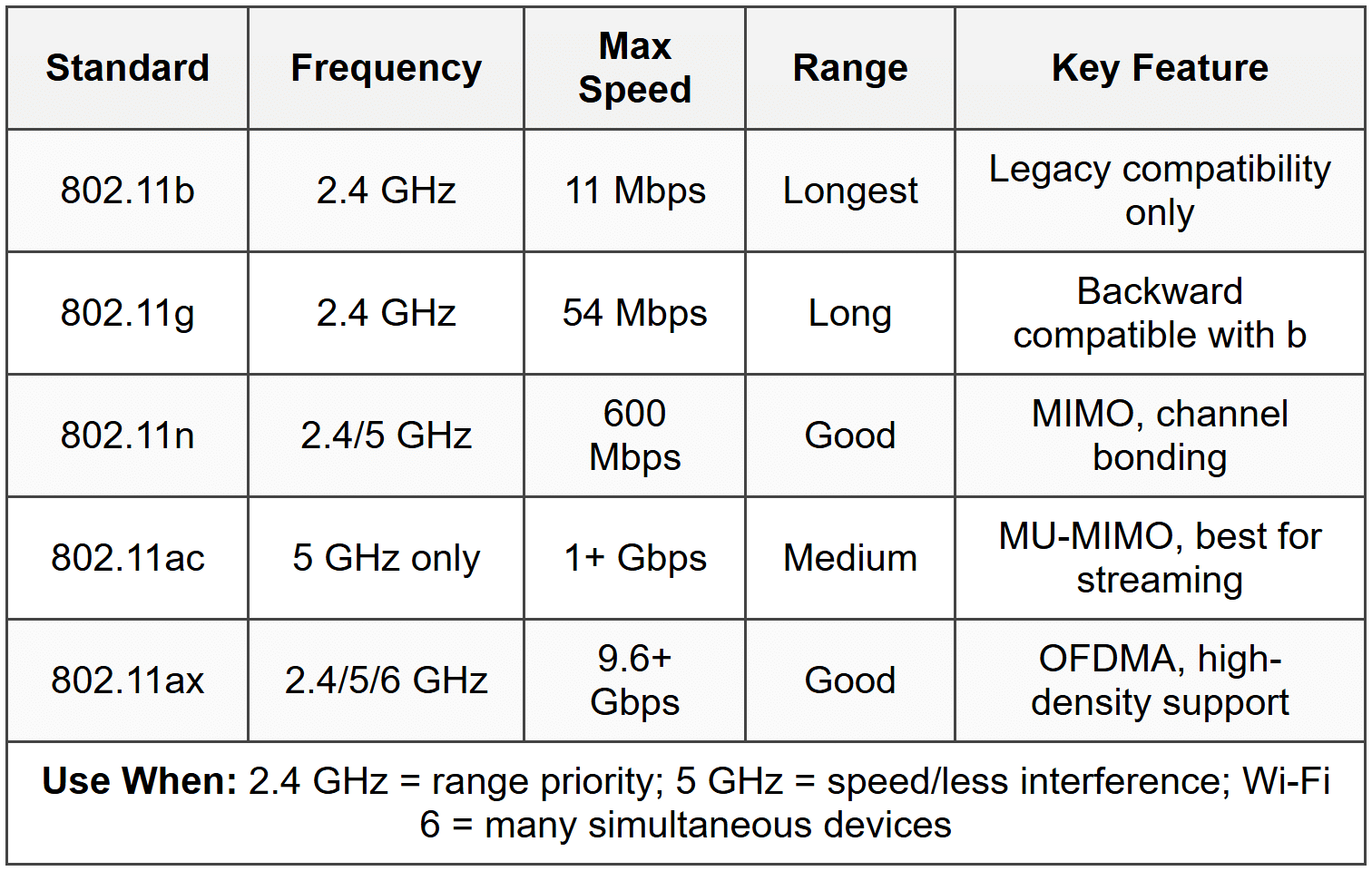
Wi-Fi standards define how wireless devices communicate, specifying frequency bands, maximum speeds, and ranges. The exam tests your ability to identify standards by their specifications and choose the right one for specific scenarios.
- 802.11a: 5 GHz frequency, 54 Mbps max speed, shorter range than 2.4 GHz, less interference, obsolete but still tested
- 802.11b: 2.4 GHz frequency, 11 Mbps max speed, longest range of early standards, highly susceptible to interference
- 802.11g: 2.4 GHz frequency, 54 Mbps max speed, backward compatible with 802.11b, commonly found in legacy devices
- 802.11n (Wi-Fi 4): 2.4 GHz and/or 5 GHz (dual-band), 600 Mbps max speed, uses MIMO (Multiple Input Multiple Output), supports channel bonding (combining two 20 MHz channels into one 40 MHz channel)
- 802.11ac (Wi-Fi 5): 5 GHz only, 1+ Gbps speeds (theoretical 6.9 Gbps), uses MU-MIMO (Multi-User MIMO), supports wider channels up to 160 MHz, backward compatible with 802.11n on 5 GHz
- 802.11ax (Wi-Fi 6/6E): 2.4 GHz, 5 GHz, and 6 GHz (6E variant), 9.6+ Gbps theoretical speeds, uses OFDMA (Orthogonal Frequency Division Multiple Access) for better efficiency in crowded environments, improved battery life through Target Wake Time (TWT)
When to Use Each Standard
- Use 802.11n for compatibility with older 2.4 GHz devices while still offering decent speeds in mixed environments
- Use 802.11ac when you need high throughput for streaming/gaming and all devices support 5 GHz
- Use 802.11ax (Wi-Fi 6) in high-density environments like offices or apartments where many devices connect simultaneously
- Choose 2.4 GHz bands for longer range through walls but accept more interference; choose 5 GHz for higher speeds with shorter range and less interference
Wireless Frequencies and Channels
Wireless routers broadcast on specific channels within frequency bands. Channel overlap causes interference, which the exam tests through troubleshooting scenarios.
- 2.4 GHz band: Contains 11 channels in North America (channels 1-11), but only channels 1, 6, and 11 do not overlap
- 5 GHz band: Contains 24+ non-overlapping channels, significantly less crowded, better for high-density areas
- 6 GHz band: Available only with Wi-Fi 6E, provides even more non-overlapping channels for ultra-low interference
- Channel width: 20 MHz (most compatible), 40 MHz (faster but more interference on 2.4 GHz), 80 MHz and 160 MHz (5 GHz only, maximum speed)
When to Configure Channels
- Set routers to channels 1, 6, or 11 on 2.4 GHz to avoid overlap with neighboring networks
- Use auto channel selection on 5 GHz due to the large number of available channels
- Manually select channels when experiencing interference from neighboring access points broadcasting on the same or overlapping channels
- Reduce channel width from 40 MHz to 20 MHz if experiencing frequent disconnections in crowded 2.4 GHz environments
Wireless Encryption and Security Protocols
Security protocols encrypt data transmitted over wireless networks. The exam heavily tests which protocols are secure and which are vulnerable.
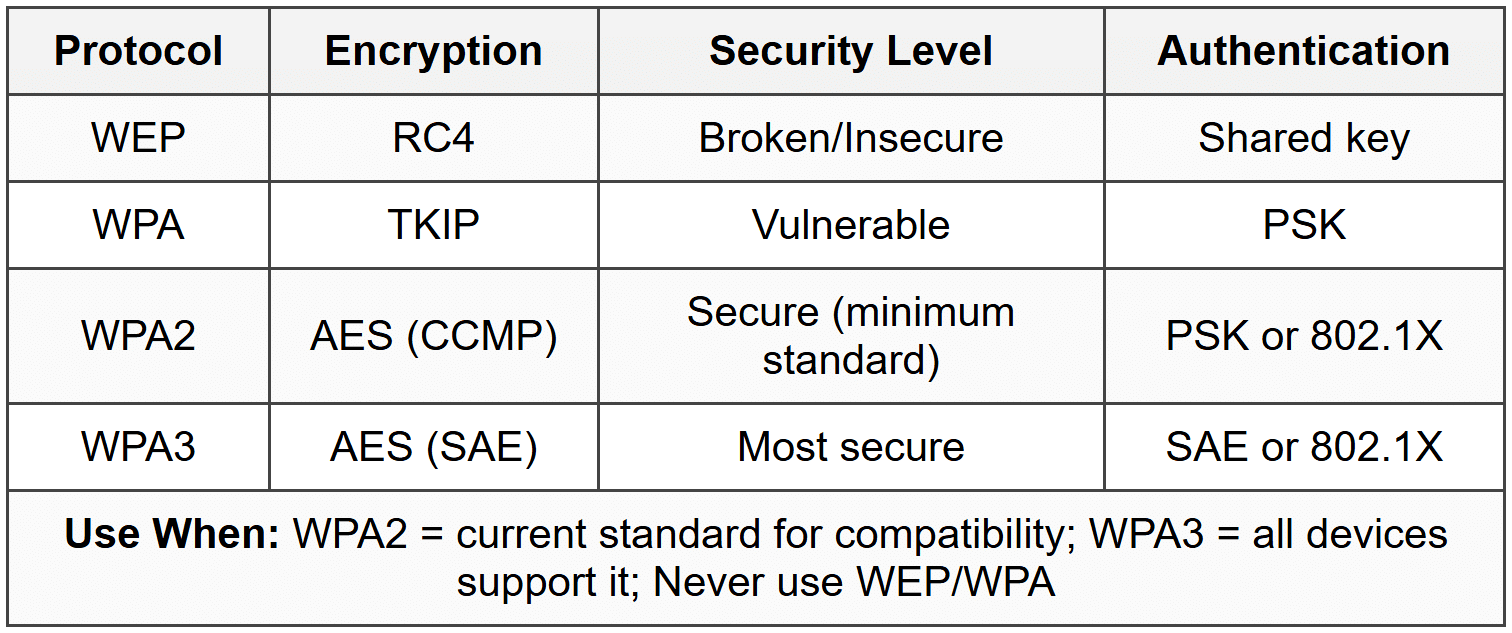
- WEP (Wired Equivalent Privacy): Uses RC4 encryption, completely broken and insecure, never use, crackable in minutes
- WPA (Wi-Fi Protected Access): Uses TKIP (Temporal Key Integrity Protocol), designed as WEP replacement, vulnerable to attacks, deprecated
- WPA2: Uses AES (Advanced Encryption Standard) with CCMP, current minimum security standard, supports Personal (PSK) and Enterprise (802.1X with RADIUS) modes
- WPA3: Uses SAE (Simultaneous Authentication of Equals) replacing PSK, protects against brute-force attacks, provides forward secrecy, supports 192-bit encryption in Enterprise mode
- Open network: No encryption, anyone can connect and intercept traffic, only acceptable for public guest networks with network isolation
When to Use Each Security Protocol
- Use WPA2-Personal (WPA2-PSK) with a strong passphrase (12+ characters) for SOHO networks when all devices support it
- Use WPA3-Personal when all devices support it for maximum security against password-guessing attacks
- Use WPA2-Enterprise or WPA3-Enterprise in corporate environments requiring individual user authentication through RADIUS servers
- Never configure new networks with WEP or WPA-both are fundamentally insecure and fail compliance requirements
Wireless Network Types
Different network configurations serve different purposes. The exam tests identifying the correct topology for specific scenarios.
- Infrastructure mode: Devices connect through a central access point (AP) or wireless router, most common setup for home and business networks
- Ad-hoc mode: Devices connect directly to each other without an access point, creates a peer-to-peer network, rarely used, limited range and functionality
- Mesh network: Multiple access points communicate with each other to extend coverage, devices automatically connect to the strongest signal, eliminates dead zones
When to Use Each Network Type
- Use infrastructure mode for all standard home and office wireless networks requiring internet access and centralized management
- Use ad-hoc mode only for temporary direct device-to-device connections when no access point is available (rare)
- Use mesh networks in large homes or offices where a single access point cannot provide complete coverage without dead zones
Wireless Access Point Configuration Settings
These settings appear in performance-based questions where you configure or troubleshoot wireless routers.
- SSID (Service Set Identifier): The network name broadcasted by the access point, can be hidden but still detectable, hiding SSID is security through obscurity and not effective protection
- SSID broadcast: Enabled by default, disabling prevents casual discovery but does not secure the network, devices must manually enter the SSID to connect
- MAC address filtering: Allows or blocks devices based on their hardware address, easy to bypass through MAC spoofing, weak security measure, creates administrative overhead
- Radio power levels: Adjusts transmission strength, reduce power to limit signal range outside intended area
- Guest network: Isolated wireless network for visitors, prevents access to internal network resources, separate SSID and VLAN
- QoS (Quality of Service): Prioritizes certain types of traffic (VoIP, video) over others, reduces latency for time-sensitive applications
When to Configure These Settings
- Change the default SSID to avoid revealing router manufacturer/model, which helps attackers identify vulnerabilities
- Enable guest networks when providing Wi-Fi access to visitors without exposing internal network resources
- Use MAC filtering only as an additional layer in home networks, never as primary security (too easy to circumvent)
- Enable QoS when experiencing choppy VoIP calls or video conferencing on networks with heavy traffic
Wireless Antennas
Antenna types affect signal direction and range. The exam tests matching antenna types to coverage needs.
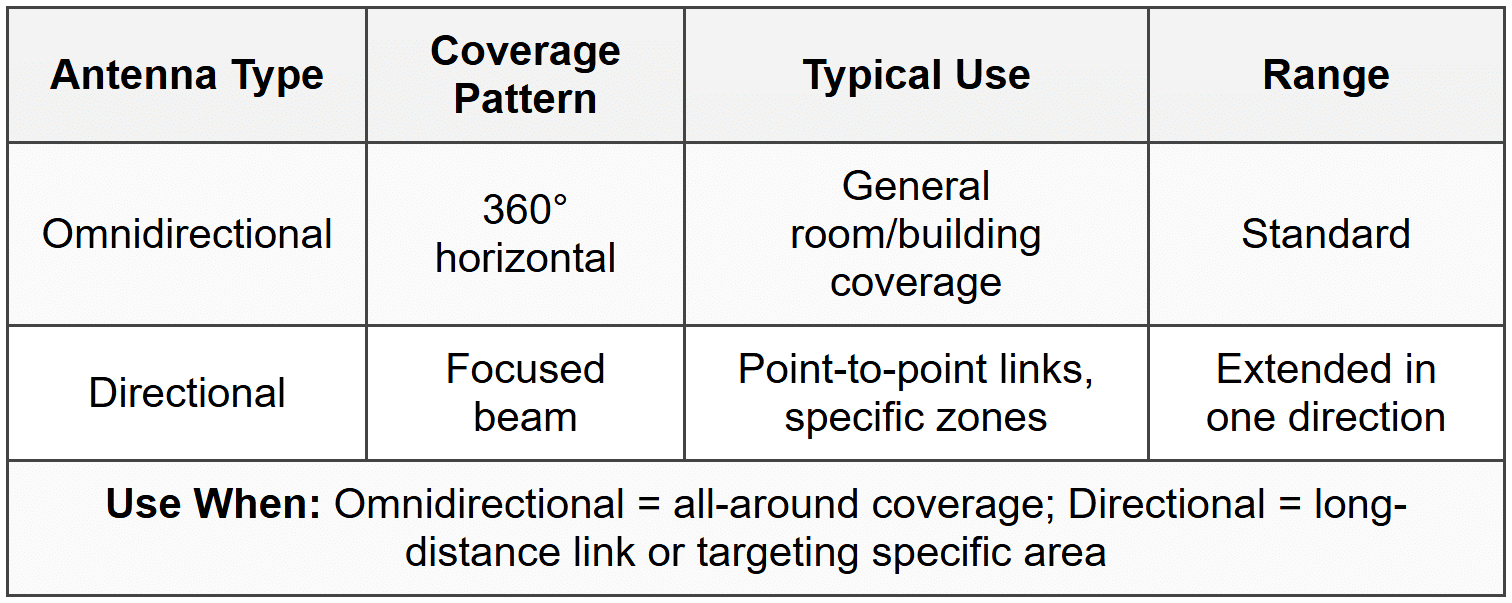
- Omnidirectional antenna: Radiates signal 360 degrees horizontally, standard on most consumer routers, good for general coverage
- Directional (unidirectional) antenna: Focuses signal in one specific direction, longer range in that direction, used for point-to-point links or extending coverage to specific areas
- Dipole antenna: Basic omnidirectional antenna, typically the "stick" antennas on consumer routers
- Patch/panel antenna: Flat directional antenna, used to cover specific zones like hallways or outdoor point-to-point connections
When to Use Each Antenna Type
- Use omnidirectional antennas for access points that need to cover a room or area in all directions
- Use directional antennas to create long-distance point-to-point wireless bridges between buildings
- Replace standard antennas with higher-gain omnidirectional versions to extend coverage radius without changing signal pattern
- Use patch antennas to focus signal toward a specific area while minimizing coverage outside that zone for security
Wireless Network Modes
Routers can operate in different modes to support various device generations.
- Legacy mode: Supports all older standards (802.11b/g/n/ac), maximum compatibility but reduced performance
- Mixed mode: Supports specific combinations like 802.11n/ac or 802.11ac/ax, balances compatibility and performance
- Greenfield mode (802.11n-only or 802.11ac-only): Supports only the specified standard, maximum performance but incompatible with older devices
When to Use Each Mode
- Use mixed mode (default on most routers) when you have devices from different generations connecting to the same network
- Use greenfield mode only when you've verified all connecting devices support the specific standard and need maximum throughput
- Avoid legacy mode including 802.11b unless absolutely necessary-it significantly reduces overall network performance for all devices
Bluetooth
Bluetooth creates short-range wireless connections between devices. The exam tests versions, pairing processes, and troubleshooting.
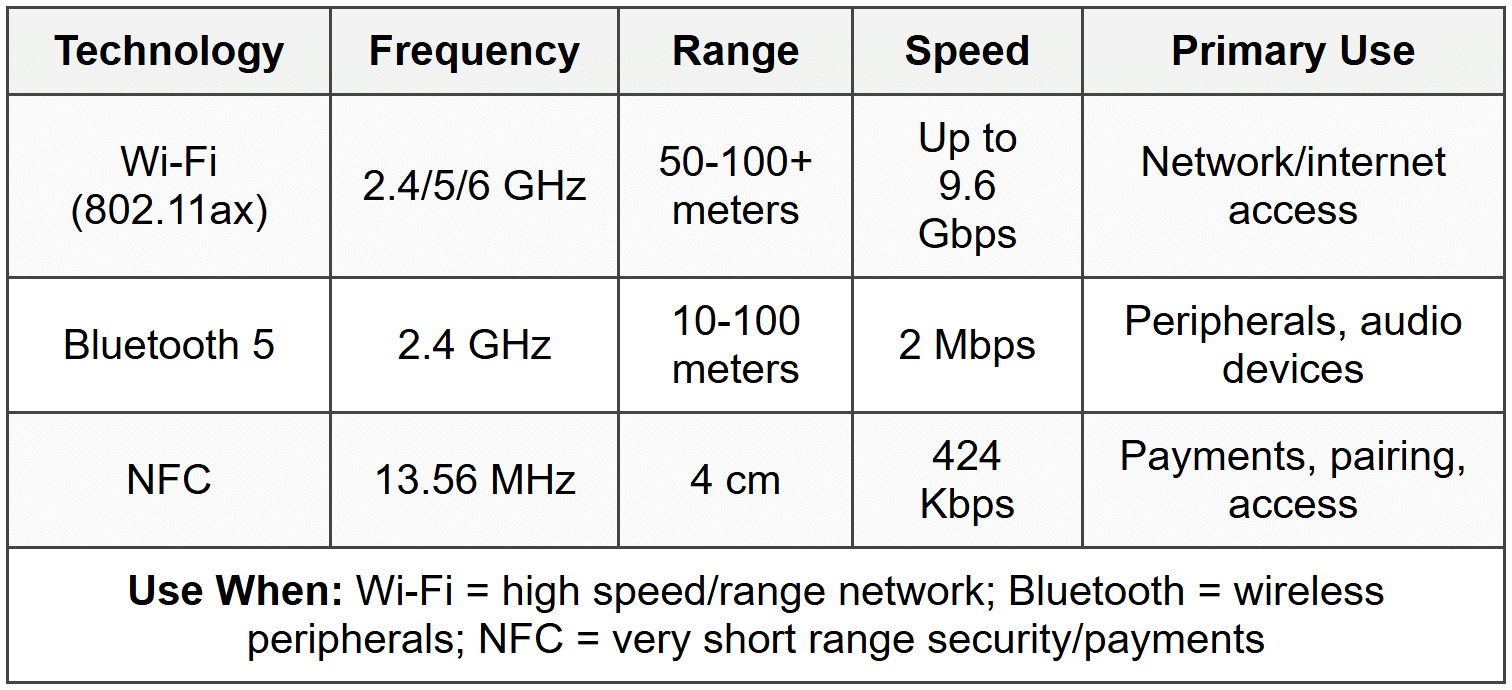
- Frequency: 2.4 GHz band (same as Wi-Fi, can cause interference)
- Range: Typically 10 meters (33 feet) for Class 2 devices (most common), up to 100 meters for Class 1
- Bluetooth 4.0+: Introduced Bluetooth Low Energy (BLE), used for fitness trackers, IoT devices, significantly reduced power consumption
- Bluetooth 5.0+: 4× range and 2× speed compared to 4.2, improved for IoT and audio devices
- Pairing process: Devices exchange keys and establish trust, often requires PIN or passkey, devices must be in discoverable mode
- Profiles: Define device capabilities (A2DP for audio streaming, HID for keyboards/mice, HFP for hands-free calling)
When to Use Bluetooth
- Use Bluetooth for peripheral connections (keyboards, mice, headsets) when you need wireless without using USB dongles
- Use Bluetooth for mobile device accessories (speakers, headphones, car audio) within short range
- Use BLE specifically for battery-powered devices requiring long battery life like fitness trackers or smart home sensors
- Choose Wi-Fi Direct instead of Bluetooth when transferring large files between devices (faster speeds)
NFC (Near Field Communication)
NFC enables extremely short-range wireless communication, typically for contactless payments and pairing.
- Frequency: 13.56 MHz
- Range: 4 cm (1.6 inches) maximum, intentionally very short for security
- Speed: 424 Kbps maximum, not designed for large data transfers
- Common uses: Mobile payments (Apple Pay, Google Pay), access badges, simplified Bluetooth pairing
- Passive mode: Powered devices can read unpowered NFC tags
When to Use NFC
- Use NFC for contactless payment systems requiring physical proximity for security
- Use NFC to simplify Bluetooth pairing by tapping devices together instead of manual pairing process
- Use NFC tags for physical access control or sharing small amounts of information (URLs, contact info)
- Do not use NFC for file transfers-the extremely short range and slow speed make it impractical
RFID (Radio-Frequency Identification)
RFID uses radio waves to automatically identify and track tags attached to objects.
- Passive RFID: No battery, powered by reader's radio waves, short range (few inches to ~20 feet), used for inventory/access cards
- Active RFID: Battery-powered, longer range (up to 100+ meters), used for tracking vehicles or large equipment
- Frequency ranges: Low frequency (125-134 KHz), High frequency (13.56 MHz - same as NFC), Ultra-high frequency (860-960 MHz)
- Common uses: Inventory management, pet identification chips, toll collection, access badges
When to Use RFID
- Use passive RFID for access control systems where users scan badges at door readers
- Use active RFID for tracking high-value assets moving through large facilities or supply chains
- Use RFID instead of barcodes when you need to scan multiple items simultaneously without line-of-sight
Troubleshooting
1. Error: User cannot connect to Wi-Fi network; other devices connect successfully. The device shows the network name but displays "Cannot connect to this network" after entering the correct password.
Resolve: The device has a corrupted saved network profile. Forget/remove the network from saved networks, restart the device, then reconnect by entering credentials fresh.
Check first: Verify the password is actually correct by successfully connecting a different device-don't assume the user typed it correctly.
Do NOT do first: Do not reset the router or change wireless settings-other devices connecting proves the access point works; the issue is client-side.
Why other options are wrong: Rebooting the router wastes time since other devices connect fine; updating drivers might help but removing the corrupted profile is the faster first fix; checking MAC filtering is unnecessary if the device previously connected.
2. Error: All wireless devices experience slow speeds and frequent disconnections in a densely populated apartment building. Running a Wi-Fi analyzer app shows 15+ networks on channel 6.
Resolve: Channel overlap interference from neighboring networks. Change the router to channel 1 or 11 (whichever shows less neighboring traffic on the analyzer), or switch to 5 GHz band if all devices support it.
Check first: Use a Wi-Fi analyzer to identify which channels neighboring networks use-don't guess or use auto-channel if it's selecting a crowded channel.
Do NOT do first: Do not immediately upgrade to a new router-channel interference affects any router equally; channel selection solves this without spending money.
Why other options are wrong: Increasing transmit power makes interference worse for everyone; hiding SSID doesn't affect performance; updating firmware won't fix fundamental channel congestion.
3. Error: Wireless devices connect but cannot access internet or network resources. Wired devices work perfectly. The wireless adapter shows "Limited" or "No internet access" with a valid IP address in the correct subnet.
Resolve: Incorrect security protocol or encryption mismatch. The device connected using an outdated protocol the router no longer accepts. Configure the router's wireless security to match what clients support, or update client device drivers/OS to support the router's encryption (WPA2/WPA3).
Check first: Verify the router's encryption type in wireless settings-confirm it matches what the failing device supports (check device specs or network adapter properties).
Do NOT do first: Do not run network troubleshooter or reset TCP/IP stack-the device obtained an IP address, proving DHCP and basic connectivity work; this is an authentication/encryption issue.
Why other options are wrong: Firewall settings don't cause "Limited" connection messages; DNS problems would show connected status but no website resolution; cable/ISP issues would affect wired devices too.
4. Error: Bluetooth keyboard connects to computer but randomly types incorrect characters or stops responding for several seconds, then works again. The keyboard works fine when tested on another computer.
Resolve: 2.4 GHz interference between Bluetooth and Wi-Fi. The Bluetooth device and Wi-Fi adapter are using the same frequency band and physically close together. Change Wi-Fi to 5 GHz band only, or move the Bluetooth USB adapter to a USB extension cable away from the computer's metal case and Wi-Fi adapter.
Check first: Check if the computer is connected to 2.4 GHz Wi-Fi-both Wi-Fi and Bluetooth share this band and interfere when active simultaneously.
Do NOT do first: Do not replace the keyboard or update drivers first-the keyboard works on another system, proving it's not defective; environmental interference is causing the issue.
Why other options are wrong: Low battery causes complete disconnection not intermittent character issues; pairing problems prevent connection entirely; USB hub issues cause consistent failure not random behavior.
5. Error: Mobile devices connect to corporate Wi-Fi using WPA2-Enterprise but receive certificate warnings and cannot complete authentication. Personal devices with WPA2-Personal work fine on guest network.
Resolve: The device does not trust the RADIUS server certificate used for 802.1X authentication. Install the organization's root CA certificate on the mobile device as a trusted certificate, or configure the wireless profile to trust the specific server certificate.
Check first: Verify the certificate warning details-confirm it's specifically a certificate trust issue, not an incorrect username/password or expired user credentials.
Do NOT do first: Do not bypass certificate validation or select "trust anyway"-this exposes the user to man-in-the-middle attacks and violates security policies.
Why other options are wrong: Switching to WPA2-Personal defeats the purpose of individual user authentication; resetting network settings won't add the required certificate; MAC filtering is separate from certificate authentication.
Step-by-Step Procedures
Task: Configure a secure SOHO wireless network
- Connect to the wireless router using an Ethernet cable (avoid wireless during initial setup)
- Access the router's web interface by entering the gateway IP (commonly 192.168.1.1 or 192.168.0.1) in a browser
- Log in with default credentials (found on router label or documentation), then immediately change the admin password
- Navigate to wireless settings and change the SSID from the default to a unique name (avoid personally identifiable information)
- Set the security mode to WPA2-Personal or WPA3-Personal if all devices support it
- Create a strong wireless password with 12+ characters including uppercase, lowercase, numbers, and symbols
- Select the appropriate frequency band: 5 GHz for speed, 2.4 GHz for range/compatibility, or enable dual-band for both
- Set 2.4 GHz channel to 1, 6, or 11; leave 5 GHz on automatic
- Disable WPS (Wi-Fi Protected Setup) if present-it's vulnerable to brute-force attacks
- Enable guest network if needed, ensuring client isolation is enabled to prevent guest access to internal network
- Update router firmware to the latest version (check manufacturer website)
- Save all settings and test connectivity with multiple devices
Task: Troubleshoot wireless connectivity using built-in Windows tools
- Open Settings → Network & Internet → Status and verify network adapter shows as connected
- Click Properties under the active connection to verify correct IP configuration (if 169.254.x.x appears, DHCP failed)
- Run ipconfig /all from Command Prompt to confirm IP address, subnet mask, default gateway, and DNS servers
- Test basic connectivity with ping [gateway IP] to verify router communication
- Test external connectivity with ping 8.8.8.8 (Google DNS) to verify internet path
- Test DNS resolution with nslookup google.com to verify name resolution works
- Check signal strength by right-clicking Wi-Fi icon-4 or 5 bars is good, 1-2 bars causes unreliable performance
- Open Device Manager and expand Network adapters to check for driver issues (yellow triangle indicates problem)
- Right-click the wireless adapter and select Update driver if issues detected
- If problems persist, select Uninstall device, restart computer, and allow Windows to reinstall the driver
Task: Pair a Bluetooth device with Windows
- Verify Bluetooth is enabled on the computer (check Settings → Devices → Bluetooth & other devices, toggle on if off)
- Put the Bluetooth device in pairing mode (method varies: hold button, power on while holding button, etc.-check device manual)
- On Windows, click Add Bluetooth or other device
- Select Bluetooth from the device type options
- Wait for Windows to discover the device (appears in list with device name)
- Click the device name to initiate pairing
- If prompted, enter the PIN or passkey (often 0000 or 1234, or displayed on device screen)
- Confirm pairing on both devices if required
- Wait for "Connected" status to appear
- Test device functionality (type on keyboard, play audio on headphones, etc.)
- If device doesn't work, remove it and repair-sometimes first pairing fails but second succeeds
Practice Questions
Q1: A technician needs to configure a wireless network for a warehouse with existing 802.11n devices but also needs to support new 802.11ac laptops at maximum speed. The warehouse has significant concrete walls separating areas. Which configuration provides the best solution?
(a) Configure router for 5 GHz only with 802.11ac-only mode
(b) Configure router for dual-band with 2.4 GHz for 802.11n devices and 5 GHz for 802.11ac devices
(c) Configure router for 2.4 GHz only with mixed 802.11n/ac mode
(d) Install multiple access points all on channel 6 for maximum compatibility
Ans: (b)
Dual-band configuration allows legacy 802.11n devices to use 2.4 GHz (better penetration through concrete walls) while 802.11ac devices use 5 GHz at full speed. Option (a) excludes 802.11n devices since 802.11ac only operates on 5 GHz. Option (c) is impossible because 802.11ac cannot operate on 2.4 GHz. Option (d) creates channel interference by placing all APs on the same channel instead of using 1, 6, and 11.
Q2: A user reports their Bluetooth headphones work perfectly when connected to their phone but experience audio dropouts when connected to their desktop computer. The desktop has both Wi-Fi and Bluetooth enabled. What should the technician check FIRST?
(a) Update the Bluetooth headphone firmware
(b) Replace the computer's Bluetooth adapter
(c) Check if the computer's Wi-Fi is using 2.4 GHz or 5 GHz
(d) Increase the Bluetooth transmission power in BIOS
Ans: (c)
Bluetooth and Wi-Fi both use 2.4 GHz, causing interference when both are active on the same device. If Wi-Fi is on 2.4 GHz, switching to 5 GHz eliminates the interference without additional costs or changes. Option (a) wastes time since the headphones work fine on the phone. Option (b) is premature-interference is more likely than hardware failure. Option (d) is not a standard BIOS setting and would worsen interference.
Q3: Performance-based scenario: A small office network has five neighboring Wi-Fi networks visible. The current network uses channel 6 on 2.4 GHz with WPA2. Employees report slow speeds and frequent disconnections. Using the following Wi-Fi analyzer data, what changes should be made?
• Channels 1, 6, 11 each have 5+ networks
• Channels 2-5, 7-10 show heavy overlap interference
• 5 GHz shows only 2 networks present
• All employee devices support 802.11n or newer
List the TWO most effective changes in order of priority.
Ans:
1. Switch to 5 GHz band (solves the primary problem-2.4 GHz is completely saturated with no clear channel available; 5 GHz has minimal traffic)
2. Verify all devices connect to 5 GHz and disable 2.4 GHz broadcast (eliminates interference completely; since all devices support 802.11n or newer, they all support 5 GHz)
Changing to channel 1 or 11 would not help since all non-overlapping channels already have 5+ networks. Increasing power would worsen interference for everyone. MAC filtering doesn't improve performance. The only real solution is moving to the less-congested 5 GHz band.
Q4: Which security protocol should NEVER be used when configuring a new wireless network?
(a) WPA2-Personal with AES
(b) WPA3-Personal with SAE
(c) WPA with TKIP
(d) WPA2-Enterprise with RADIUS
Ans: (c)
WPA with TKIP is deprecated and vulnerable to attacks-it should never be configured on new networks. Options (a), (b), and (d) are all secure protocols appropriate for different scenarios. WPA2 is the current minimum security standard, WPA3 is preferred when all devices support it, and Enterprise modes provide individual authentication for corporate environments.
Q5: A technician is setting up wireless access for a conference room where attendees should not be able to access the company's internal file servers or printers. Which configuration is required?
(a) Disable SSID broadcast
(b) Enable MAC address filtering for guest devices
(c) Create a guest network with client isolation enabled
(d) Use WEP encryption instead of WPA2
Ans: (c)
A guest network with client isolation prevents connected devices from accessing internal network resources while still providing internet access. Option (a) only hides the network name and doesn't isolate traffic. Option (b) creates administrative burden and doesn't isolate network traffic. Option (d) creates a massive security vulnerability since WEP is easily cracked.
Q6: A user successfully enters the correct WPA2 password but receives the error "Cannot connect to this network." Other users connect to the same network without issues. What should the technician do FIRST?
(a) Reset the wireless router to factory defaults
(b) Update the wireless adapter driver on the user's device
(c) Remove the saved network profile and reconnect
(d) Disable and re-enable MAC filtering on the router
Ans: (c)
Removing the corrupted saved network profile and reconnecting fresh is the fastest fix for this client-side issue. Option (a) affects all users unnecessarily when only one user has problems. Option (b) might help but takes longer than removing the profile. Option (d) is irrelevant-if MAC filtering were blocking the device, the error would be different, and other users succeeding proves the router works.
Quick Review
- 802.11n: 600 Mbps, 2.4/5 GHz, MIMO; 802.11ac: 1+ Gbps, 5 GHz only, MU-MIMO; 802.11ax (Wi-Fi 6): 9.6+ Gbps, 2.4/5/6 GHz, OFDMA
- On 2.4 GHz, only channels 1, 6, and 11 do not overlap-use these to avoid interference
- WPA2 with AES is the minimum acceptable security; WEP and WPA are broken and must never be configured on new networks
- WPA3 uses SAE instead of PSK, protects against brute-force attacks, provides forward secrecy
- 5 GHz provides faster speeds and less interference but shorter range; 2.4 GHz provides longer range with more interference
- Bluetooth and Wi-Fi both use 2.4 GHz-they interfere with each other when active simultaneously on same device
- NFC range is 4 cm maximum; Bluetooth range is typically 10 meters; both are short-range compared to Wi-Fi
- Cannot connect to network after entering password = forget/remove saved network profile then reconnect
- Guest networks require client isolation enabled to prevent access to internal resources
- MAC filtering is weak security (easily spoofed), creates administrative overhead, should not be relied upon as primary protection