Virtualisation & Cloud Computing


Overview
This chapter covers virtualization technologies, cloud computing models, and their practical implementation in IT environments. You'll need to identify virtual machine components, understand hypervisor types, distinguish between cloud service models (IaaS, PaaS, SaaS), and troubleshoot common virtualization issues. These concepts appear frequently in scenario-based exam questions testing resource allocation, deployment choices, and problem resolution.
Core Concepts
Virtualization
Virtualization creates software-based versions of physical hardware, allowing multiple operating systems to run simultaneously on a single physical machine. A virtual machine (VM) operates as an independent computer with its own virtual CPU, RAM, storage, and network interface, completely isolated from other VMs on the same host.
Each VM requires several key components:
- Virtual CPU (vCPU) - Processing cores allocated from the physical CPU; typical allocations range from 1-4 vCPUs per VM for standard workloads
- Virtual RAM - Memory allocated from physical RAM; cannot exceed total physical RAM minus host overhead (typically 2-4 GB reserved for hypervisor)
- Virtual disk - Storage files (.vmdk, .vhd, .vhdx formats) that represent hard drives; can be fixed-size or dynamically expanding
- Virtual NIC - Network adapter connecting to virtual switches; supports bridged, NAT, or host-only networking modes
- Guest OS - The operating system installed within the VM
- Hypervisor - Software layer managing VMs and allocating physical resources
When to Use This
- Running multiple operating systems on one physical machine for testing, development, or server consolidation
- Creating isolated environments for software testing without risking the host system
- Maximizing hardware utilization when physical servers are underused (typical physical servers use only 10-15% of capacity)
- Enabling rapid deployment of new systems from templates without purchasing additional hardware
Type 1 vs Type 2 Hypervisors
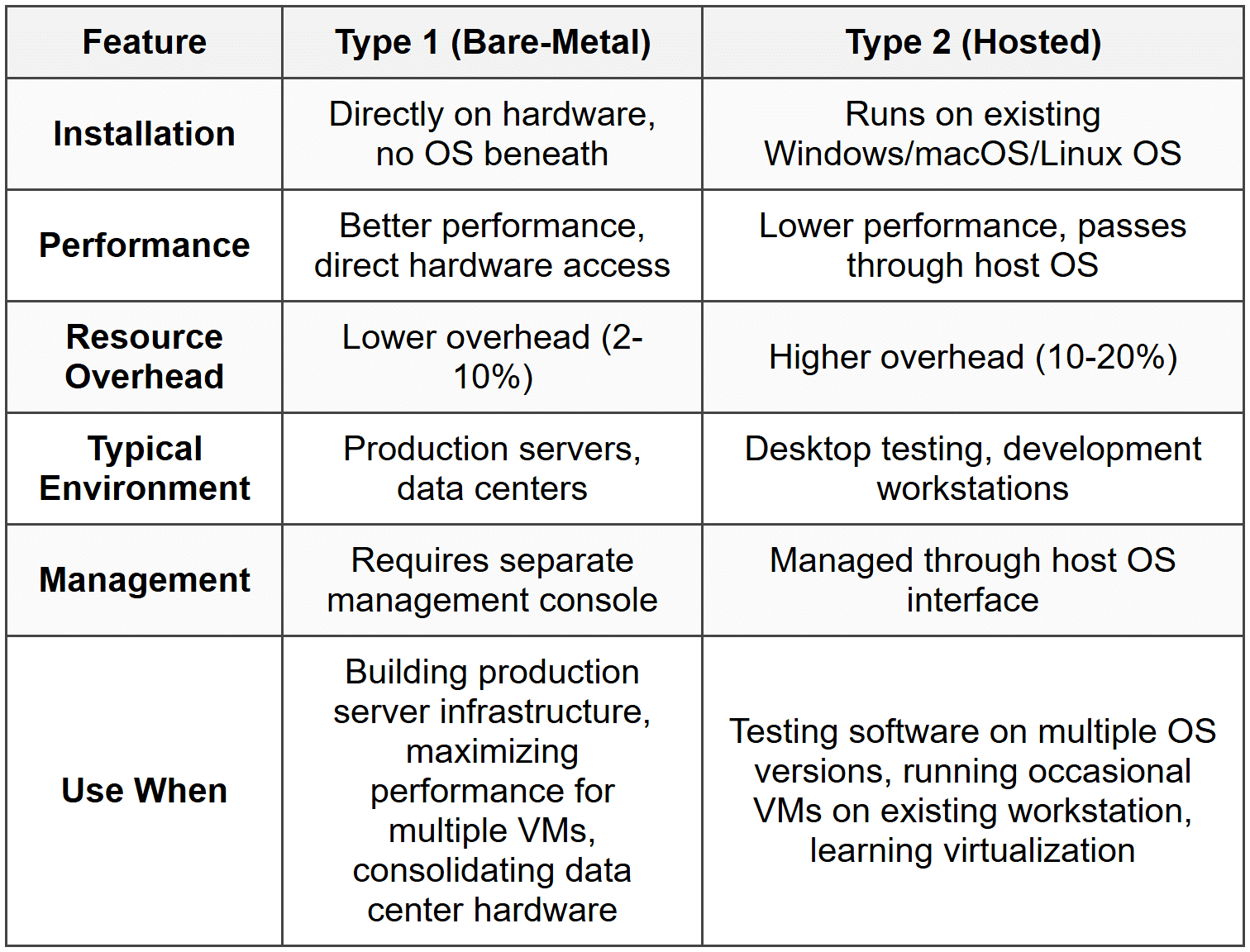
A hypervisor (virtual machine monitor) manages VMs and allocates physical resources. The two types differ fundamentally in how they interact with hardware.
Type 1 hypervisor (bare-metal) installs directly on physical hardware without an underlying OS. Examples include VMware ESXi, Microsoft Hyper-V Server, and Citrix XenServer. The hypervisor itself is the operating system.
Type 2 hypervisor (hosted) runs as an application within a standard operating system like Windows, macOS, or Linux. Examples include VMware Workstation, Oracle VirtualBox, and Parallels Desktop.
When to Use This
- Choose Type 1 for production environments where VMs are the primary workload and performance is critical
- Choose Type 2 for development workstations where you need occasional access to different operating systems
- Choose Type 1 when consolidating 10+ physical servers into VMs on fewer physical hosts
- Choose Type 2 for training labs or testing environments on existing desktop computers
Resource Requirements and Allocation
Virtual machines consume physical resources that must be carefully allocated to prevent overcommitment and performance degradation.
CPU allocation considerations:
- Never allocate more total vCPUs than physical cores without understanding overcommitment ratios
- Safe overcommitment ratio is 4:1 (4 vCPUs per physical core) for typical workloads
- CPU-intensive applications should use 1:1 or 2:1 ratios
- Monitor CPU ready time - values above 5% indicate CPU contention
RAM allocation considerations:
- Total allocated RAM cannot exceed physical RAM minus hypervisor overhead
- Reserve 2-4 GB for Type 1 hypervisor operations
- RAM cannot be overcommitted like CPUs - VMs with insufficient RAM will fail to start
- Enable memory ballooning to reclaim unused RAM from idle VMs
Storage allocation considerations:
- Thin provisioning allocates disk space as needed (50 GB virtual disk might use only 10 GB physical space initially)
- Thick provisioning allocates all space immediately (50 GB virtual disk uses 50 GB physical space from creation)
- Thin provisioning saves space but risks running out if not monitored
- Thick provisioning guarantees space availability and provides slightly better performance
Network configuration modes:
- Bridged - VM appears as separate device on physical network with own IP address
- NAT - VM shares host's IP address, can access external networks but isn't directly accessible from outside
- Host-only - VM communicates only with host and other VMs, completely isolated from external networks
When to Use This
- Use thin provisioning in development environments with many VMs that won't reach full capacity
- Use thick provisioning for production databases and applications requiring guaranteed storage performance
- Use bridged networking when VMs need to function as independent servers accessible from the network
- Use NAT for testing environments that need internet access but shouldn't be directly reachable
Cloud Computing Models
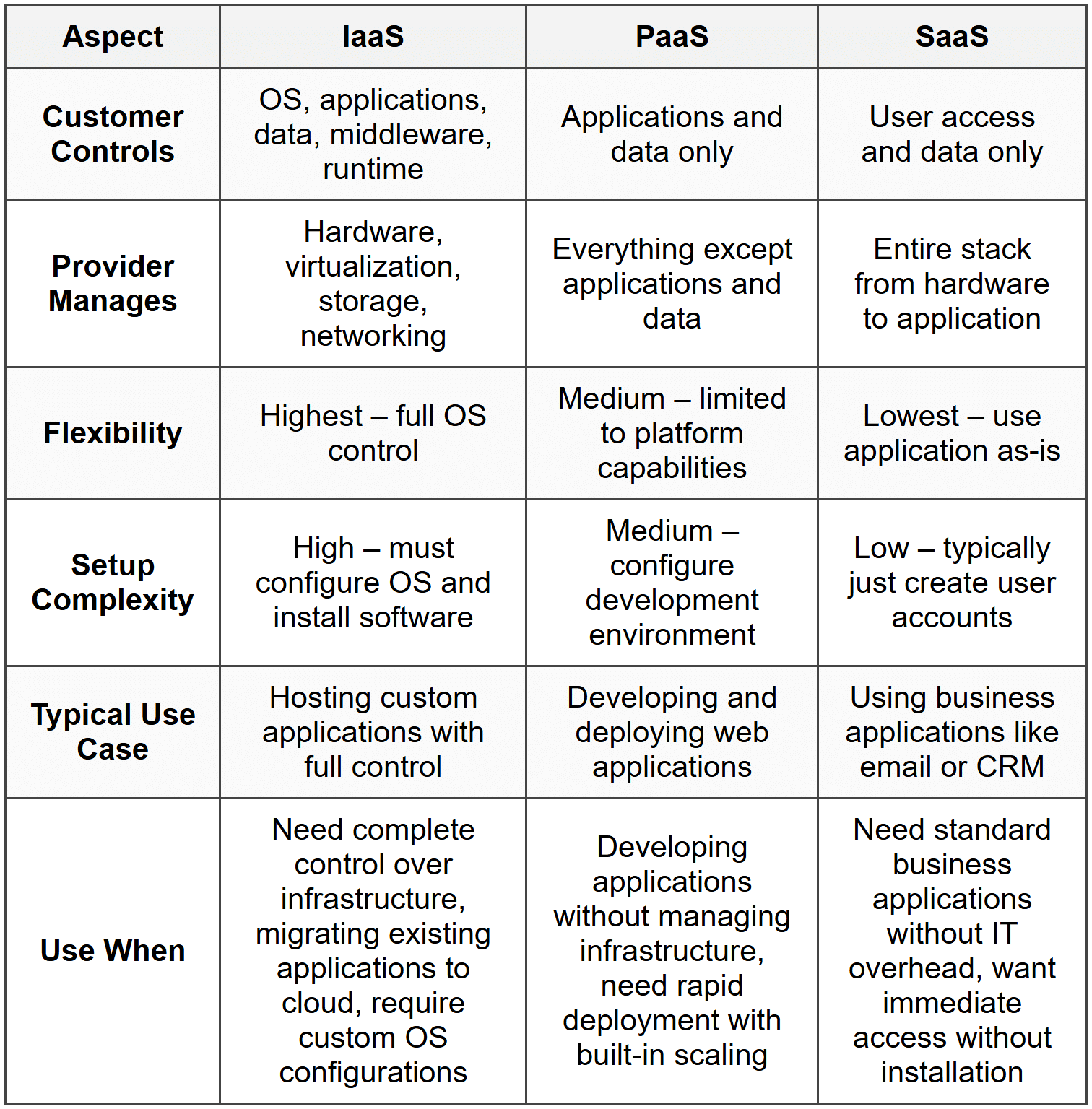
Cloud computing delivers IT resources over the internet on a pay-per-use basis. The three service models differ in what the provider manages versus what the customer controls.
Infrastructure as a Service (IaaS) provides virtualized computing resources including servers, storage, and networking. Customer manages operating systems, applications, and data. Provider manages physical hardware, hypervisor, and data center infrastructure. Examples: Amazon EC2, Microsoft Azure VMs, Google Compute Engine.
Platform as a Service (PaaS) provides a complete development and deployment environment. Customer manages applications and data. Provider manages infrastructure, OS, middleware, and runtime environments. Examples: Microsoft Azure App Service, Google App Engine, Heroku.
Software as a Service (SaaS) provides ready-to-use applications accessed through web browsers. Provider manages everything from infrastructure to applications. Customer only manages their data and user access. Examples: Microsoft 365, Google Workspace, Salesforce.
When to Use This
- Choose IaaS when migrating existing on-premises servers to cloud while maintaining full control
- Choose PaaS when developing new applications and want the provider to handle OS updates and scaling
- Choose SaaS when you need email, collaboration, or CRM without dedicated IT staff
- Choose IaaS when compliance requires specific OS configurations or security controls
Cloud Deployment Models
Cloud deployment models define where infrastructure resides and who can access it.
Public cloud infrastructure is owned by cloud service providers and shared among multiple customers (multi-tenant). Resources are accessed over the internet. Lowest cost but least control over physical security. Examples: AWS, Azure, Google Cloud.
Private cloud infrastructure is dedicated to a single organization, either on-premises or hosted by a third party. Complete control over security and compliance but higher cost. Requires dedicated staff to manage unless hosted.
Hybrid cloud combines public and private clouds, allowing data and applications to move between them. Sensitive data stays in private cloud while less-critical workloads use public cloud cost savings. Requires integration between environments.
Community cloud is shared infrastructure for specific organizations with common requirements (healthcare, government, finance). Compliance costs are shared among participants.
When to Use This
- Use public cloud for variable workloads, development/testing, or when capital budget is limited
- Use private cloud when regulations prohibit data storage in shared environments (HIPAA, PCI-DSS)
- Use hybrid cloud to keep customer databases on-premises while using public cloud for web front-ends
- Use community cloud when industry-specific compliance is required but private cloud costs are prohibitive
Cloud Characteristics
The National Institute of Standards and Technology (NIST) defines five essential cloud characteristics:
- Rapid elasticity - Resources scale up or down automatically based on demand; appears unlimited to users
- On-demand self-service - Users provision resources through web portal without contacting provider
- Resource pooling - Provider's resources serve multiple customers with dynamic assignment based on demand
- Measured service - Usage is monitored, controlled, and billed based on actual consumption (pay-per-use)
- Broad network access - Services available over network through standard protocols (HTTP/HTTPS) from any device
When to Use This
- Leverage rapid elasticity for seasonal businesses that need extra capacity during peak periods
- Use measured service to reduce costs by shutting down development VMs outside business hours
- Rely on on-demand self-service to provision test environments instantly without waiting for hardware procurement
Virtual Desktop Infrastructure (VDI)
VDI hosts desktop operating systems as virtual machines on centralized servers. Users access their desktops remotely from thin clients, zero clients, or repurposed PCs. The actual computing happens on the server; only screen updates, keyboard, and mouse data travel across the network.
Key VDI components:
- Connection broker - Authenticates users and directs them to their assigned virtual desktop
- Virtual desktop pool - Collection of VMs providing desktop sessions
- Persistent desktops - User has same VM each login; changes persist between sessions
- Non-persistent desktops - User gets random VM from pool; resets to clean state after logoff
- Remote display protocol - Transmits desktop to client (VMware Blast, Citrix HDX, Microsoft RDP)
Network requirements for VDI:
- Minimum 150 Kbps per user for basic desktop work
- 5-10 Mbps per user for multimedia and high-resolution displays
- Latency under 150 ms for acceptable user experience
- Packet loss below 1% to prevent visual artifacts
When to Use This
- Deploy VDI when users need desktop access from multiple locations or devices
- Use persistent desktops for users who install custom applications or save files locally
- Use non-persistent desktops for call centers or shift workers who perform standardized tasks
- Implement VDI when data security policies prohibit storing information on user devices
Troubleshooting
1. Error: Virtual machine fails to start with error "Not enough physical memory available." Host server has 32 GB RAM with six VMs configured: four VMs allocated 6 GB each, two VMs allocated 4 GB each. All VMs were previously working.
Resolve: Another VM was started or RAM allocation was increased beyond physical capacity. Total allocated RAM (24 GB + 8 GB = 32 GB) equals physical RAM, leaving no memory for hypervisor overhead (requires 2-4 GB). Reduce one VM's allocation by 4 GB or shut down another VM before starting this one.
Check first: View current RAM consumption in hypervisor management console and verify total allocated RAM across all running VMs, including hypervisor overhead.
Do NOT do first: Do not immediately add more physical RAM. This wastes money and time when simply deallocating RAM from an underutilized VM solves the problem immediately. Adding RAM requires scheduling downtime and possibly purchasing hardware.
Why other options are wrong: Adjusting CPU allocation, network settings, or storage space won't resolve a RAM shortage error. The specific error message identifies memory as the constraint, and only reducing total RAM allocation or adding physical RAM addresses this.
2. Error: Users report slow performance on virtual machines during business hours, but VMs run normally after 6 PM. Host CPU shows 85-95% utilization during slowdowns with CPU ready time at 12%.
Resolve: CPU overcommitment causing processor contention during peak usage. CPU ready time above 5% indicates VMs are waiting for processor access. Reduce the number of vCPUs allocated across VMs to achieve a 4:1 or lower vCPU-to-physical-core ratio, or migrate some VMs to another host.
Check first: Review the hypervisor performance monitoring to see CPU ready time percentage and vCPU-to-physical-core ratio across all running VMs.
Do NOT do first: Do not immediately add more RAM to VMs or increase network bandwidth. The symptoms specifically point to CPU contention (high CPU utilization plus elevated CPU ready time), which requires addressing processor allocation, not other resources.
Why other options are wrong: Increasing RAM allocation won't help when CPU is the bottleneck. Network slowness would show as application timeout errors, not general performance degradation across all VM operations. Storage issues cause specific I/O delays, not consistent performance problems correlated with business hours.
3. Error: Virtual machine with thin-provisioned disk suddenly pauses with message "Insufficient disk space." The VM's virtual disk is configured as 100 GB, and guest OS shows 45 GB used. The datastore has 2 GB free space remaining.
Resolve: Thin-provisioned virtual disk ran out of physical storage on the datastore. Although the VM's guest OS reports only 45 GB used, thin provisioning allocates space as needed up to the 100 GB limit. The datastore (physical storage) is full, preventing the virtual disk from expanding further. Free space on the datastore by deleting unused files, snapshots, or migrating other VMs to different storage.
Check first: Verify available space on the datastore (physical storage) where the virtual disk file resides, not just the free space reported inside the guest OS.
Do NOT do first: Do not delete files inside the VM's guest OS expecting immediate free space on the datastore. Thin-provisioned disks don't automatically shrink when files are deleted inside the guest OS; freed space remains allocated until reclamation processes run.
Why other options are wrong: Converting to thick provisioning requires available space, which doesn't exist. Adding RAM doesn't address storage capacity. Guest OS disk cleanup won't immediately free datastore space with thin provisioning due to the way blocks are allocated but not reclaimed.
4. Error: Virtual machine configured with bridged networking cannot obtain an IP address via DHCP and cannot communicate with other network devices. Other VMs on the same host using bridged networking work correctly. Physical network uses DHCP and has available addresses.
Resolve: Virtual network adapter is connected to wrong virtual switch or virtual switch isn't properly bridged to physical NIC. Verify the VM's virtual NIC is connected to the correct virtual switch, and confirm that virtual switch is bridged to the host's physical network adapter connected to the corporate network.
Check first: Examine virtual switch configuration in hypervisor to verify the VM's virtual NIC is connected to the virtual switch that's bridged to the correct physical adapter.
Do NOT do first: Do not immediately change from bridged to NAT networking. This changes the network architecture and won't fix the actual problem of incorrect virtual switch assignment. NAT would hide the underlying configuration error.
Why other options are wrong: Static IP assignment might work temporarily but doesn't address why bridged networking failed, and moving to static IPs creates management overhead. Reinstalling guest OS is excessive when the issue is virtual network configuration. Restarting the VM won't fix incorrect virtual switch assignment.
5. Error: After creating a snapshot of a running VM to test software updates, the VM's disk runs out of space within hours even though it had 40 GB free before the snapshot. Guest OS reports disk full errors.
Resolve: VM snapshots create differential disk files that grow as changes are made to the VM. All writes go to the snapshot file instead of the base disk. The snapshot file is consuming available datastore space rapidly because the base virtual disk was already near capacity on the datastore. Commit or delete the snapshot to merge changes back to base disk, or add storage capacity to the datastore.
Check first: Check the datastore capacity and size of snapshot delta files using hypervisor management tools to see actual physical storage consumption.
Do NOT do first: Do not delete files inside the guest OS attempting to free space. The guest OS reports disk full because the snapshot delta file is growing on the datastore. Deleting files inside the guest creates more changes that make the snapshot file larger.
Why other options are wrong: Increasing the VM's virtual disk size doesn't help when the underlying datastore is full. Converting from thin to thick provisioning requires available space. Restarting the VM doesn't reduce snapshot file size or free datastore capacity.
Step-by-Step Procedures
Task: Creating a New Virtual Machine
- Open hypervisor management console and select host server where VM will run
- Click "Create New Virtual Machine" or similar option
- Provide VM name (use naming convention: environment-purpose-number, e.g., "PROD-WEB-01")
- Select guest operating system type and version (affects hardware compatibility defaults)
- Allocate virtual CPU cores (start with 2 vCPUs for Windows, 1 vCPU for Linux)
- Allocate RAM (minimum: 2 GB for Windows, 1 GB for Linux; typical: 4-8 GB)
- Create virtual hard disk:
- a. Select disk type (SCSI recommended for performance)
- b. Choose provisioning (thin for dev/test, thick for production)
- c. Set disk size (40-60 GB minimum for Windows, 20 GB for Linux)
- Configure virtual network adapter:
- a. Select network mode (bridged for production, NAT for test)
- b. Connect to appropriate virtual switch/network
- Attach ISO image or physical media for OS installation
- Review configuration summary and verify resource allocations
- Power on VM and proceed with guest OS installation
- After OS installation, install hypervisor guest tools/additions for enhanced performance and features
Task: Configuring Virtual Networking for Internet Access
- Identify network requirements (VM needs to access internet and/or local network resources)
- Open hypervisor network configuration for target VM
- Select virtual network adapter (typically listed as "Network Adapter 1" or "NIC 1")
- Choose appropriate network mode:
- a. For server requiring incoming connections: select "Bridged" mode
- b. For client workstation: select "NAT" mode
- If using bridged mode:
- a. Select physical NIC to bridge (choose adapter connected to network)
- b. Configure guest OS with IP settings compatible with physical network
- If using NAT mode:
- a. Guest OS typically uses DHCP from hypervisor's internal NAT service
- b. Default NAT networks use 192.168.x.0/24 ranges
- Save network adapter configuration
- Boot or reboot VM if network adapter was added or connection mode changed
- Test connectivity:
- a. Verify IP address assignment (ipconfig or ip addr)
- b. Ping default gateway
- c. Ping external address (8.8.8.8) to confirm internet routing
- d. Ping external hostname (google.com) to confirm DNS resolution
Practice Questions
Q1: A company needs to deploy 15 virtual servers to replace aging physical hardware. The servers will run business-critical applications 24/7 and require maximum performance. Which virtualization solution should be implemented?
(a) Type 2 hypervisor on existing Windows Server installations
(b) Type 1 hypervisor installed directly on server hardware
(c) Desktop virtualization software on administrator workstations
(d) Container-based virtualization on cloud platform
Ans: (b)
Type 1 hypervisor provides the best performance for production server consolidation because it runs directly on hardware without an underlying operating system, minimizing resource overhead to 2-10%. Type 2 hypervisors run on top of an OS causing 10-20% overhead and are designed for desktop testing rather than production workloads. Desktop virtualization software is Type 2 and unsuitable for server deployment. Containers weren't mentioned in the question as an available option and require different architecture planning.
Q2: A user reports their VDI session is extremely slow with visible lag when typing. Other users on the same VDI infrastructure report normal performance. The network administrator confirms network bandwidth is adequate. What should a technician check FIRST?
(a) Increase RAM allocation on user's virtual desktop
(b) Check network latency and packet loss between user's location and VDI server
(c) Reinstall the remote display protocol client software
(d) Upgrade user's thin client device
Ans: (b)
Network latency above 150 ms or packet loss above 1% causes the specific symptoms described (input lag, visible delay) even when bandwidth is adequate. Since other users work normally, the problem is specific to this user's connection path, not the VDI infrastructure itself. RAM allocation affects application performance inside the desktop but doesn't cause input lag. Reinstalling client software is premature without identifying the actual network condition causing symptoms. Thin client hardware rarely needs upgrading as it only displays the screen and transmits input.
Q3: An organization wants to move its email system to the cloud but maintain complete control over its custom web application infrastructure including operating system patches and middleware configuration. Which combination of cloud services meets these requirements?
(a) SaaS for email, IaaS for web application
(b) PaaS for email, PaaS for web application
(c) IaaS for email, SaaS for web application
(d) SaaS for email, PaaS for web application
Ans: (a)
SaaS provides ready-to-use email (like Microsoft 365) without management overhead, while IaaS provides virtual machines with complete OS and middleware control required for the custom web application. PaaS for email doesn't make sense as email is a finished application. PaaS for the web application wouldn't allow OS-level control as the platform manages OS and middleware. IaaS for email creates unnecessary management burden when the requirement is specifically to move email to avoid infrastructure management.
Q4: A technician is setting up a VM for software testing that requires access to the internet but must be isolated from the corporate network for security reasons. Physical host has two NICs: one connected to corporate network (192.168.1.0/24), one connected to isolated test network (10.10.10.0/24). What network configuration should be used?
(a) Bridged mode connected to the NIC on corporate network
(b) NAT mode using hypervisor's virtual NAT service
(c) Host-only mode with no external connectivity
(d) Bridged mode connected to the NIC on test network
Ans: (d)
Bridged mode to the test network NIC provides internet access through that isolated network while keeping the VM completely separate from the corporate network, meeting both requirements. NAT mode might work but typically uses the default host adapter which is the corporate network connection. Corporate network bridging violates the isolation requirement. Host-only mode prevents internet access entirely. The test network NIC provides the necessary path to internet while maintaining isolation.
Q5: Performance-Based Task: A virtual machine's disk space shows 80 GB used inside the guest OS, but the hypervisor shows the virtual disk file consuming 180 GB on the datastore. Three snapshots exist from the past month. The VM has a 200 GB virtual disk. What steps should be taken to reclaim wasted space?
(a) Delete oldest snapshots first, then compact virtual disk
(b) Convert from thick provisioning to thin provisioning
(c) Delete files inside guest OS to free space
(d) Increase virtual disk size to 250 GB
Ans: (a)
Snapshots create delta files that accumulate changes and consume significant space (100 GB in this case: 180 GB total minus 80 GB base equals 100 GB in snapshots). Deleting snapshots from oldest to newest consolidates changes back to the base disk, and compacting the virtual disk reclaims unused space. Converting provisioning types doesn't reclaim space from snapshots. Deleting files inside the guest OS doesn't reduce virtual disk file size without additional reclamation processes. Increasing disk size makes the problem worse by allocating more space rather than reclaiming wasted space.
Q6: What is the primary reason to choose thick provisioning over thin provisioning for a virtual machine running a production database?
(a) Thick provisioning uses less physical storage space
(b) Thick provisioning prevents performance degradation and guarantees space availability
(c) Thick provisioning allows the virtual disk to grow dynamically
(d) Thick provisioning enables faster snapshot creation
Ans: (b)
Thick provisioning allocates all disk space at creation, guaranteeing that space is available and providing consistent performance because the hypervisor doesn't need to dynamically allocate blocks during write operations. Thick provisioning actually uses more physical storage (allocates all space immediately), making option (a) backwards. Thin provisioning is what grows dynamically, not thick. Snapshot performance is unrelated to provisioning type and depends on change rates and snapshot chain depth.
Quick Review
- Type 1 hypervisors install directly on hardware with 2-10% overhead; use for production servers (ESXi, Hyper-V Server)
- Type 2 hypervisors run on host OS with 10-20% overhead; use for desktop testing (Workstation, VirtualBox)
- Safe CPU overcommitment ratio is 4:1 vCPUs to physical cores; CPU ready time above 5% indicates contention
- RAM cannot be overcommitted - total allocated RAM must not exceed physical RAM minus 2-4 GB hypervisor overhead
- Thin provisioning saves space but risks running out; thick provisioning guarantees space and slightly better performance
- IaaS = you manage OS/apps, provider manages hardware; PaaS = you manage apps only; SaaS = you manage data/access only
- Bridged networking = VM gets own IP on physical network; NAT = VM shares host IP; host-only = VM isolated from external networks
- VDI requires latency under 150 ms and packet loss below 1% for acceptable performance; bandwidth alone doesn't guarantee good experience
- Snapshots create delta files that grow with VM changes; delete from oldest to newest to reclaim space
- Five cloud characteristics (NIST): rapid elasticity, on-demand self-service, resource pooling, measured service, broad network access