Network Troubleshooting


Overview
Network troubleshooting is one of the most heavily tested areas on the CompTIA A+ Core 1 exam, focusing on your ability to diagnose connectivity issues, interpret errors, and apply systematic troubleshooting methodology. This chapter covers the specific symptoms, tools, and step-by-step approaches you need to identify and resolve common network problems quickly. Mastering these scenarios directly translates to multiple questions on the exam and essential skills for any entry-level technician role.
Core Concepts
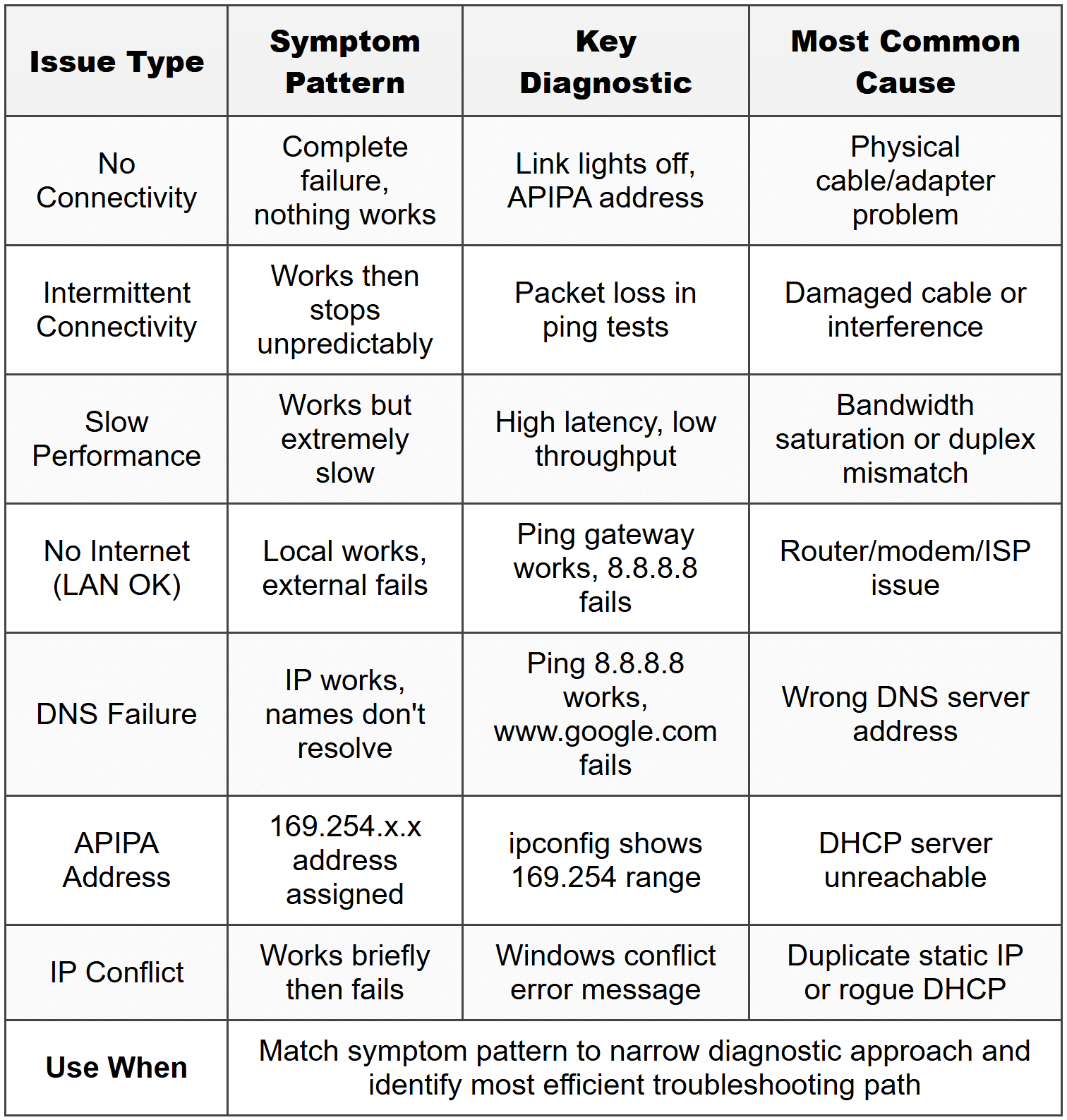
No Network Connectivity
Complete inability to connect to any network resources, including local and internet destinations. The network adapter shows as connected but no data transmission occurs, or the adapter reports "No Internet" or "Limited Connectivity" status.
Common causes and indicators:
- Bad or disconnected cable - physical layer failure, most common with loose RJ-45 connectors
- Incorrect IP configuration - APIPA address (169.254.x.x) indicates DHCP failure
- Failed network adapter - device manager shows yellow exclamation or red X
- Disabled adapter - appears as "Disabled" in network connections
- Switch port failure - link lights absent on both NIC and switch port
When to Use This Troubleshooting Path
- User reports complete inability to access network resources, email, or internet
- Network icon shows disconnected or limited connectivity symbol
- Running ipconfig shows APIPA address or no IP address assigned
- Physical link lights are off on NIC or switch port
Intermittent Connectivity
Network connection drops and reconnects sporadically, or performance fluctuates dramatically. User experiences periods of normal operation followed by complete loss of connectivity or extreme slowdowns.
Common causes:
- Damaged cable - bent pins, crushed jacket, or internal wire breaks causing CRC errors
- EMI/RFI interference - especially near fluorescent lights, motors, or power cables
- Failing network adapter - driver corruption or hardware degradation
- DHCP lease expiration issues - unable to renew IP address automatically
- Wireless signal interference - overlapping channels or physical obstructions
When to Use This Troubleshooting Path
- User reports network "works sometimes" or "keeps disconnecting"
- Ping tests show high packet loss percentages but not 100% loss
- Network performance varies drastically throughout the day
- Event viewer shows repeated network adapter warnings or errors
Slow Network Performance
Network connection remains active but data transfer speeds are significantly below expected rates. Downloads, uploads, and network resource access take excessive time to complete.
Key performance indicators:
- Expected speeds: 100 Mbps Ethernet = ~12 MB/s transfer, 1 Gbps = ~125 MB/s transfer
- Latency thresholds: LAN ping should be <1 ms,="" internet="" typically=""><50>
- Bandwidth saturation - other users or applications consuming available capacity
- Duplex mismatch - one end set to half-duplex while other is full-duplex causes collisions
- Cable length exceeded - Ethernet runs over 100 meters (328 feet) degrade signal
When to Use This Troubleshooting Path
- File transfers complete but take much longer than normal
- Websites load slowly but eventually display content
- Network monitoring shows high utilization percentages consistently
- Specific times of day (high usage periods) correlate with slowdowns
Limited or No Internet Connectivity (Local Network Works)
Devices can communicate with local network resources (printers, file shares, other computers) but cannot reach internet destinations. This indicates the problem exists between the local network and the ISP.
Diagnostic markers:
- Valid private IP address - 192.168.x.x, 10.x.x.x, or 172.16-31.x.x range
- Can ping default gateway - local router responds normally
- Cannot ping external IP addresses - like 8.8.8.8 (Google DNS)
- DNS resolution may or may not work - depends on DNS server location
- Router/modem issue most likely - device between LAN and WAN failing
When to Use This Troubleshooting Path
- User can print to network printer but cannot browse internet
- Can access file shares on local server but email (cloud-based) fails
- Multiple users on same network report identical internet failure
- Pinging gateway succeeds but pinging 8.8.8.8 fails
DNS Resolution Failure
Unable to convert domain names (www.example.com) to IP addresses, preventing access to websites by name while direct IP access still works. User sees "DNS server not responding" or "cannot resolve hostname" errors.
DNS troubleshooting specifics:
- Ping by IP works, ping by name fails - definitive DNS problem signature
- Common DNS servers: 8.8.8.8 and 8.8.4.4 (Google), 1.1.1.1 (Cloudflare)
- ipconfig /flushdns - clears local DNS cache of corrupted entries
- Incorrect DNS server address - pointing to non-existent or wrong DNS server
- ISP DNS servers down - changing to public DNS resolves immediately
When to Use This Troubleshooting Path
- Browser shows "DNS_PROBE_FINISHED_NXDOMAIN" or similar DNS error
- Can ping 8.8.8.8 successfully but cannot ping www.google.com
- nslookup command returns "server failed" or times out
- Problem affects all applications requiring name resolution
APIPA Address Assignment
Automatic Private IP Addressing assigns an address in the 169.254.x.x range when a device cannot obtain an IP address from a DHCP server. This is a self-assigned link-local address that only allows communication with other APIPA devices on the same network segment.
APIPA characteristics:
- Address range: 169.254.0.1 through 169.254.255.254
- Subnet mask: Always 255.255.0.0
- No default gateway - cannot route beyond local segment
- No DNS servers - name resolution impossible
- Indicates DHCP failure - server unreachable, disabled, or out of addresses
When to Use This Troubleshooting Path
- ipconfig shows IP address starting with 169.254
- Network icon shows limited or no connectivity
- User recently connected to network for first time or after long disconnect
- Multiple devices on network all receiving APIPA addresses simultaneously
IP Address Conflicts
Two devices on the same network attempting to use the same IP address simultaneously. Windows displays "IP address conflict detected" error message, and network connectivity becomes unreliable or fails completely.
Conflict scenarios:
- Static IP duplicated manually - administrator assigns same address to two devices
- DHCP scope includes static assignments - server assigns address already in use
- Rogue DHCP server - unauthorized DHCP server providing duplicate addresses
- Device with static IP in DHCP range - server eventually assigns that address to another client
- Symptoms: intermittent connectivity, ARP table shows MAC address changes for same IP
When to Use This Troubleshooting Path
- Windows displays specific "Windows has detected an IP address conflict" message
- Network works briefly after reboot then fails again quickly
- arp -a command shows two different MAC addresses for same IP at different times
- Problem started immediately after assigning static IP address
Incorrect Gateway Configuration
Default gateway address is wrong, non-existent, or unreachable, preventing communication with devices outside the local subnet. Local network communication functions normally but external connectivity fails.
Gateway troubleshooting:
- Default gateway must be on same subnet - IP and gateway must share network portion
- Gateway is typically router's internal interface - usually .1, .254, or .0 in subnet
- Multiple gateways only used if primary fails - metric value determines priority
- Verify with ipconfig /all - shows configured default gateway address
- Test with ping and tracert - gateway must respond to reach external networks
When to Use This Troubleshooting Path
- Can communicate with devices on local subnet but nothing beyond
- Pinging default gateway shown in ipconfig fails or times out
- tracert to external address fails at first hop
- Recent network reconfiguration or router replacement occurred
Incorrect Subnet Mask
Subnet mask does not match the network configuration, causing the device to incorrectly determine which addresses are local versus remote. This results in failed communication with devices that should be on the same subnet or improper routing attempts.
Common subnet mask errors:
- Standard masks: Class A = 255.0.0.0, Class B = 255.255.0.0, Class C = 255.255.255.0
- Wrong mask calculation - device treats local IPs as remote or vice versa
- /24 = 255.255.255.0, /16 = 255.255.0.0, /8 = 255.0.0.0 (CIDR notation)
- Mixed masks on network - some devices use /24 while others use /16 on same segment
- Communication pattern: works with some devices but not others illogically
When to Use This Troubleshooting Path
- Can reach some local network devices but not others seemingly randomly
- ipconfig shows subnet mask different from other working devices on same network
- Network addressing was recently changed or manually configured
- Device can reach gateway but not other local hosts or opposite pattern
Network Troubleshooting Tools
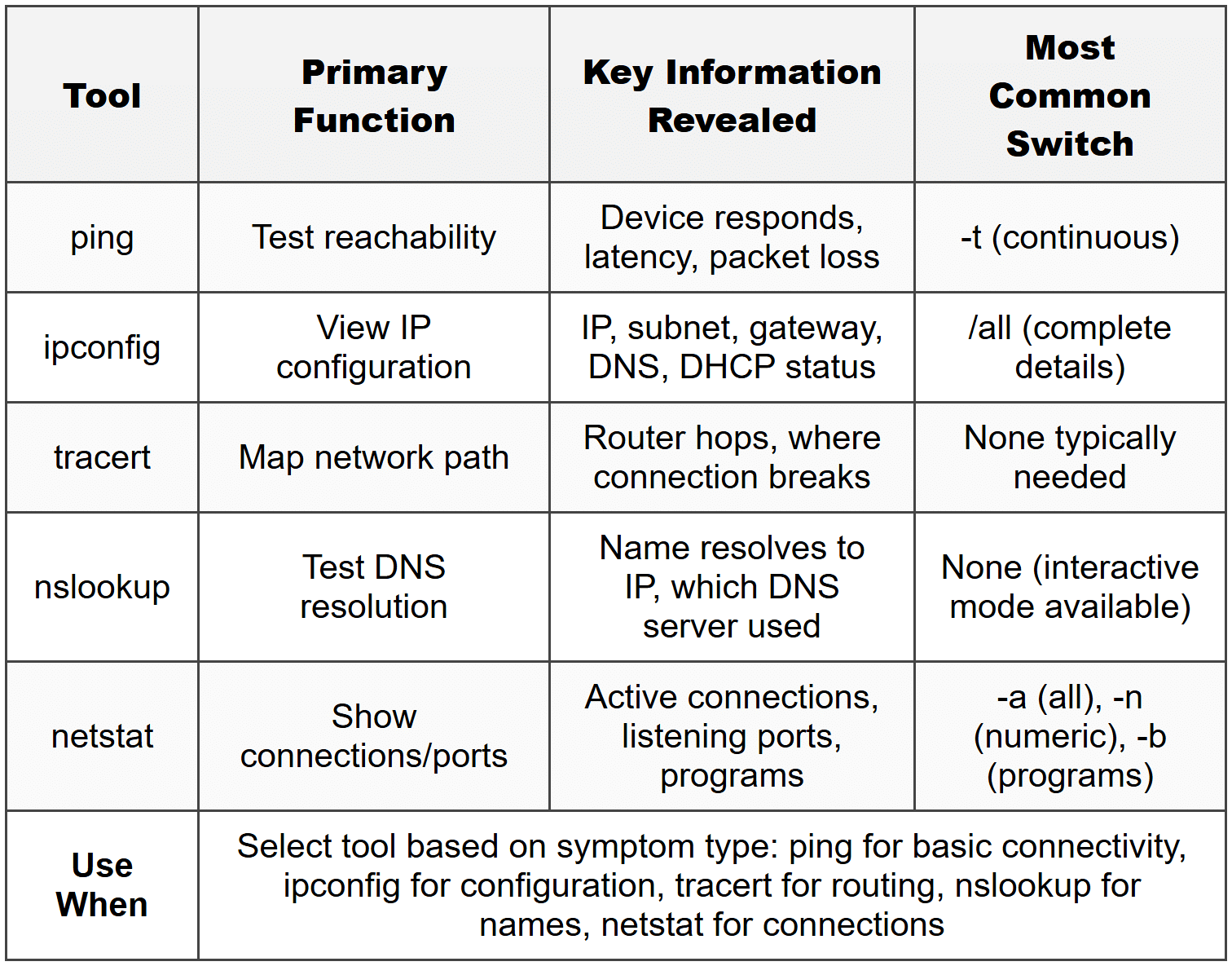
ping - Tests basic IP connectivity to a destination and measures round-trip time. Sends ICMP Echo Request packets and waits for Echo Reply.
- Usage: ping [IP address or hostname]
- Key switches: -t (continuous ping until stopped), -n [number] (send specific number of packets)
- Loopback test: ping 127.0.0.1 verifies TCP/IP stack installation
- Successful output: Reply from [IP], bytes=32, time<1ms, ttl="">
- Failure outputs: "Request timed out" (no response), "Destination host unreachable" (routing failure)
When to Use This Tool
- First step to verify if device is reachable on network
- Measure latency and packet loss to diagnose performance issues
- Test DNS resolution by comparing ping results using IP versus hostname
- Verify Internet connectivity by pinging known external addresses like 8.8.8.8
ipconfig - Displays current TCP/IP network configuration for all adapters. Primary tool for viewing and managing IP address information on Windows systems.
- ipconfig - shows IP address, subnet mask, default gateway for all active adapters
- ipconfig /all - displays complete configuration including MAC address, DNS servers, DHCP status, lease times
- ipconfig /release - releases current DHCP-assigned IP address
- ipconfig /renew - requests new IP address from DHCP server
- ipconfig /flushdns - clears DNS resolver cache of stored name resolutions
- ipconfig /displaydns - shows contents of DNS resolver cache
When to Use This Tool
- First command to run when troubleshooting any network issue to verify configuration
- Check if APIPA address (169.254.x.x) assigned indicating DHCP failure
- Release and renew to obtain new DHCP address after network changes
- Flush DNS cache after changing DNS servers or when name resolution fails
tracert (Windows) / traceroute (Linux/Mac) - Maps the path packets take from source to destination, showing each router hop along the route and the time required for each hop.
- Usage: tracert [hostname or IP address]
- Shows hop count - each router between source and destination numbered sequentially
- Three time measurements per hop - sends three probes to each router
- Maximum 30 hops - default limit before timeout
- Asterisks (*) indicate that hop not responding to probes (may be firewall blocking)
- Request timed out at specific hop - identifies where path breaks
When to Use This Tool
- Determine exactly where connectivity fails between source and destination
- Identify routing problems when ping fails to remote host
- Measure latency introduced at each network hop to find bottlenecks
- Verify traffic taking expected path through network infrastructure
nslookup - Queries DNS servers to resolve hostnames to IP addresses or perform reverse lookups. Essential for diagnosing DNS-specific problems.
- Usage: nslookup [hostname] or nslookup [IP address] for reverse lookup
- Interactive mode: type nslookup alone, then enter queries at prompt
- Shows DNS server being used - first line of output identifies which DNS server answered
- Non-authoritative answer - result came from cache, not authoritative DNS server
- Server failed or timed out - DNS server unreachable or not responding
- Specify different DNS server: nslookup [hostname] [DNS server IP]
When to Use This Tool
- Verify DNS resolution working correctly when websites won't load
- Test if alternate DNS servers respond when primary fails
- Confirm DNS records updated after making changes
- Identify which DNS server being used when multiple configured
netstat - Displays active network connections, listening ports, routing tables, and network statistics. Critical for identifying what services are running and what connections are established.
- netstat - shows active TCP connections by default
- netstat -a - displays all connections and listening ports
- netstat -n - shows addresses and port numbers in numerical form (faster, no DNS lookup)
- netstat -b - displays executable associated with each connection (requires admin privileges)
- netstat -r - displays routing table (same as route print)
- Connection states: ESTABLISHED (active), LISTENING (waiting for connections), TIME_WAIT (closing)
When to Use This Tool
- Identify what programs are using network connections
- Verify specific services listening on expected ports
- Detect unauthorized connections or malware network activity
- Troubleshoot port conflicts when service won't start
net commands - Suite of Windows networking commands for managing network resources, shares, and user sessions.
- net view - lists computers in current workgroup or domain
- net view \\computername - shows shared resources on specific computer
- net use - displays current mapped network drives and connections
- net use X: \\server\share - maps network share to drive letter
- net use X: /delete - removes mapped drive
- net share - lists all shares on local computer
- net user - displays user account information (local accounts)
When to Use These Tools
- Browse available network shares when user can't locate resources
- Map or disconnect network drives for troubleshooting access issues
- Verify shared resources are actually published on server
- Quick check of network neighborhood visibility problems
Troubleshooting
1. Error: User reports "connected" to network but cannot access any websites or network resources. Running ipconfig shows IP address 169.254.18.92 with subnet mask 255.255.0.0, and no default gateway is listed.
Resolve: DHCP server is unavailable or unreachable. Execute ipconfig /release followed by ipconfig /renew to force a new DHCP request. If APIPA address returns, verify DHCP server is running, check network cable connection, and ensure switch port is active.
Check first: Physical cable connection at both wall jack and NIC - loose cable is most common cause of DHCP failure.
Do NOT do first: Do not immediately assign a static IP address - this masks the underlying DHCP problem and will cause configuration management issues and potential IP conflicts later.
Why other options are wrong: Flushing DNS (ipconfig /flushdns) won't help because the device has no valid IP configuration to begin with; the problem is obtaining an address, not resolving names. Rebooting the computer wastes time when release/renew tests DHCP immediately. Disabling/re-enabling the adapter accomplishes the same as release/renew but takes longer and doesn't provide diagnostic feedback.
2. Error: Websites won't load in browser showing "This site can't be reached" or "DNS address could not be found" but pinging 8.8.8.8 succeeds with normal response times under 20 ms. Pinging www.google.com returns "Ping request could not find host www.google.com."
Resolve: DNS resolution failure. Verify DNS server addresses using ipconfig /all - they may be incorrect or unreachable. Change DNS servers to 8.8.8.8 (primary) and 8.8.4.4 (secondary) in network adapter TCP/IP properties, then execute ipconfig /flushdns to clear corrupted cache entries.
Check first: Run nslookup www.google.com to verify DNS servers are responding - if it fails, DNS is confirmed as the problem.
Do NOT do first: Do not reinstall network adapter drivers - the adapter works fine as evidenced by successful pings to IP addresses; this is purely a DNS configuration issue.
Why other options are wrong: Replacing the network cable won't help because pinging by IP address already proves physical connectivity works. Running network troubleshooter may eventually suggest DNS changes but wastes time. Disabling firewall is unnecessary since ICMP (ping) works, indicating firewall isn't blocking network traffic completely.
3. Error: File transfers to network server are extremely slow, taking 10+ minutes for 100 MB file. However, ping to server shows response times of 1 ms with 0% packet loss. Task Manager shows network utilization bouncing between 5-15% on a Gigabit Ethernet connection.
Resolve: Duplex mismatch between NIC and switch port. One end is set to half-duplex while the other is full-duplex, causing excessive collisions and retransmissions. Check NIC properties in Device Manager under Advanced tab and verify "Speed & Duplex" is set to "Auto Negotiation" or manually match both ends to 1.0 Gbps Full Duplex.
Check first: Review NIC advanced properties for duplex setting - mismatched duplex configuration creates exactly this symptom pattern of working but slow connection.
Do NOT do first: Do not replace the network cable immediately - while bad cables cause slowness, the specific symptom of low utilization with high latency points to duplex mismatch, not physical layer degradation.
Why other options are wrong: Running disk cleanup won't help because the problem is network speed, not local disk performance. Updating NIC drivers might work if auto-negotiation is failing, but manually verifying and setting duplex is faster and more direct. Increasing network priority in QoS settings is irrelevant when the link itself is misconfigured.
4. Error: Windows displays error message "Windows has detected an IP address conflict with another system on the network." Network connectivity works for a few seconds after reboot, then fails. Other users on the network report no issues.
Resolve: Duplicate IP address assignment. Run ipconfig to identify the IP address, then check if device is configured with static IP that should be using DHCP, or if static IP is within DHCP scope range. Change to DHCP (obtain IP automatically) or select different static IP outside DHCP range. Use arp -a to identify MAC address of conflicting device.
Check first: Open network adapter TCP/IP properties to see if "Use the following IP address" is selected with a static configuration - most conflicts stem from manual IP assignments.
Do NOT do first: Do not simply reboot repeatedly - this provides only temporary connectivity until the other device reclaims the IP, and doesn't resolve the underlying duplicate address issue.
Why other options are wrong: Flushing DNS is irrelevant because the problem is IP layer conflict, not name resolution. Releasing and renewing DHCP won't help if this device has a manually configured static IP. Running network troubleshooter may detect the issue but takes longer than directly checking IP configuration.
5. Error: After connecting laptop to company network for first time, user can access file shares and printers on local subnet (192.168.1.x) but cannot access internet or email server at headquarters. Pinging default gateway 192.168.1.1 succeeds, but pinging 8.8.8.8 fails with "Destination host unreachable."
Resolve: Incorrect subnet mask causing device to believe external addresses are on local segment, so it never sends traffic to gateway. Run ipconfig /all to verify subnet mask matches other working computers. If laptop shows 255.255.0.0 while network uses 255.255.255.0, correct the subnet mask in TCP/IP properties or DHCP reservation.
Check first: Compare ipconfig /all output from working computer to problem laptop, specifically the subnet mask value - mismatched subnet masks create this exact pattern of partial connectivity.
Do NOT do first: Do not add static routes - while this might bypass the problem temporarily, it doesn't fix the root cause of incorrect subnet mask and creates management nightmares.
Why other options are wrong: Changing DNS servers won't help because the problem is routing (Layer 3), not name resolution (Layer 7). Replacing network cable is irrelevant since local subnet communication works perfectly. Disabling IPv6 is a common but misguided troubleshooting step that rarely solves actual problems and isn't related to IPv4 subnet configuration.
Step-by-Step Procedures
Task: Troubleshoot Network Connectivity Using CompTIA Methodology
- Identify the problem - ask user exactly what doesn't work, when it started, what changed recently, and if other devices affected
- Establish theory of probable cause - based on symptoms, form hypothesis (e.g., "APIPA address suggests DHCP failure")
- Check physical layer first - verify cable connected firmly at both ends, link lights illuminated on NIC and switch port
- Run ipconfig /all - verify IP address, subnet mask, default gateway, DNS servers are correct and device not using APIPA
- Test with ping in this order:
- ping 127.0.0.1 (verifies TCP/IP stack installed correctly)
- ping [own IP address] (confirms NIC bound to TCP/IP)
- ping [default gateway] (tests local network connectivity)
- ping 8.8.8.8 (verifies internet connectivity)
- ping www.google.com (confirms DNS resolution working)
- Identify where ping sequence fails - this pinpoints the problem layer and location
- Test the theory - apply appropriate fix based on test results (release/renew for DHCP, change DNS servers, replace cable, etc.)
- Establish plan of action - determine fix and get approval if needed (e.g., user data backup before major changes)
- Implement solution - make one change at a time, testing after each change
- Verify full system functionality - test original problem scenario plus other network functions to ensure nothing broken
- Document findings and solution - record symptoms, cause, and resolution for future reference
Task: Release and Renew DHCP IP Address
- Open Command Prompt as administrator (right-click Command Prompt, select "Run as administrator")
- Type ipconfig /all and press Enter - note current IP address, subnet mask, gateway, and DHCP server for comparison
- Type ipconfig /release and press Enter - all DHCP-assigned addresses released, adapters show 0.0.0.0 or Media disconnected
- Wait 2-3 seconds for release to complete fully
- Type ipconfig /renew and press Enter - broadcasts DHCP discover message to obtain new address
- Verify new IP address assigned in same subnet as before (not 169.254.x.x)
- If APIPA address received, verify DHCP server operational, check cable, and confirm switch port active
- Test connectivity with ping to default gateway and external address like 8.8.8.8
Task: Configure Static IP Address on Windows
- Open Network and Sharing Center (Control Panel → Network and Internet → Network and Sharing Center)
- Click "Change adapter settings" in left sidebar
- Right-click the network adapter, select "Properties"
- Select "Internet Protocol Version 4 (TCP/IPv4)" and click "Properties" button
- Select "Use the following IP address" radio button
- Enter IP address outside DHCP scope range (verify with network administrator) but within subnet
- Enter subnet mask matching network (typically 255.255.255.0 for /24 network)
- Enter default gateway IP address (typically router's internal interface, often .1 or .254)
- Select "Use the following DNS server addresses"
- Enter Preferred DNS server (often same as gateway, or public DNS like 8.8.8.8)
- Enter Alternate DNS server (e.g., 8.8.4.4 if using Google DNS)
- Click "OK" on both dialog boxes
- Open Command Prompt and verify configuration with ipconfig /all
- Test with ping to gateway, external IP, and hostname to verify all settings work
Task: Change DNS Server Addresses
- Open Network and Sharing Center → Change adapter settings
- Right-click network adapter → Properties
- Select "Internet Protocol Version 4 (TCP/IPv4)" → Properties
- Select "Use the following DNS server addresses" radio button
- Enter Preferred DNS server: 8.8.8.8 (Google primary) or 1.1.1.1 (Cloudflare)
- Enter Alternate DNS server: 8.8.4.4 (Google secondary) or 1.0.0.1 (Cloudflare secondary)
- Click "OK" twice to close dialogs
- Open Command Prompt as administrator
- Type ipconfig /flushdns and press Enter to clear old cached DNS entries
- Type nslookup www.google.com to verify new DNS servers respond correctly
- Test browsing to websites to confirm name resolution working
Practice Questions
Q1: A user reports that their computer cannot access any network resources. You run ipconfig and see the IP address is 169.254.18.47. What is the most likely cause and first step to resolve?
(a) DNS server is down; change DNS to 8.8.8.8
(b) DHCP server unavailable; verify cable connection and run ipconfig /renew
(c) IP address conflict; assign a static IP address
(d) Network adapter driver corrupted; reinstall network drivers
Ans: (b)
The 169.254.x.x address is APIPA indicating DHCP failure, so verifying physical connection and attempting to renew is correct first step. (a) is wrong because DNS problems don't prevent DHCP from assigning addresses. (c) is wrong because APIPA means no conflict occurred, just inability to reach DHCP server, and assigning static IP masks the real problem. (d) is wrong because the adapter works well enough to self-assign APIPA, proving driver loads successfully.
Q2: A technician can ping 8.8.8.8 successfully but receives "Ping request could not find host www.google.com" when pinging by name. Web browsers display DNS errors. What should the technician do first?
(a) Replace the network cable
(b) Run ipconfig /flushdns and verify DNS server addresses
(c) Disable and re-enable the network adapter
(d) Reboot the router
Ans: (b)
This is classic DNS resolution failure - pinging by IP works proving connectivity is fine, but name resolution fails. Flushing DNS cache and checking DNS server configuration directly addresses this. (a) is wrong because successful ping by IP proves cable works. (c) is wrong because the adapter clearly functions since IP communication works. (d) is wrong because this appears to be a client-side DNS configuration issue, not a router problem affecting all users.
Q3: Performance-based task: You need to troubleshoot why a workstation can communicate with devices on the 192.168.1.x network but cannot reach the internet. Place the following troubleshooting steps in the correct order:
A. Ping 8.8.8.8 to test internet connectivity
B. Run ipconfig /all to verify default gateway setting
C. Ping the default gateway to verify local routing
D. Run tracert to an external address to identify where routing fails
E. Check if default gateway has internet connectivity
Ans: B → C → A → D → E
Correct troubleshooting flow starts with verifying configuration (B), then testing if gateway is reachable locally (C), attempting to reach internet to confirm failure (A), mapping path to identify failure point (D), and finally testing if problem is at gateway itself (E). This systematic approach narrows from known-good (local network works) to problem area (internet access) efficiently. Any other order either skips verification steps or tests beyond before confirming basics.
Q4: A user receives "Windows has detected an IP address conflict" error. The workstation is configured with static IP 192.168.1.50. What should the technician check first?
(a) If DHCP server scope includes 192.168.1.50
(b) If another device has static IP 192.168.1.50
(c) Network cable for damage
(d) Windows Firewall settings
Ans: (b)
With confirmed IP conflict and known static IP on this device, first check is whether another device also has that same static assignment - this is the most common conflict scenario. (a) is second priority after confirming no duplicate static assignments since DHCP might assign the address. (c) is wrong because cable problems don't cause IP conflicts - conflicts are addressing issues. (d) is wrong because firewall has nothing to do with duplicate IP addresses.
Q5: A technician runs tracert to www.microsoft.com and the output shows the first hop (router) responding, but all subsequent hops show "Request timed out." Local network connectivity works perfectly. What is the most likely cause?
(a) The workstation's DNS server is unreachable
(b) The router or ISP connection is down or blocking external traffic
(c) The network cable is damaged
(d) The workstation has an incorrect subnet mask
Ans: (b)
Traffic reaches the local router (hop 1) but goes no further, indicating the router cannot forward traffic to internet or ISP connection is down. (a) is wrong because tracert resolved the hostname to begin the trace, proving DNS works. (c) is wrong because local network works perfectly and router responds. (d) is wrong because incorrect subnet mask would prevent reaching even the local gateway, but first hop succeeds.
Q6: What is the correct use of the ipconfig /release and ipconfig /renew commands?
(a) Release removes corrupted DNS cache; renew requests new DNS entries
(b) Release drops current DHCP IP; renew requests new IP from DHCP server
(c) Release disables network adapter; renew re-enables adapter
(d) Release clears ARP cache; renew rebuilds ARP table
Ans: (b)
These commands specifically manage DHCP IP address assignment - release gives up current address, renew requests a new one from DHCP server. (a) is wrong because ipconfig /flushdns handles DNS cache, not release/renew. (c) is wrong because these commands don't disable adapters, just manage IP addressing. (d) is wrong because arp -d clears ARP cache, not ipconfig commands.
Quick Review
- 169.254.x.x address = APIPA indicating DHCP server unreachable - check cable first, then run ipconfig /release and /renew
- Ping sequence for systematic troubleshooting: 127.0.0.1 (loopback) → own IP → gateway → 8.8.8.8 → www.google.com - failure point identifies problem layer
- DNS failure signature: ping 8.8.8.8 succeeds but ping www.google.com fails - fix by changing DNS servers to 8.8.8.8/8.8.4.4 and flush DNS cache
- Duplex mismatch symptoms: connection works but extremely slow with low utilization - verify auto-negotiation or manually match full-duplex on both ends
- IP conflict appears as: "Windows has detected an IP address conflict" - works briefly after reboot then fails - check for duplicate static IPs
- Can reach local subnet but not internet: ping gateway works, ping 8.8.8.8 fails - problem at gateway/router/ISP, not workstation
- ipconfig /all shows: complete configuration including IP, subnet, gateway, DNS, DHCP server, MAC address, lease times - first command for any network issue
- tracert identifies routing path: shows each hop and where failure occurs - asterisks may indicate firewall blocking ICMP, not necessarily failure
- Maximum Ethernet cable length: 100 meters (328 feet) - exceeding this causes signal degradation and intermittent connectivity
- netstat -a shows all connections and listening ports - use -n for numeric format (faster), -b to identify programs (requires admin)